Frontend Edit 

Extension key

xima_typo3_frontend_edit

Package name

xima/xima-typo3-frontend-edit

Version

2.5

Language

en

Author

Konrad Michalik & contributors

License

This extension documentation is published under the CC BY-NC-SA 4.0 (Creative Commons) license.


Frontend Edit Logo

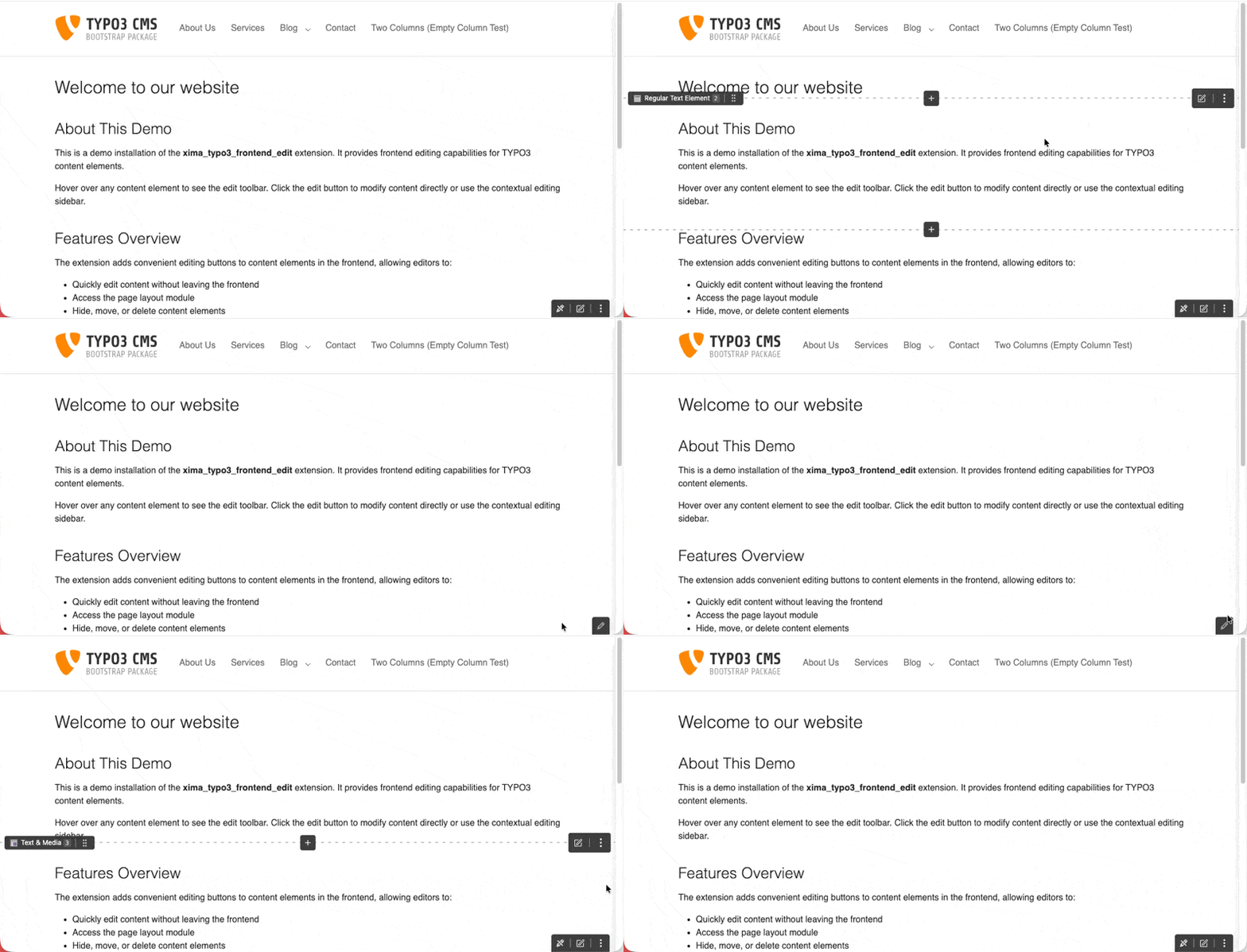
This TYPO3 extension adds lightweight editing tools to the frontend, allowing backend users to edit, hide, delete, reorder and create content elements and pages without leaving the site.

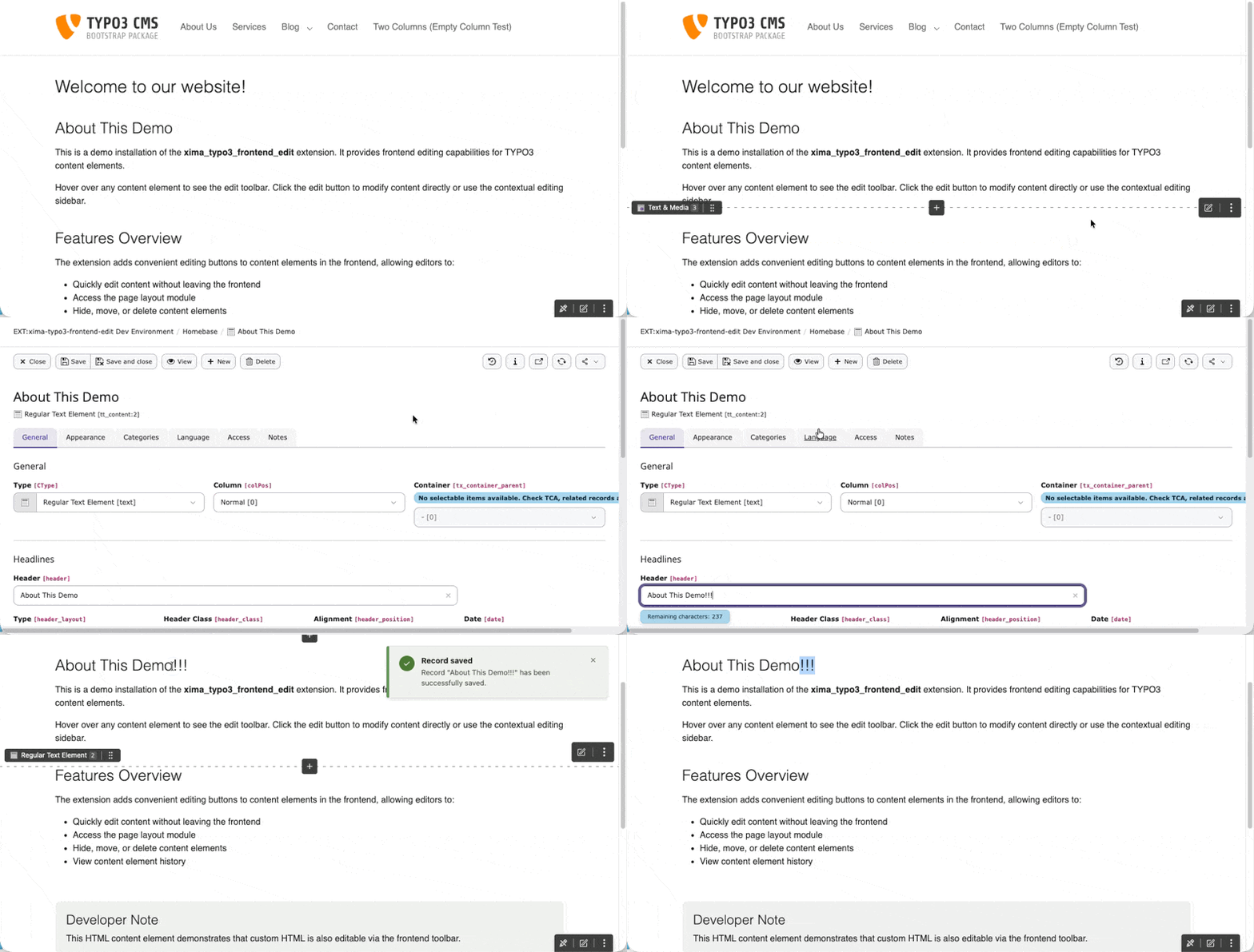
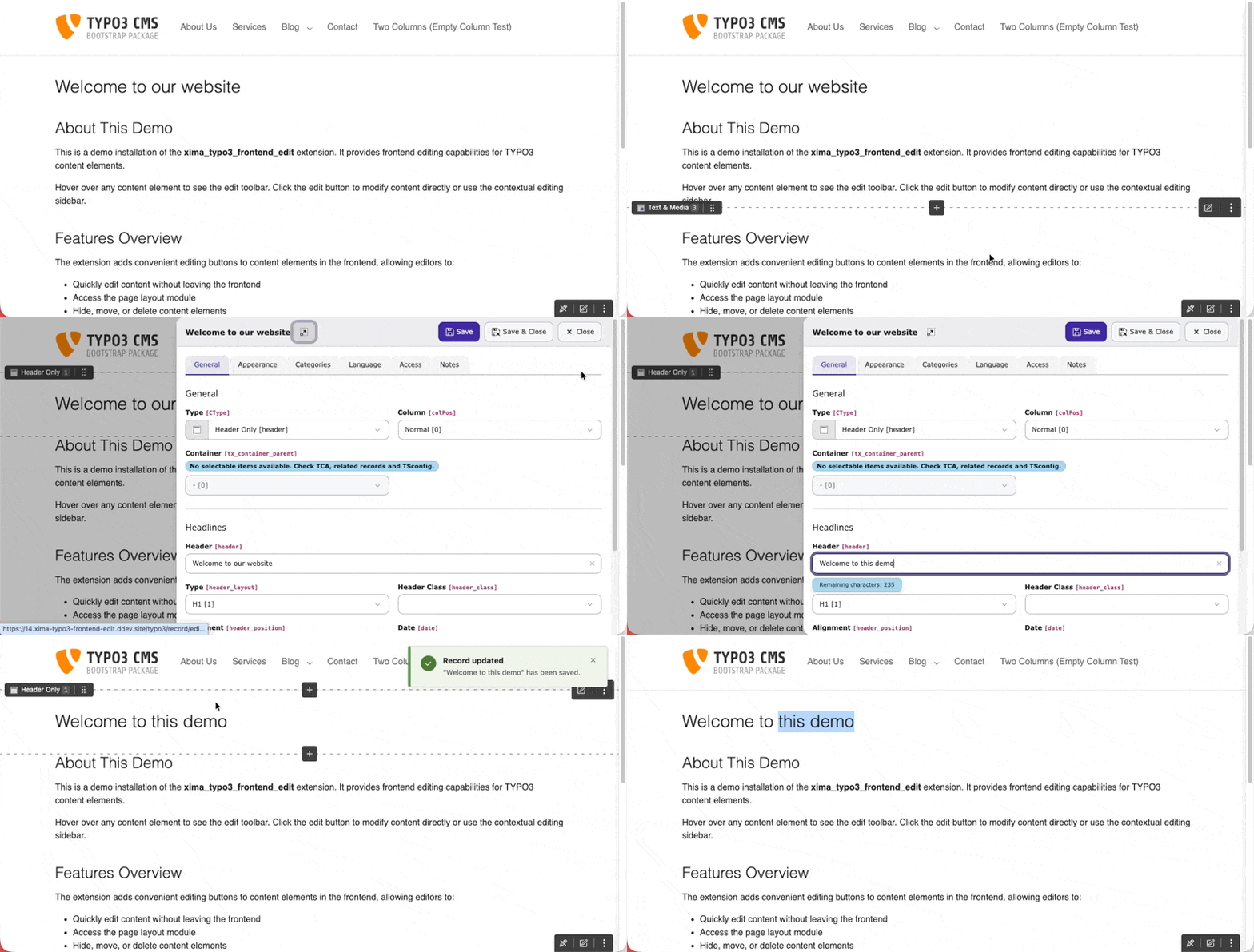
Frontend Edit in action

Editing actions appear directly on the content element

Get started 

Introduction 

What the extension does and a complete overview of its features.

Installation 

Install it, include the site set, verify the setup — plus the supported TYPO3 and PHP versions.

For editors 

Usage 

The Edit Menu, the Toolbar, inline editing and drag & drop reordering — everything that happens in the frontend.

FAQ 

Nothing showing up in the frontend? Start here.

For integrators 

Configuration 

Site settings, per-user restrictions and global extension configuration — and which layer to use for what.

Integration 

What your site package has to provide: content element IDs, optional column markers and custom styling.

For developers 

Developer corner 

How it works under the hood, PSR-14 events, ViewHelpers and language handling.

Reference 

Migration 

A guide to migrate from version 1.x to version 2.x.

Comparison 

How this extension compares to visual_editor, feedit, frontend_editing and content_preview.

Introduction 

What does it do? 

This extension adds editing tools to the frontend, allowing backend users to edit, hide, delete, reorder and create content elements and pages without leaving the site.

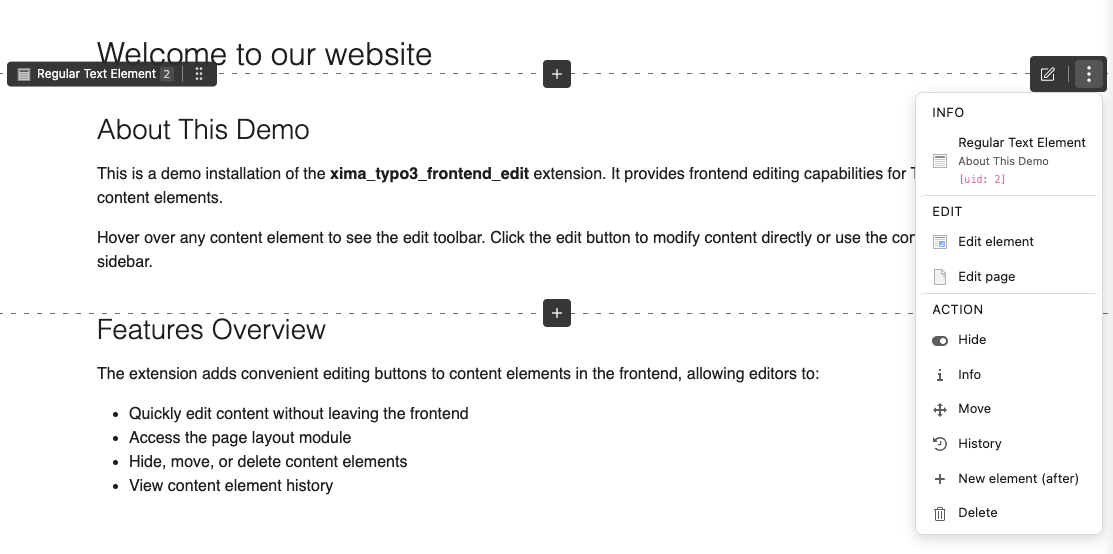
Frontend Edit Preview

Editing actions appear directly on the content element
TYPO3 editors normally switch to the backend to find and change the right content element. The extension closes that gap: a small JavaScript is injected into the frontend, asks the backend which elements the current user may edit, and renders the matching actions right where the content is displayed.

Features 

Editing content elements 

Feature What it does
Edit Menu Edit, hide, delete, move, info and history for every content element, with a confirmation dialog before deleting.
Inline Editing (experimental) Edit content elements and page properties in a panel next to the page, without navigating to the backend.
New content Insert buttons on hover and per column, opening TYPO3's native New Content Element Wizard.
Drag & Drop (experimental) Reorder elements within a column or move them into another column of the same page, including EXT:container columns.

Editing pages 

Feature What it does
Toolbar Page-level actions and a toggle to switch frontend editing on and off, at one of 12 configurable positions.
Save & Close An extra button in backend edit forms that returns straight to the frontend.
Flash messages Backend save confirmations are shown as toast notifications in the frontend.

Configuration and extensibility 

Feature What it does
Site Settings Per-site configuration via YAML or the site module, including filters for pages, doktypes, CTypes and UIDs.
UserTSconfig Disable frontend editing per backend user or user group.
PSR-14 Events Add, remove or modify menu entries and attach custom data to elements.
ViewHelpers Edit links for related records (e.g. news items) and column markers for new-content buttons.
Dark / Light mode Follows the system preference or is pinned to a fixed scheme.

Support 

There are several ways to get support for this extension:

Security policy 

Please read our security policy if you discover a security vulnerability in this extension.

License 

This extension is licensed under GNU General Public License 2.0 (or later).

Installation 

Requirements 

  • PHP 8.2 - 8.5
  • TYPO3 13.4 LTS - 14.x

Version matrix 

Version TYPO3 PHP
2.x 13.4 LTS - 14.x 8.2 - 8.5
1.x 11 - 13 8.1 - 8.5

Step 1: Install the extension 

composer require xima/xima-typo3-frontend-edit
Copied!

Download the extension from the TYPO3 extension repository and install it via Admin Tools > Extensions.

Step 2: Include the site set 

The extension ships a site set that registers its settings and TypoScript. Without it, nothing is injected into the frontend.

Add the set to your site configuration:

config/sites/my-site/config.yaml
dependencies:
  - xima/xima-typo3-frontend-edit
Copied!

Go to Site Management > Sites, edit your site and add Frontend Edit under Sets for this Site.

Step 3: Verify the setup 

  1. Log into the TYPO3 backend.
  2. Open a page of your site in the frontend in the same browser.
  3. The toolbar appears in the bottom-right corner, and hovering a content element reveals its edit button.

Next steps 

Start editing 

See what editors can do in the frontend: edit menu, toolbar, inline editing and drag & drop.

Adapt it 

Restrict frontend editing to certain pages, content types or user groups, and change its appearance.

Usage 

Once installed and configured, the extension provides the following editing interfaces in the frontend for logged-in backend users.

First steps 

New to frontend editing? A short tour of what appears in the frontend and how to use it.

Keyboard and screen readers 

Which keys operate the menus and dialogs — and where support is deliberately limited.

Edit Menu 

The Edit Menu appears on content elements and provides quick access to editing actions like edit, hide, delete, and move.

Toolbar 

The Toolbar provides page-level actions and a toggle to enable or disable frontend editing.

Inline Editing (experimental) 

Edit content elements and page properties in a panel next to the page, without navigating to the backend at all.

Drag & Drop Reordering (experimental) 

Reorder content elements within a column or move them to another column of the same page by dragging them in the frontend.

First steps 

A short tour for editors. It assumes an administrator has already installed the extension for your site.

1. Log in, then open your site 

Frontend editing only appears for logged-in backend users. Log into the TYPO3 backend, then open a page of your website in the same browser.

Two things appear:

What you see What it is
A small bar in the bottom-right corner The toolbar — actions for the whole page
A pencil button when you hover a content element The Edit Menu — actions for that element
Edit button and content-type label shown when hovering a content element

Hovering a content element reveals its edit button

2. Change a content element 

Hover the element you want to change and click its pencil button. The TYPO3 edit form opens — either in the backend, or, if your site has inline editing enabled, in a panel right next to the page.

Save with Save & Close and you land back on the same spot in the frontend, with a confirmation message.

Save and Close button in the TYPO3 edit form

Save & Close returns you to the same spot in the frontend

3. Change the page itself 

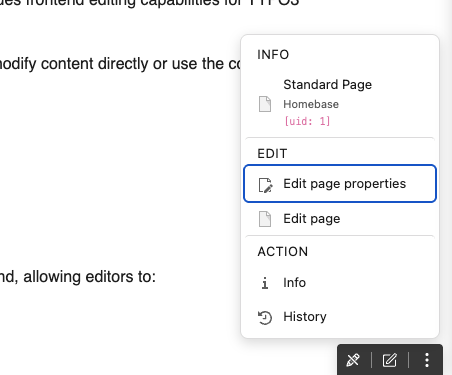
The toolbar covers everything that concerns the page rather than a single element — page properties, opening the page module, page info.

4. Switch it off when it gets in the way 

The eye icon in the toolbar turns frontend editing off. Your choice is stored for your user and survives a reload, so you can check the page exactly as a visitor sees it and switch back when you are done.

Screencast of disabling frontend editing via the toolbar toggle

Switching frontend editing off via the toolbar toggle

Edit Menu 

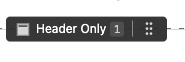
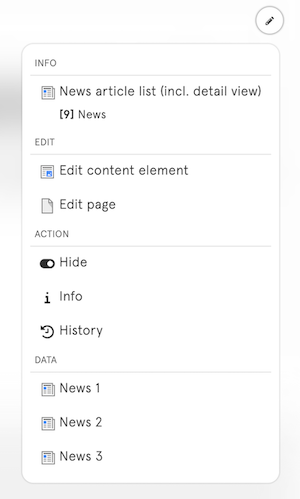
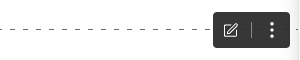
Each content element on the page displays an edit button when you hover over it. A small label also shows the content element's type and its position on the page.

Content Element Type Label
Edit Button

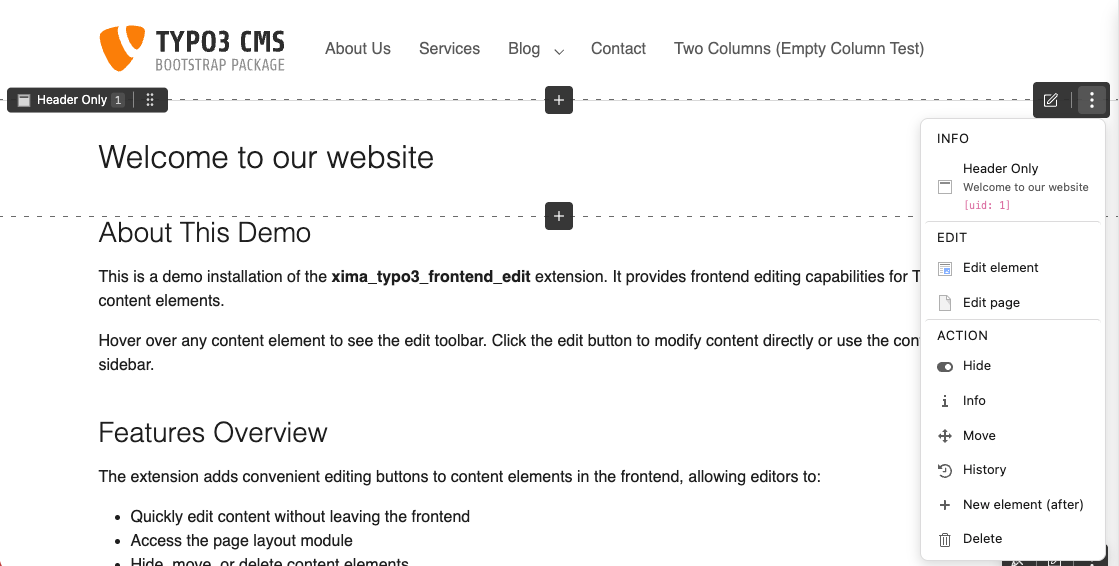
Clicking this button opens the Edit Menu with various actions:

  • Edit Content Element - Open the content element in the backend editor
  • Edit page - Open the current page properties
  • Hide/Unhide - Toggle visibility of the content element
  • Info - Display content element information
  • Move - Reorder the content element
  • History - View the content element's history
  • New content after - Add a new content element after this one
  • Delete - Delete the content element (with confirmation dialog)
Edit Menu

Delete Confirmation 

New in version 2.3.0

Clicking Delete opens a confirmation dialog before the record is removed. The dialog shows the record title and identifier (e.g. My Element [tt_content:42]) so editors can verify they are deleting the correct element.

  • Escape, the close button, or clicking the backdrop cancels the action
  • Focus returns to the previously focused element after closing
  • On success, a notification is shown and the page reloads automatically

Requirements 

The Edit Menu needs each content element to be identifiable in the rendered HTML. With fluid_styled_content this works out of the box; custom templates need one small addition.

Toolbar 

Toolbar Screencast

The Toolbar provides quick access to page-level actions. It appears at a configurable position on the screen (default: bottom-right).

Actions 

The Toolbar includes:

  • Toggle - (eye icon) Enable or disable frontend editing for the current session
  • Edit page properties - Open the current page properties
  • Edit page - Open the page module in the backend
  • Info - Display page information
  • Move - Reorder page
Toolbar Menu

Position 

You can configure the Toolbar position via Site Settings:

frontendEdit:
  toolbarPosition: 'bottom-right'
Copied!

Available positions:

  • top-left, top-center, top-right
  • bottom-left, bottom-center, bottom-right
  • left-top, left-center, left-bottom
  • right-top, right-center, right-bottom

Disabling Frontend Edit 

You can temporarily disable frontend editing by clicking the toggle button in the Toolbar. This setting is stored per user and persists across sessions.

Screencast of disabling frontend editing via the toolbar toggle

Disabling frontend editing via the toolbar toggle

To disable the Toolbar entirely, set showStickyToolbar: false in the Site Settings.

Inline Editing 

New in version 2.2.0

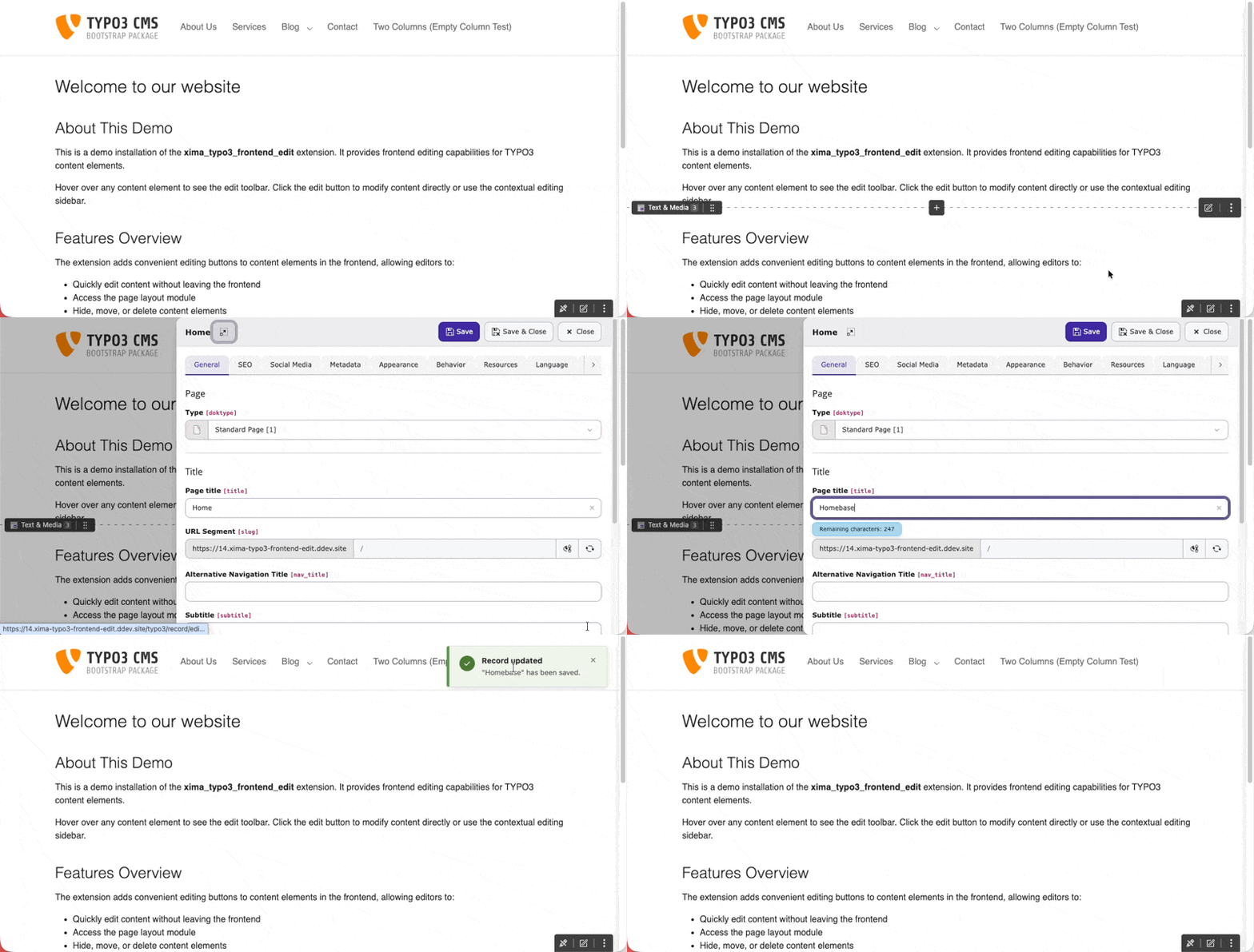
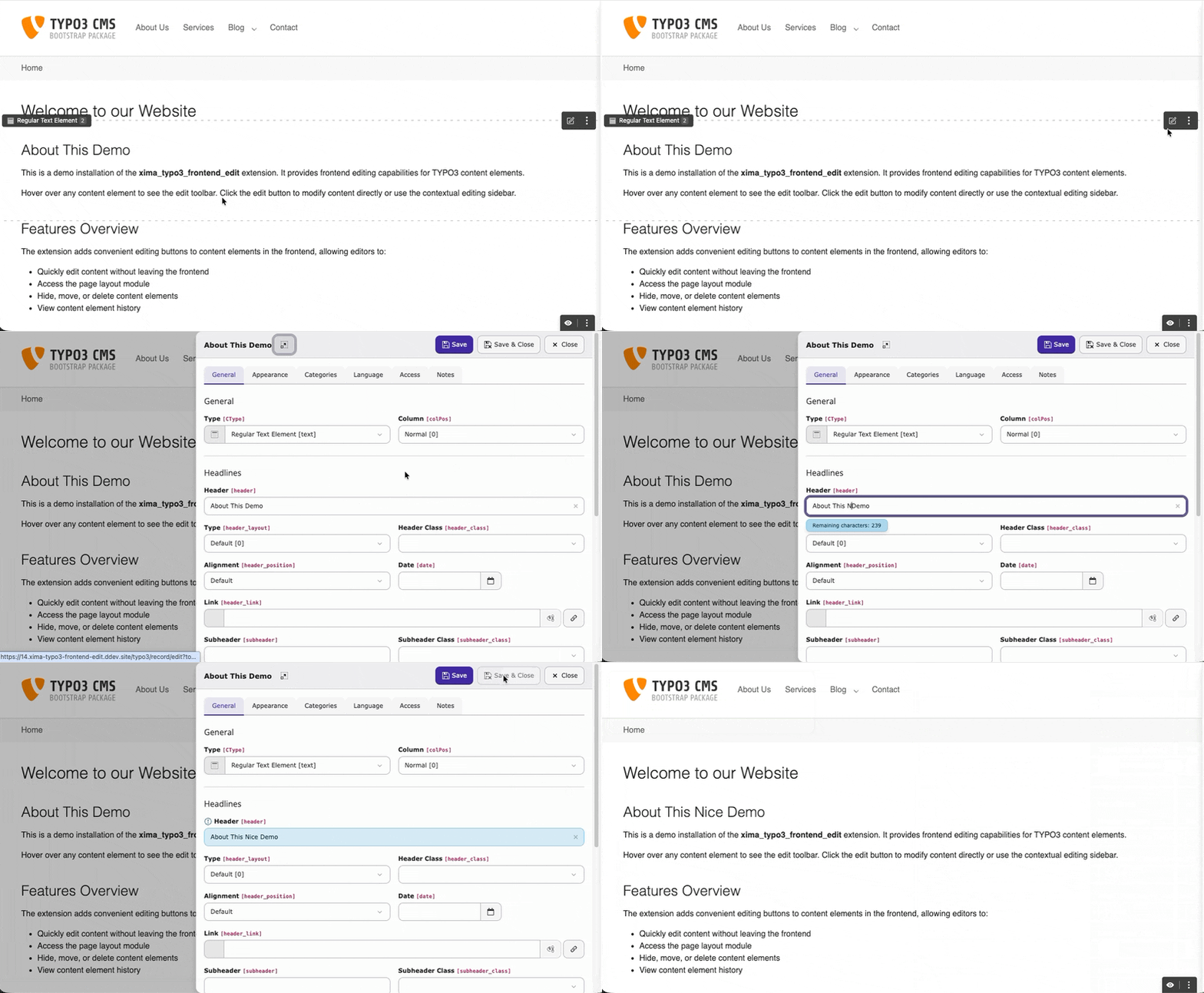
Inline editing lets editors change content elements and page properties without leaving the frontend. Clicking an edit button opens the TYPO3 FormEngine edit form in a panel next to the page — no detour through the backend.

Screencast of inline editing

Editing a content element without leaving the frontend

Setup 

Inline editing is off by default. Enable it in your site settings:

config/sites/my-site/settings.yaml
frontendEdit:
  enableContextualEditing: true
Copied!

Or via the TYPO3 backend: Site Management > Sites > Edit site > Settings > Frontend Edit > Appearance.

How the form is presented 

The extension picks the presentation automatically, based on whether the TYPO3 core route record_edit_contextual is available. There is nothing to configure beyond the setting above.

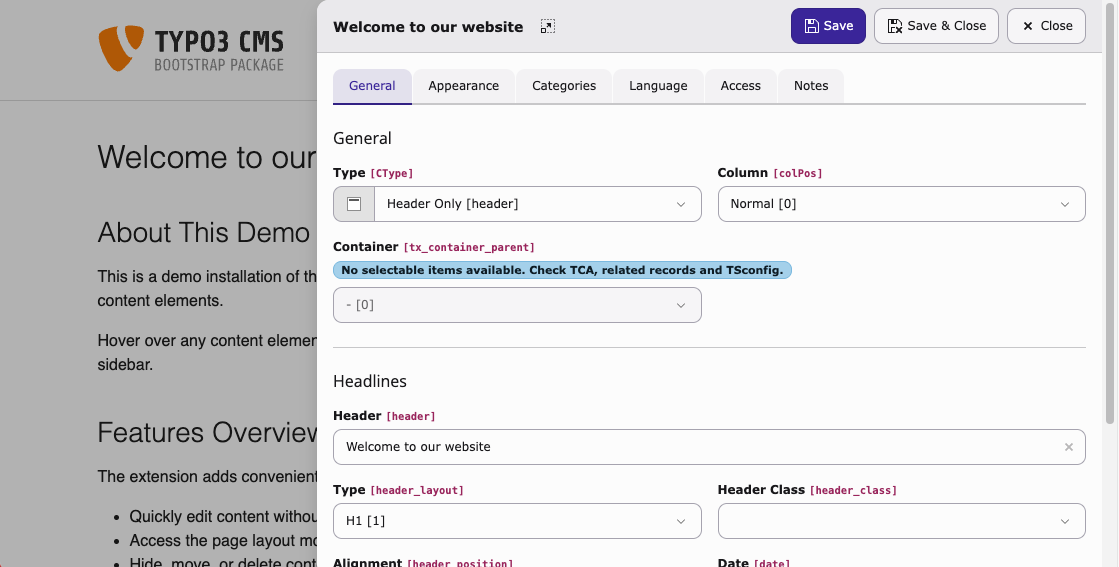
Edit links open a sidebar panel that slides in from the right, driven by the native record_edit_contextual route.

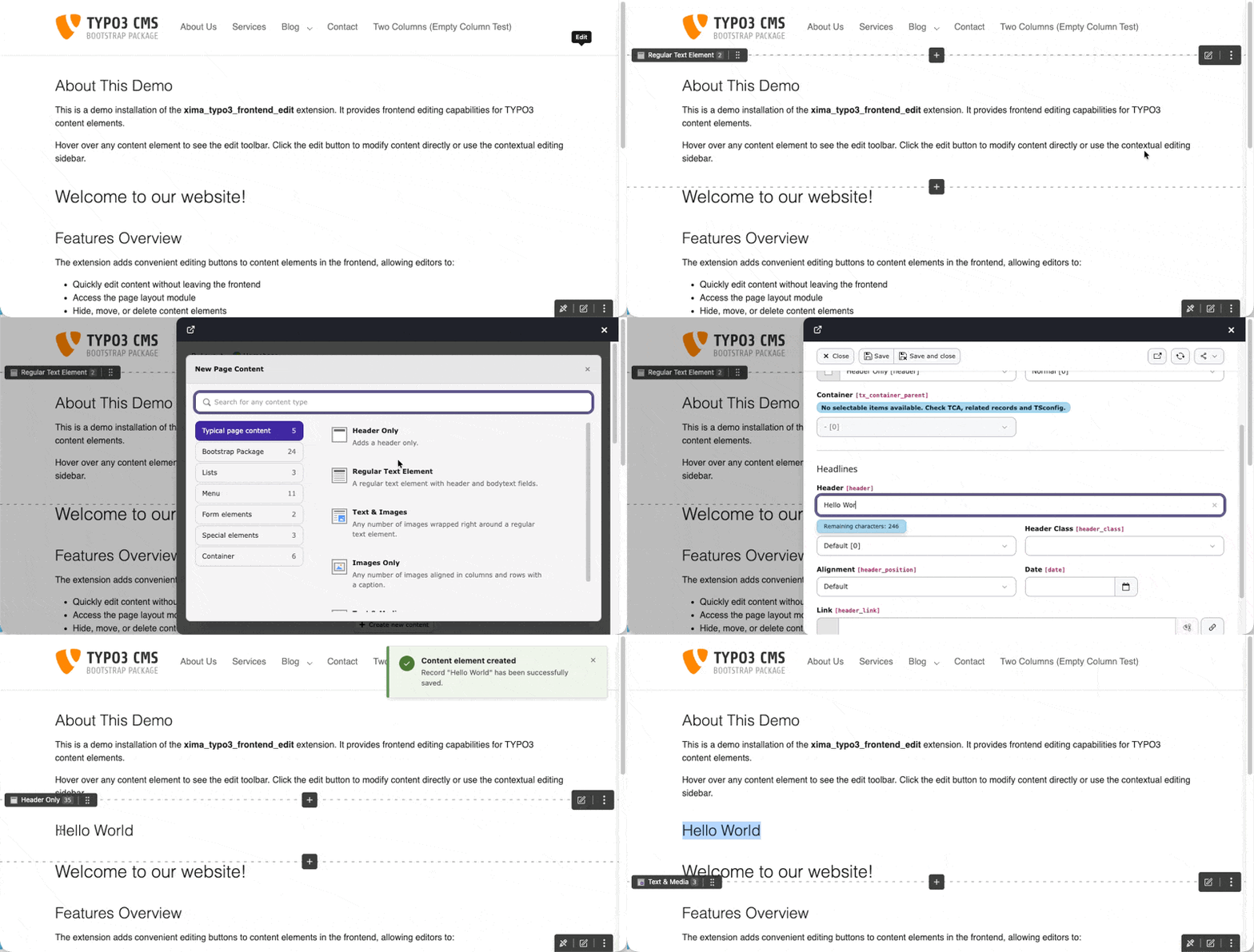
Creating new content still uses the slide-in modal, because the New Content Element Wizard is hosted in the page module.

Inline editing sidebar on TYPO3 v14.2+

The sidebar panel on TYPO3 v14.2+

Edit links open a slide-in modal that loads the standard backend edit form in an iframe. The route record_edit_contextual does not exist on these versions, so the modal takes over both editing and the New Content Element Wizard.

From an editor's perspective the workflow is the same: open, edit, save, close.

Screencast of creating new content via the New Content Element Wizard

Creating new content — insert buttons open TYPO3's native New Content wizard inside the slide-in modal

Usage 

With inline editing enabled:

  • Clicking an edit button opens the panel instead of navigating to the backend.
  • The page properties link in the toolbar opens in the panel as well.
  • Ctrl+Click (or Cmd+Click on macOS) bypasses the panel and opens the full backend editor directly.

Controls 

Save
Saves the record and keeps the panel open.
Save & Close
Saves and closes the panel. The page reloads to reflect the changes.
Close
Closes the panel. Unsaved changes trigger a confirmation prompt.
Expand
Opens the full backend editor. Respects the Target blank setting (same window or new tab).

Escape and clicking the backdrop also close the panel.

Limitations 

The FormEngine runs outside its intended context, so some advanced features are limited:

Area Behavior
IRRE / relation browsers May have limited functionality.
Context menus (three-dot menu) Not available inside the panel. The primary actions (edit, hide, delete) are available as direct buttons.
Console errors Errors from backend JavaScript modules are expected and harmless.

Fallback behavior 

Setting disabled

All edit links navigate to the backend, exactly as without this feature.

Classic editing without inline editing

Editing without inline editing enabled — the edit link navigates to the full backend

JavaScript disabled
Edit links fall back to their href attribute, which points to the standard backend URL.

Drag & Drop Reordering 

New in version 2.5.0

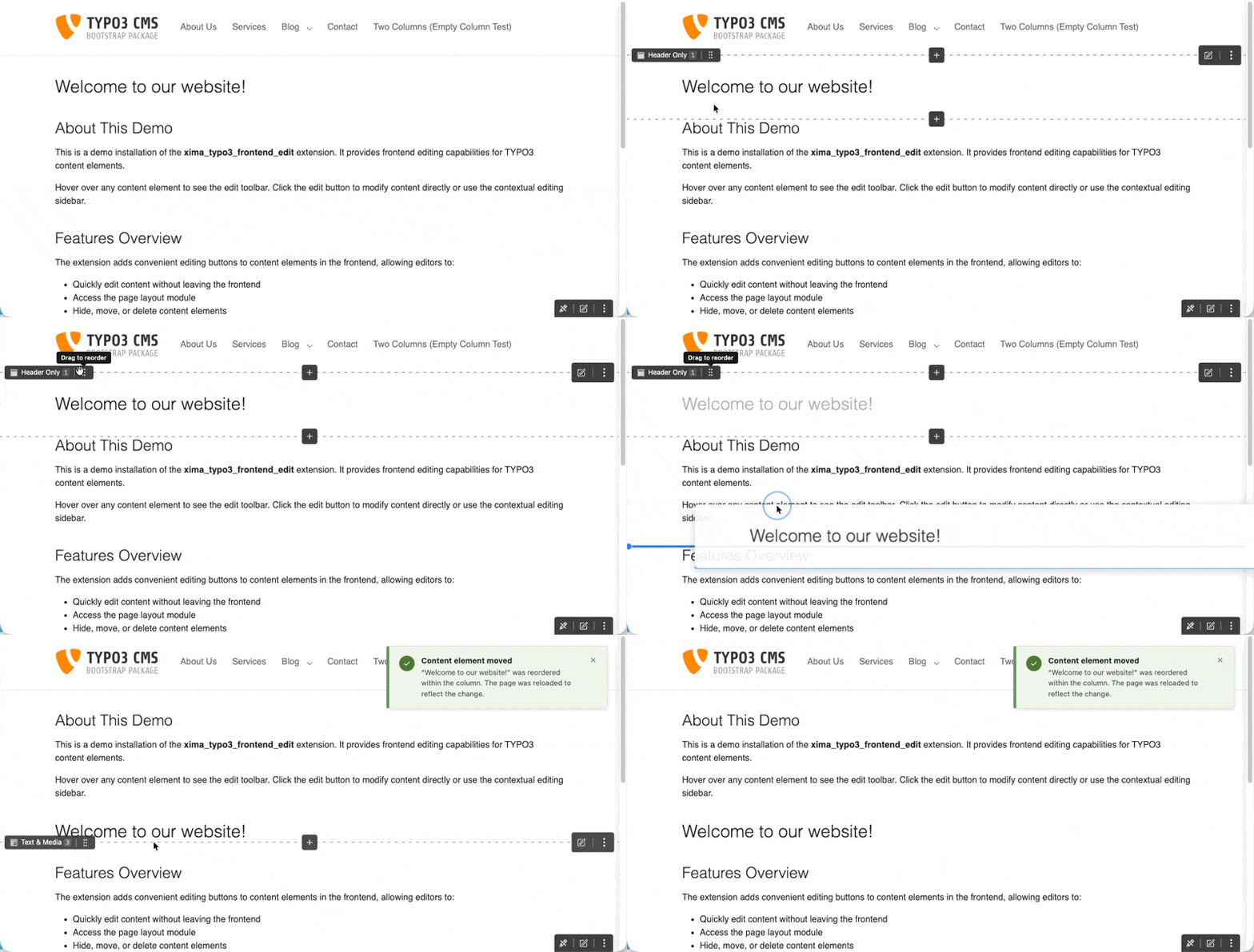
Drag & drop reordering lets editors change the order of content elements directly in the frontend. Dragging an element within its column changes its position; dragging it into another column of the same page moves it there. The move is persisted through TYPO3's core DataHandler — the same mechanism the backend page module uses — so hooks, the reference index and the history behave exactly as they do in the backend.

Screencast of reordering a content element via drag & drop

Reordering a content element via drag & drop

Setup 

Enable the feature in your site settings:

config/sites/my-site/settings.yaml
frontendEdit:
  enableDragAndDrop: true
Copied!

Or via the TYPO3 backend: Site Management > Sites > Edit site > Settings > Frontend Edit > Appearance.

Mark your columns 

Drag & drop needs to know which column a drop position belongs to. It reuses the same DOM markers as the column target buttons, so your Fluid template must mark every column with the ColumnTargetViewHelper :

EXT:my_sitepackage/Resources/Private/Templates/Page/Default.html
{namespace xfe=Xima\XimaTypo3FrontendEdit\ViewHelpers}

<div class="main-column">
    <xfe:columnTarget colPos="0" />
    <f:cObject typoscriptObjectPath="lib.dynamicContent" data="{colPos: 0}" />
</div>
Copied!

Without these markers the drag handle does not appear, because no drop target can be resolved.

Usage 

With drag & drop enabled, each content element toolbar gains a drag handle next to the edit and context menu buttons. Pick the element up by its handle and drop it at the desired position — an indicator shows where it will land.

After a successful move the page reloads and a notification confirms whether the element was reordered within its column or moved to another column.

Permissions 

A move is only carried out when the backend user is allowed to edit the record. The same permission check the backend applies is enforced server-side, so restricted editors cannot reorder content they may not edit.

The target page is always derived from the moved record itself. A manipulated request therefore cannot move an element to a different page — cross-page moves remain a backend operation.

Container columns 

Columns of an EXT:container element are drop targets as well, as long as the template marks them with the container's uid:

{namespace xfe=Xima\XimaTypo3FrontendEdit\ViewHelpers}

<xfe:columnTarget colPos="201" containerUid="{data.uid}" />
Copied!

Content can be reordered inside a container column, moved between the columns of a container, moved out into a page column and moved from a page column into a container.

A container element itself can be reordered within page columns, but cannot be dropped into another container — nesting stays a backend operation.

Limitations 

The following cases are out of scope and keep the classic move button in the edit menu as a fallback:

Translated elements
Only default-language elements can be reordered. Translations follow the ordering of their parent record, so reordering a translation would have no meaningful effect.
Nesting containers
A container element cannot be dropped into another container. Use the move button in the edit menu for that.
Keyboard operation
Dragging relies on the browser's native drag & drop, which is pointer-only. The drag handle is therefore deliberately kept out of the tab order and hidden from assistive technology, so it does not present a focusable control that cannot be used. Use the move button in the edit menu instead, which opens the backend move dialog and is fully keyboard-accessible.

Fallback Behavior 

  • Setting disabled: No drag handles are rendered and nothing changes for editors.
  • Columns not marked: No drag handles are rendered, because drop targets cannot be resolved.
  • JavaScript disabled: The frontend edit tooling does not load at all; reordering happens in the backend as usual.

Keyboard and screen reader use 

The editing UI is operable without a mouse. This page lists the keys that are implemented and names the places where support is deliberately limited.

Content element toolbar 

The buttons attached to a content element form a single tab stop. Once focused, you move between the buttons with the arrow keys — the same pattern the TYPO3 backend uses.

Key Action
Tab Move to the element toolbar; the first button receives focus
/ Move between the buttons of that toolbar, wrapping at both ends
Enter Activate the focused button

Edit Menu 

The three-dot button opens the menu. Inside it:

Key Action
/ Move to the next / previous entry, wrapping at both ends
Home / End Jump to the first / last entry
Enter Activate the focused entry
Esc Close the menu and return focus to the three-dot button

Dialogs and the inline editing panel 

The delete confirmation dialog and the inline editing panel behave as modal dialogs:

  • Esc closes them.
  • Tab cycles within the dialog and does not escape to the page behind it.
  • Closing returns focus to the element that opened the dialog.

The delete dialog names the record it is about to remove — including its identifier, e.g. My Element [tt_content:42] — so the target is unambiguous when the dialog is announced.

Known limitations 

Drag & drop reordering
Native browser drag & drop is pointer-only. The drag handle is therefore kept out of the tab order and hidden from assistive technology on purpose, so it does not offer a focusable control that cannot be operated. Use the move entry in the Edit Menu instead — it opens the backend move dialog, which is fully keyboard-accessible. See Drag & Drop Reordering.
FormEngine inside the panel
Inside the inline editing panel the TYPO3 edit form runs outside its usual context. Context menus are not available; the Expand button opens the record in the regular backend when you need the full form.

Respecting user preferences 

Preference Behavior
Colour scheme Follows the operating system by default and can be pinned to light or dark via frontendEdit.colorScheme.
Hover outline The outline drawn around the hovered element can be switched off entirely via frontendEdit.enableOutline.

Configuration 

After the site set is included, the extension works without further configuration — everything below is optional.

There are three configuration layers, each answering a different question:

Layer Scope Use it for
Site Settings Per site Almost everything: switching the feature on or off, appearance, toolbar position, and filters for pages, doktypes, CTypes and UIDs.
UserTSconfig Per backend user or group Withholding frontend editing from certain editors entirely.
Extension configuration Global, per installation How edit links behave: return URL handling, target blank, redirect into the full backend, and debug logging.

Site Settings 

All configuration options are managed via TYPO3 Site Settings. This provides site-specific configuration and better caching behavior.

Configuration is done in your site's config/sites/<site-identifier>/settings.yaml file or via the TYPO3 backend in Site Management > Sites > Edit site > Settings.

Available Settings 

Enable/Disable 

frontendEdit.enabled

frontendEdit.enabled
type

bool

Default

true

Enable or disable the frontend editing functionality for this site.

frontendEdit:
  enabled: true
Copied!

Appearance Settings 

frontendEdit.colorScheme

frontendEdit.colorScheme
type

string

Default

'auto'

Choose the color scheme for the frontend editing UI. Options: auto (follows system preference), light, dark.

frontendEdit:
  colorScheme: 'auto'
Copied!

frontendEdit.showContextMenu

frontendEdit.showContextMenu
type

bool

Default

true

Show the Edit Menu with additional actions (edit page, hide, move, history). Disable to show only the edit button.

frontendEdit:
  showContextMenu: true
Copied!

frontendEdit.showInsertButtons

frontendEdit.showInsertButtons
type

bool

Default

true

New in version 2.3.0

Show the + buttons above and below each content element on hover to insert a new element before or after it via the New Content Element Wizard. This setting also controls the New content after entry in the Edit Menu. Disable to hide both.

frontendEdit:
  showInsertButtons: true
Copied!

frontendEdit.showStickyToolbar

frontendEdit.showStickyToolbar
type

bool

Default

true

Show the Toolbar with page editing options and toggle functionality.

frontendEdit:
  showStickyToolbar: true
Copied!

frontendEdit.toolbarPosition

frontendEdit.toolbarPosition
type

string

Default

'bottom-right'

Choose the position for the Toolbar.

Available options:

  • top-left, top-center, top-right
  • bottom-left, bottom-center, bottom-right
  • left-top, left-center, left-bottom
  • right-top, right-center, right-bottom
frontendEdit:
  toolbarPosition: 'bottom-right'
Copied!

frontendEdit.enableOutline

frontendEdit.enableOutline
type

bool

Default

true

Show an outline around content elements when hovering over them.

frontendEdit:
  enableOutline: true
Copied!

frontendEdit.enableScrollToElement

frontendEdit.enableScrollToElement
type

bool

Default

true

Automatically scroll to the edited content element after saving and returning to the frontend.

frontendEdit:
  enableScrollToElement: true
Copied!

frontendEdit.enableContextualEditing

frontendEdit.enableContextualEditing
type

bool

Default

false

New in version 2.2.0

Enables Inline Editing: content element and page property edit forms open in a panel next to the page instead of navigating to the backend.

The setting is required on all supported TYPO3 versions — it also gates the New Content Element Wizard used by Column Targets. Only the presentation differs and is chosen automatically: a sidebar panel on TYPO3 v14.2+ (native record_edit_contextual route), a slide-in modal on TYPO3 v13 and v14.0/v14.1.

See Inline Editing for details on how to use this feature.

frontendEdit:
  enableContextualEditing: true
Copied!

frontendEdit.enableDragAndDrop

frontendEdit.enableDragAndDrop
type

bool

Default

false

New in version 2.5.0

Allows editors to reorder content elements by dragging them within a column or into another column of the same page. The move is persisted through the core DataHandler.

Requires your Fluid template to mark each column with the ColumnTargetViewHelper ; without those markers no drag handle is rendered. Columns of EXT:container elements are supported when the template passes containerUid. Translated elements and nesting a container inside another container keep the backend move dialog.

See Drag & Drop Reordering for details on how to use this feature.

frontendEdit:
  enableDragAndDrop: true
Copied!

frontendEdit.enableFlashMessages

frontendEdit.enableFlashMessages
type

bool

Default

true

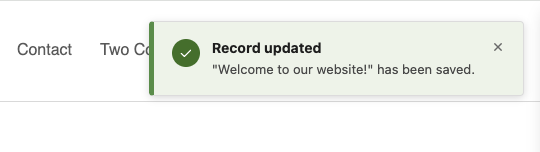
Show TYPO3 flash messages (e.g., save confirmations) as toast notifications in the frontend after returning from the backend. When you use "Save & Close" in the backend, success or error messages will be displayed as notifications in the frontend.

Flash message notification in frontend

Flash message notification after saving a content element

frontendEdit:
  enableFlashMessages: true
Copied!

Filter Settings 

frontendEdit.filter.ignorePids

frontendEdit.filter.ignorePids
type

string

Default

''

Comma-separated list of page IDs (and their subpages) where frontend editing should be disabled.

frontendEdit:
  filter:
    ignorePids: '1,2,3'
Copied!

frontendEdit.filter.ignoreDoktypes

frontendEdit.filter.ignoreDoktypes
type

string

Default

''

Comma-separated list of page types (doktype) where frontend editing should be disabled. Common doktypes: 1 (Standard), 3 (External URL), 4 (Shortcut), 6 (Backend User Section), 7 (Mount Point), 199 (Menu Separator), 254 (Folder), 255 (Recycler).

frontendEdit:
  filter:
    ignoreDoktypes: '4,199,254'
Copied!

frontendEdit.filter.ignoreCTypes

frontendEdit.filter.ignoreCTypes
type

string

Default

''

Comma-separated list of content types (CType) to exclude from frontend editing.

frontendEdit:
  filter:
    ignoreCTypes: 'html,div'
Copied!

frontendEdit.filter.ignoreListTypes

frontendEdit.filter.ignoreListTypes
type

string

Default

''

Comma-separated list of plugin types (list_type) to exclude from frontend editing.

frontendEdit:
  filter:
    ignoreListTypes: 'news_pi1'
Copied!

frontendEdit.filter.ignoreUids

frontendEdit.filter.ignoreUids
type

string

Default

''

Comma-separated list of specific content element UIDs to exclude from frontend editing.

frontendEdit:
  filter:
    ignoreUids: '100,200,300'
Copied!

Example Configuration 

Full example with all available options:

config/sites/my-site/settings.yaml
frontendEdit:
  enabled: true
  colorScheme: 'auto'
  showContextMenu: true
  showInsertButtons: true
  showStickyToolbar: true
  toolbarPosition: 'bottom-right'
  enableOutline: true
  enableScrollToElement: true
  enableFlashMessages: true
  enableContextualEditing: false
  enableDragAndDrop: false
  filter:
    ignorePids: '1,2,3'
    ignoreDoktypes: '4,199,254'
    ignoreCTypes: 'html,div'
    ignoreListTypes: ''
    ignoreUids: ''
Copied!

UserTSconfig 

New in version 2.1.0

You can disable the frontend editing feature for specific backend users or backend user groups via UserTSconfig.

When disabled via UserTSconfig, the entire frontend editing feature is hidden — including the sticky toolbar. The user cannot re-enable it via the toggle button.

This is useful for restricting frontend editing to certain editor groups while keeping other backend users unaffected.

Disable frontend editing 

tx_ximatypo3frontendedit.disabled

tx_ximatypo3frontendedit.disabled
type

bool

Default

false

Set to 1 to disable frontend editing for the affected backend users.

tx_ximatypo3frontendedit.disabled = 1
Copied!

By default, frontend editing is enabled for all backend users.

Examples 

Disable for a specific backend user group 

In the TSconfig field of a backend user group record:

tx_ximatypo3frontendedit.disabled = 1
Copied!

All users in this group will no longer see the frontend editing UI.

Disable for a specific backend user 

In the TSconfig field of a backend user record:

tx_ximatypo3frontendedit.disabled = 1
Copied!

Disable globally via Page TSconfig 

You can also set this in Page TSconfig (e.g. via Configuration/page.tsconfig), which will then apply to all backend users on the affected pages. However, UserTSconfig is recommended as it targets users directly regardless of which page they visit.

Extension configuration 

  1. Go to Admin Tools > Settings > Extension Configuration
  2. Choose xima_typo3_frontend_edit

The extension currently provides the following configuration options:

Features 

Save and Close

Save and Close
Type
boolean
Default
1

Enable this option to render a save and close button in the header of edit forms.

Frontend Edit Save and Close Button

Return URL generation

Return URL generation
Type
boolean
Default
0

Enable this option to ignore the referer header for the return url and force the url generation

Target blank

Target blank
Type
boolean
Default
0

Enable the target blank option for all Edit Menu links to open in a new tab

Redirect

Redirect
Type
boolean
Default
0

Use the redirect option to redirect the edit links, so the full TYPO3 backend is loaded instead of only the edit form

Debug 

Frontend Debug Mode

Frontend Debug Mode
Type
boolean
Default
0

Enable debug logging in browser console for detailed information about content element parsing and assignment.

Setup requirements & limits 

A single reference for operational topics that affect whether - and how reliably - frontend editing works in a given setup. Several FAQ entries link here instead of repeating this content.

Multi-domain setups 

Frontend editing needs an active TYPO3 backend session in the browser that is viewing the frontend. Whether that session is available depends on domain/cookie configuration:

Session cookie reach (``cookieDomain``)

The backend session cookie is only sent to the domain(s) it was issued for. If the frontend and backend live on different (sub)domains, set cookieDomain so the cookie is shared across them.

SameSite

A restrictive cookieSameSite setting can also prevent the backend session cookie from being sent on the frontend request, with the same symptom as a cookie domain mismatch: the Edit Menu never appears, with no error visible in the frontend.

Cross-domain backend login

If sharing a cookie domain is not an option (fully separate domains, not subdomains of one another), use the multisite_belogin extension, which provides backend login support across multiple domains without a shared cookie domain.

``returnUrl`` behavior

The returnUrl passed to backend edit routes is validated against the current request's host and the site's configured base hosts (including language bases); a foreign host is rejected rather than followed. In a cross-domain setup (frontend and backend on different domains), this can mean a returnUrl that legitimately points at the frontend domain gets treated as foreign to the backend request. If a strict referer header is also masking the real frontend host - see the FAQ entry on this - enable forceReturnUrlGeneration to generate the return URL from pid/language instead of trusting the request's own host.

External caches (Varnish, CDN) 

After a hide or delete action, the extension clears TYPO3's own page cache for the affected page - that part happens automatically. It has no way to purge an external cache layer (Varnish, a CDN) sitting in front of TYPO3, since that requires cache-tag/ban integration specific to that layer. If such a cache is in front of your site, the redirect after hide/delete may briefly show a stale version of the page until that external cache's own TTL or invalidation logic catches up.

Anchor pattern requirement (and the headless/SPA non-goal) 

Matching a content element in the frontend HTML to its backend record requires either the id="c{uid}" anchor pattern or the data-frontend-edit="{table}:{uid}" attribute to be present in the rendered markup - see How it works for both patterns and how to add them to a custom template.

Headless/SPA frontends are an explicit non-goal: the script that performs this matching is injected server-side into TYPO3's own rendered HTML (via a PSR-15 middleware). It never runs for a frontend that TYPO3 itself does not render HTML for - there is no client-side integration path for a JSON-API/decoupled frontend.

Integration 

What your site package has to provide — and what it can optionally provide to unlock more frontend editing features.

Template requirements 

The one thing your templates must do: expose a content element ID. Free with fluid_styled_content.

Column Targets 

Mark your columns to get "Create new content" buttons — and to enable drag & drop reordering.

Custom Styling 

Load your own CSS or JavaScript alongside the frontend edit resources.

Template requirements 

The extension has exactly one requirement of your templates: every content element must be identifiable in the rendered HTML.

The content element ID 

Each content element needs a "c-id" — its UID prefixed with c — on the element that wraps it:

Rendered HTML of a content element
<div id="c10" class="frame frame-default frame-type-textpic">
    ...
</div>
Copied!

This is how the injected JavaScript maps a DOM node to a database record. No c-id means no edit button for that element.

Nothing to do. fluid_styled_content renders the c-id out of the box, so the extension works immediately after Installation.

Add the UID to the wrapping element yourself:

EXT:my_sitepackage/Resources/Private/Templates/Content/Default.html
<div id="c{data.uid}">
    ...
</div>
Copied!

container templates do not render the c-id by default:

Container template
<div id="c{data.uid}">
   <f:for each="{children_200}" as="record">
       <f:format.raw>{record.renderedContent}</f:format.raw>
   </f:for>
</div>
Copied!

DCE elements need the c-id added to the DCE template:

DCE template
<div class="dce" id="c{contentObject.uid}">
    Your template goes here...
</div>
Copied!

Alternative: the data-frontend-edit attribute 

For templates that cannot carry the c-id anchor - dynamic content element extensions (DCE), other custom Fluid templates - a second matching channel exists: a data-frontend-edit="tt_content:{uid}" attribute on the content element's own wrapping HTML element.

Example HTML output using the data attribute instead
<div data-frontend-edit="tt_content:10" class="my-custom-wrapper">
    ...
</div>
Copied!

The bundled <xfe:editable> ViewHelper renders this attribute for you:

Custom Fluid Template
{namespace xfe=Xima\XimaTypo3FrontendEdit\ViewHelpers}

<div class="my-custom-wrapper"<xfe:editable record="{data}" />>
    ...
</div>
Copied!

Both patterns can be mixed freely on the same page; an element only needs one of them. Unlike the c-id anchor pattern, a data-frontend-edit element is always treated as the content element itself - no sibling resolution is attempted.

Editing foreign records (news, addresses, ...) 

The data-frontend-edit attribute also works for records from any other table - not just tt_content - by adding a table prefix: data-frontend-edit="{table}:{uid}". This covers the classic case of editing foreign records displayed on a detail page, e.g. a news detail page rendered by EXT:news:

News detail template (Detail.html)
{namespace xfe=Xima\XimaTypo3FrontendEdit\ViewHelpers}

<div class="news-detail"<xfe:editable record="{newsItem}" table="tx_news_domain_model_news" />>
    <h1>{newsItem.title}</h1>
    ...
</div>
Copied!

This is deliberately thin: the menu offers exactly edit, info and history - no hide, delete or move, since those are meaningful only for tables this extension understands specifically (tt_content, pages). Permissions are checked the same way as everywhere else in the extension (the backend user's actual edit rights on that record); a table the current user cannot edit - or that TYPO3 does not know at all - never gets a menu. Translated records resolve to the current frontend language automatically, the same way tt_content does.

Extend the menu the same way as for content elements, via the FrontendEditDropdownModifyEvent - the record row carries a _table key so a listener can tell it apart from a tt_content row.

Optional markers 

Two features need additional markers in your templates. Both are opt-in — omit them and the corresponding feature simply does not appear.

Marker Needed for
ColumnTargetViewHelper "Create new content" buttons per column, and Drag & Drop Reordering (drop targets cannot be resolved without it)
Data ViewHelper Edit links for related records inside a plugin, e.g. single news items in a list

What cannot be edited 

Only content elements belonging to the current page receive a menu. Inherited content — a shared footer pulled in from another page, for example — cannot be edited from the inheriting page. Use the toolbar to jump to the page that owns the record.

Column Targets 

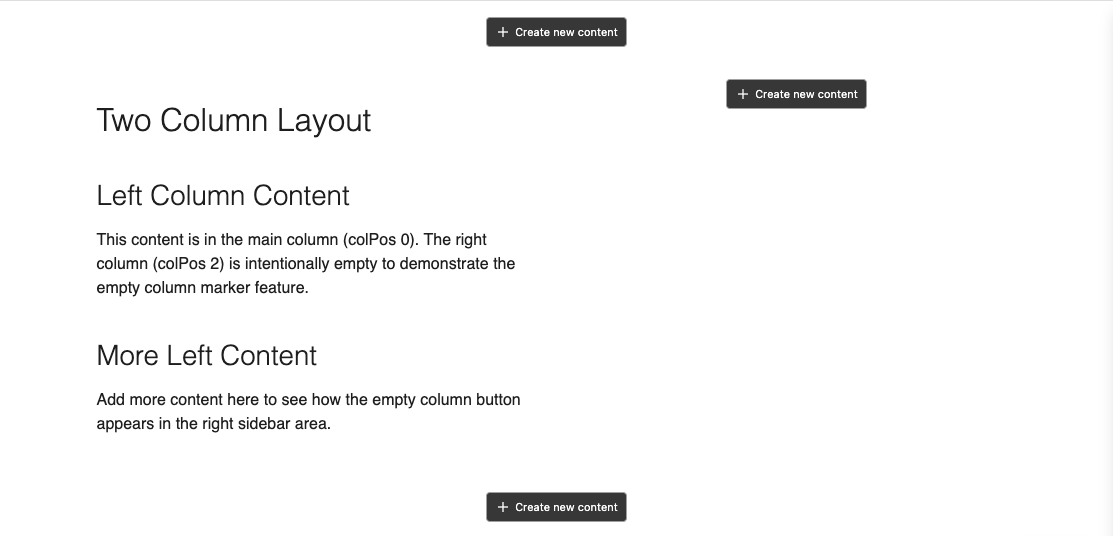
The extension can display "Create new content" buttons for columns directly in the frontend — both for empty columns and at the end of columns that already contain content. This allows editors to add content without switching to the TYPO3 backend.

Empty column marker showing a "Create new content" button in the frontend

A "Create new content" button appears in empty columns and at the end of filled columns when frontend editing is enabled

It works in two steps:

  1. The integrator places a lightweight marker in their Fluid templates
  2. The extension detects empty columns via AJAX and injects the buttons client-side

ColumnTargetViewHelper 

The ColumnTargetViewHelper renders a hidden <div> element as a DOM marker. No content, no styling, no logic — just a marker that the JavaScript picks up after the page loads.

Register the namespace in your Fluid template:

{namespace xfe=Xima\XimaTypo3FrontendEdit\ViewHelpers}
Copied!

Or use the XML namespace syntax:

<html xmlns:xfe="http://typo3.org/ns/Xima/XimaTypo3FrontendEdit/ViewHelpers"
      data-namespace-typo3-fluid="true">
Copied!

Arguments 

Name Type Required Description
colPos int yes The column position from the backend layout
containerUid int no The UID of the parent container element (for b13/container columns)

Page columns 

Place the marker after the content rendering for each column:

Page template (e.g. Default.html)
{namespace xfe=Xima\XimaTypo3FrontendEdit\ViewHelpers}

<f:cObject typoscriptObjectPath="lib.dynamicContent" data="{pageUid: '{data.uid}', colPos: '0'}" />
<xfe:columnTarget colPos="0" />

<f:cObject typoscriptObjectPath="lib.dynamicContent" data="{pageUid: '{data.uid}', colPos: '1'}" />
<xfe:columnTarget colPos="1" />
Copied!

A "+" button always appears at the marker position — whether the column is empty or already contains content. Clicking it opens TYPO3's native New Content Element Wizard to choose a content type, then creates the new element in that column.

On both TYPO3 v13 and v14 the wizard opens in the slide-in modal: the page module is loaded inside the modal and the matching wizard button is auto-clicked, so the editor sees TYPO3's real wizard. On v14.2+ the inline editing sidebar continues to handle editing of existing elements; creating new content uses the modal.

Container columns 

For container elements (e.g. two-column layouts, tabs, accordions using b13/container), add the containerUid argument:

Container template (e.g. TwoColumn.html)
{namespace xfe=Xima\XimaTypo3FrontendEdit\ViewHelpers}

<div class="column-left">
    <f:for each="{children_201}" as="record">
        <f:format.raw>{record.renderedContent}</f:format.raw>
    </f:for>
    <xfe:columnTarget colPos="201" containerUid="{data.uid}" />
</div>

<div class="column-right">
    <f:for each="{children_202}" as="record">
        <f:format.raw>{record.renderedContent}</f:format.raw>
    </f:for>
    <xfe:columnTarget colPos="202" containerUid="{data.uid}" />
</div>
Copied!

How it works 

  1. The ViewHelper renders <div data-xfe-colpos="0" hidden></div> (invisible, no layout impact)
  2. The extension's JavaScript scans the page for these markers after loading
  3. A "+" button is injected at each marker position, regardless of whether the column already contains content
  4. Clicking the button opens the page module inside the iframe modal and auto-clicks the matching wizard button, so TYPO3's native New Content Element Wizard appears with the correct colPos pre-filled
  5. The wizard lets the editor choose a content type before the record editor opens — inside the iframe modal on both v13 and v14

Container support requires the b13/container extension. The service automatically detects whether it is installed. Without it, only page columns are supported and container markers are silently ignored.

Custom Styling 

The Edit Menu was styled to not disturb the frontend layout. You can easily adjust the styling by providing an additional css or js file within your ext_localconf.php which will be loaded together with the frontend edit resources:

ext_localconf.php
$GLOBALS['TYPO3_CONF_VARS']['EXTENSIONS']['xima_typo3_frontend_edit']['registerAdditionalFrontendResources'][] = 'EXT:custom_extension/Resources/Public/Css/Custom.css';
Copied!

Developer corner 

How the extension works internally, and the APIs it offers to extend it.

How it works 

Request flow, why permissions are decided server-side, and what the client needs from your templates.

PSR-14 Events 

Add, remove or modify entries in the Edit Menu and the Toolbar.

Data ViewHelper 

Add edit links for related records — e.g. every news item inside a list plugin.

Language handling 

Which language modes are supported and how the extension resolves the record to edit.

For UI that needs to run in the browser, see the JavaScript API.

How it works 

Frontend Edit deliberately keeps the client dumb: the server decides what may be edited, the browser only renders it.

Frontend Edit Screencast

Request flow 

  1. A PSR-15 middleware injects the CSS and JavaScript before </body> — but only if a backend user is logged in. For regular visitors the response is untouched.
  2. On page load the script collects the content element IDs from the DOM and calls the AJAX endpoint /typo3/ajax/xima-frontend-edit/edit-information.
  3. The server filters that list — backend user permissions, the site settings filters (pages, doktypes, CTypes, UIDs) and translation resolution (see Languages) — and returns only the elements the current user may actually edit, together with the menu for each of them.
  4. The script assigns each menu to its DOM element and renders the edit button, the context menu and, where enabled, insert buttons and drag handles. The menu entries link to the corresponding edit views in the TYPO3 backend.

Permissions are decided server-side 

Permissions are never evaluated in the browser. Every action link is generated server-side from the backend user's actual permissions, and write operations such as drag & drop re-check those permissions before touching a record.

What the client needs 

The only hard requirement is that content elements are identifiable in the rendered HTML — fluid_styled_content already covers this:

Example HTML output of a content element
<div id="c10" class="frame frame-default frame-type-textpic frame-layout-0">
    ...
</div>
Copied!

PSR-14 Events 

The extension provides three PSR-14 events to customize the Edit Menu and Toolbar.

FrontendEditDropdownModifyEvent 

Use the FrontendEditDropdownModifyEvent to modify the Edit Menu for content elements. You can add, remove or modify buttons for specific content elements.

Available methods:

  • getContentElement() - Returns the content element data array
  • getMenuButton() - Returns the current menu button
  • setMenuButton() - Sets the modified menu button
  • getReturnUrl() - Returns the return URL for edit links

Example:

Classes/EventListener/ModifyEditMenuListener.php
<?php

declare(strict_types=1);

namespace Vendor\Package\EventListener;

use TYPO3\CMS\Backend\Routing\UriBuilder;
use TYPO3\CMS\Core\Attribute\AsEventListener;
use TYPO3\CMS\Core\Imaging\IconFactory;
use Xima\XimaTypo3FrontendEdit\Enumerations\ButtonType;
use Xima\XimaTypo3FrontendEdit\Event\FrontendEditDropdownModifyEvent;
use Xima\XimaTypo3FrontendEdit\Template\Component\Button;

#[AsEventListener(
    identifier: 'my-extension/modify-edit-menu',
)]
class ModifyEditMenuListener
{
    public function __construct(
        protected readonly IconFactory $iconFactory,
        protected readonly UriBuilder $uriBuilder
    ) {}

    public function __invoke(FrontendEditDropdownModifyEvent $event): void
    {
        $contentElement = $event->getContentElement();
        $menuButton = $event->getMenuButton();

        // Add a custom button for a specific plugin
        if ($contentElement['CType'] === 'list' && $contentElement['list_type'] === 'news_pi1') {
            $menuButton->appendAfterChild(new Button(
                'Edit news settings',
                ButtonType::Link,
                $this->uriBuilder->buildUriFromRoute(
                    'record_edit',
                    [
                        'edit' => ['tt_content' => [$contentElement['uid'] => 'edit']],
                        'returnUrl' => $event->getReturnUrl(),
                    ],
                )->__toString(),
                $this->iconFactory->getIcon('content-news', 'small')
            ),
            'edit_page',
            'edit_news_settings'
            );
        }

        // Remove a button
        $menuButton->removeChild('div_action');

        $event->setMenuButton($menuButton);
    }
}
Copied!

FrontendEditPageDropdownModifyEvent 

Use the FrontendEditPageDropdownModifyEvent to modify the Toolbar menu for page-level actions.

Available methods:

  • getPageId() - Returns the current page ID
  • getLanguageUid() - Returns the current language UID
  • getMenuButton() - Returns the current menu button
  • setMenuButton() - Sets the modified menu button
  • getReturnUrl() - Returns the return URL for edit links

Example:

Classes/EventListener/ModifyToolbarListener.php
<?php

declare(strict_types=1);

namespace Vendor\Package\EventListener;

use TYPO3\CMS\Backend\Routing\UriBuilder;
use TYPO3\CMS\Core\Attribute\AsEventListener;
use TYPO3\CMS\Core\Imaging\IconFactory;
use Xima\XimaTypo3FrontendEdit\Enumerations\ButtonType;
use Xima\XimaTypo3FrontendEdit\Event\FrontendEditPageDropdownModifyEvent;
use Xima\XimaTypo3FrontendEdit\Template\Component\Button;

#[AsEventListener(
    identifier: 'my-extension/modify-toolbar',
)]
class ModifyToolbarListener
{
    public function __construct(
        protected readonly IconFactory $iconFactory,
        protected readonly UriBuilder $uriBuilder
    ) {}

    public function __invoke(FrontendEditPageDropdownModifyEvent $event): void
    {
        $menuButton = $event->getMenuButton();

        // Add a custom page action
        $menuButton->appendChild(new Button(
            'Clear page cache',
            ButtonType::Link,
            $this->uriBuilder->buildUriFromRoute(
                'tce_db',
                [
                    'cacheCmd' => $event->getPageId(),
                    'redirect' => $event->getReturnUrl(),
                ],
            )->__toString(),
            $this->iconFactory->getIcon('actions-system-cache-clear', 'small')
        ),
        'clear_cache'
        );

        $event->setMenuButton($menuButton);
    }
}
Copied!

FrontendEditDataEnrichmentEvent 

Use the FrontendEditDataEnrichmentEvent to attach structured, serializable data to content elements - e.g. a status color, an assignee, a comment count - which the frontend JavaScript can then render, for example via a registerBadge() call. Since element data is delivered via the uncached editInformation AJAX request, this is also the only cache-safe transport for volatile third-party data, and it rides along on the existing request without an extra roundtrip.

The event is dispatched once per request, with the full filtered content element list - not once per element - so a listener backed by a database can resolve its data in a single query instead of being invoked N times with no way to batch.

Available methods:

  • getContentElements() - Returns all content element rows for this request, keyed by uid (read-only)
  • getContentElementUids() - Returns just the uids, for a batched lookup
  • getPageId() / getLanguageUid() / getReturnUrl() - Request context
  • addElementData(int $uid, string $namespace, array $data) - Attaches data for one element under your namespace; $data must be serializable (scalar, null, or arrays thereof)
  • getElementData(int $uid) - Returns the data attached so far for one element (namespace => data)

Data attached via addElementData() is merged into the JSON payload under element['_ext'][$namespace] - namespacing prevents key collisions between listeners, and _ext is reserved for this purpose (core frontend-edit keys are never exposed under it). Namespaces must be lowercase letters, digits and underscores, starting with a letter (e.g. your extension key).

Example:

Classes/EventListener/EnrichCommentDataListener.php
<?php

declare(strict_types=1);

namespace Vendor\Package\EventListener;

use TYPO3\CMS\Core\Attribute\AsEventListener;
use Xima\XimaTypo3FrontendEdit\Event\FrontendEditDataEnrichmentEvent;

#[AsEventListener(
    identifier: 'my-extension/enrich-comment-data',
)]
class EnrichCommentDataListener
{
    public function __construct(
        protected readonly CommentRepository $commentRepository,
    ) {}

    public function __invoke(FrontendEditDataEnrichmentEvent $event): void
    {
        // One query for all elements on this page instead of N.
        $counts = $this->commentRepository->countByContentElementUids(
            $event->getContentElementUids(),
        );

        foreach ($counts as $uid => $count) {
            $event->addElementData($uid, 'my_extension', [
                'color' => $count > 0 ? '#ff9800' : '#9e9e9e',
                'count' => $count,
            ]);
        }
    }
}
Copied!

On the frontend, render it via registerBadge() when the element is rendered:

document.addEventListener('xfe:element-rendered', (event) => {
    const { uid, payload } = event.detail;
    const data = payload.element._ext?.my_extension;
    if (!data) return;

    window.XimaFrontendEdit.registerBadge(uid, {
        html: `<span style="background:${data.color}">${data.count}</span>`,
    });
});
Copied!

Data Attributes 

Additionally, there is an option to extend your fluid template to provide data for extra Edit Menu entries, e.g. edit links to all news entries within a list plugin.

Custom Fluid Template
{namespace xfe=Xima\XimaTypo3FrontendEdit\ViewHelpers}

<div class="news-item">
    ...
    <xfe:data label="{news.title}" uid="{news.uid}" table="tx_news_domain_model_news" icon="content-news" />
</div>
Copied!

This generates a hidden input element with the provided data (only if the frontend edit is enabled). Within the parent content element (e.g. the whole list plugin), a new "data" section will show up in the Edit Menu to list all edit links.

Frontend Edit Extended Data Entries

Keep in mind, that this only works if the parent content element has a c-id and offer one of the following data combinations:

  • Edit record link (provide uid and table of the desired record, the link to the TYPO3 backend will be generated automatically)
  • Custom edit url (provide a custom url)

Languages 

Frontend Edit builds its Edit Menus from the content elements found on the rendered page. Because TYPO3 renders translated pages differently depending on the configured language mode, this page documents which modes are supported and how the extension resolves the correct record to edit.

How translations are resolved 

The injected script collects the content element ids (c<uid>) from the DOM and sends them to the backend. In connected mode (language overlay) TYPO3 keeps the default-language uid on the overlaid row, so the DOM anchor carries the default-language (L0) uid rather than the translation uid.

Frontend Edit therefore resolves translations on the server side via the l18n_parent pointer: for every requested L0 uid it also looks up the matching translation and, when both exist, the translation wins. This guarantees that the edit link targets the translation uid — TYPO3 FormEngine cannot switch the edited record via a language parameter alone.

Mode support matrix 

Language mode Edit menu Behavior
Default language (L0) Elements are matched directly by their uid.
Connected mode / overlay (fallbackType: strict or fallback) Translations are resolved via l18n_parent; the edit link targets the translation uid.
Fallback-rendered default element When no translation exists on a translated page, the default-language element still receives a menu (edits the L0 record).
Free mode Translated elements are standalone records with their own uid and are matched directly.
All languages (sys_language_uid = -1) Matched directly by uid, independent of the active language.
Chained translation (l10n_sourcel18n_parent) Resolved via the canonical l18n_parent pointer, not l10n_source.

Extending the frontend UI 

For UI that needs to run in the browser - status badges, comment indicators, custom toolbar buttons - the extension exposes a small, stable facade on window.XimaFrontendEdit and dispatches DOM CustomEvents at defined lifecycle points. Internal refactors of the underlying JavaScript do not change these method signatures or event detail shapes - this is the one part of the frontend JavaScript covered by a semver guarantee.

Facade methods 

getElementInfo(uid) 

Returns the resolved target element and payload for a content element uid, so consumers never have to re-do DOM resolution (anchor pattern, translation mapping). Returns null if the uid was not rendered.

const info = window.XimaFrontendEdit.getElementInfo(42);
// { uid: 42, element: HTMLElement, payload: { element: {...}, menu: {...} } }
Copied!

notify({ title, message, severity }) 

Shows a toast notification using the extension's own notification manager. severity is one of ok, info, warning, error.

window.XimaFrontendEdit.notify({
    title: 'Comment added',
    message: 'A new comment was posted on this element.',
    severity: 'info',
});
Copied!

registerToolbarItem(uid, buttonSpec) 

Adds a button to a content element's hover toolbar, next to the built-in Edit/More actions buttons. buttonSpec:

  • html - inner HTML of the button (e.g. an inline SVG icon)
  • label - accessible label, also used as the tooltip
  • href - renders an <a> instead of a <button>
  • onClick - click handler
window.XimaFrontendEdit.registerToolbarItem(42, {
    html: '<svg>...</svg>',
    label: 'Show comments',
    onClick: () => openCommentsPanel(42),
});
Copied!

registerBadge(uid, spec) 

Renders a persistent, hover-independent indicator on a content element's overlay - useful for "live annotating" a page, where a marker must be visible at a glance rather than only on hover. spec:

  • html or element - the badge content (HTML string or a DOM element)
  • position - one of top-left, top-right (default), bottom-left, bottom-right
  • id - when given, a later call with the same uid + id replaces this badge in place instead of adding a duplicate (useful since xfe:element-rendered can fire more than once for the same element)
  • onClick - click handler; the badge only receives pointer events when this is set

Multiple badges registered for the same corner lay out in a row, in registration order, instead of overlapping - each corner is its own slot, created on first use.

window.XimaFrontendEdit.registerBadge(42, {
    html: '<span class="my-badge" title="3 comments">3</span>',
    position: 'top-left',
    id: 'comment-count',
    onClick: () => openCommentsPanel(42),
});
Copied!

setBadgeMode(mode) 

Sets a display-mode hook for badges: 'subtle' (default) or 'prominent', exposed as document.documentElement's data-xfe-badge-mode attribute. The extension ships no badge content itself (see registerBadge above), so it has no opinion on what "subtle" vs "prominent" should actually look like - write your own CSS against the attribute:

window.XimaFrontendEdit.setBadgeMode('prominent');
Copied!
A consumer's own stylesheet
/* Small dot only, by default */
.my-badge-label { display: none; }
/* Full label once prominent mode is active */
[data-xfe-badge-mode="prominent"] .my-badge-label { display: inline; }
Copied!

openBackendView(url, options) 

Opens a backend URL in the version-appropriate container: the contextual sidebar (v14.2+, when enabled and available), the v13 iframe modal, or a new tab as a fallback - no version checks needed in consumer code. The returnUrl flash-message deferral mechanism used by edit forms is applied automatically. options:

  • target - 'tab' forces a new tab regardless of version
  • title - shown in the container's header
  • width - a CSS length (e.g. '600px', '50%'); invalid values are ignored
  • onClose - called with { reason } when the container closes (reason is 'close', or 'saved' for the sidebar's own save flow)
  • reloadOnClose - reload the parent page on close (default true)
  • linkPolicy - a rule or array of rules { match: string | RegExp, action }, evaluated against link clicks inside the embedded document. action is one of:

    • stay (default when nothing matches) - keep navigation inside the container, same as today's built-in behavior
    • close - close the container
    • ignore - swallow the click, do nothing
    • external - open the link in a new tab

    The policy only ever governs plain link clicks - the built-in save/close buttons of an actual edit form keep working exactly as before.

window.XimaFrontendEdit.openBackendView(commentsBackendUrl, {
    title: 'Comments',
    width: '480px',
    linkPolicy: { match: '/typo3/module/web/layout', action: 'close' },
    onClose: ({ reason }) => console.log('comments panel closed:', reason),
});
Copied!

Lifecycle events 

All events are dispatched on document.

xfe:ready 

Fired once, after the initial AJAX render (or immediately, with an empty map, when frontend editing is disabled).

  • detail.elements - plain object keyed by content element uid, each value shaped like the getElementInfo() return value

xfe:element-rendered 

Fired once per content element, right after its overlay/toolbar is built.

  • detail.uid, detail.element, detail.payload - same as getElementInfo()
  • detail.overlay, detail.toolbar, detail.dropdown - the underlying DOM nodes (dropdown is null when the element has no context menu)

xfe:dropdown-open / xfe:dropdown-close 

Fired when a content element's "More actions" dropdown opens or closes. detail.uid identifies the element. Only fires for an actual open/close interaction - hovering between elements does not trigger a spurious xfe:dropdown-close for a dropdown that was never open.

document.addEventListener('xfe:element-rendered', (event) => {
    const { uid, payload } = event.detail;
    if (payload.element.CType === 'list' && payload.element.list_type === 'news_pi1') {
        window.XimaFrontendEdit.registerBadge(uid, { html: '<span>News</span>' });
    }
});
Copied!

Minimal integration example 

A third-party extension listening for rendered elements
document.addEventListener('xfe:ready', (event) => {
    console.log('Frontend Edit ready with', Object.keys(event.detail.elements).length, 'element(s)');
});

document.addEventListener('xfe:element-rendered', (event) => {
    const { uid } = event.detail;
    window.XimaFrontendEdit.registerToolbarItem(uid, {
        label: 'Open comments',
        onClick: () => window.XimaFrontendEdit.openBackendView('/comments/' + uid),
    });
});
Copied!

FAQ 

Answers to the problems reported most often. If none of these help, please open an issue on GitHub.

Nothing appears in the frontend 

Work through this checklist — the cause is almost always one of these six points.

Backend user session
Are you logged into the TYPO3 backend? Without an active backend session nothing is injected into the frontend.
Backend user permissions
Does your user have permission to edit both the page and the content elements on it?
Site set
Is the Frontend Edit site set included in your site configuration? See Installation.
Frontend editing switched off
Check whether frontendEdit.enabled is true, whether the page is excluded via frontendEdit.filter.ignorePids, and whether the toggle in the toolbar is switched off for your user. It can also be disabled administratively via UserTSconfig.
Content element IDs
The rendered HTML must expose a "c-id" per element, e.g. id="c908" - or use the data-frontend-edit attribute instead. See How it works and Setup requirements & limits (headless/SPA frontends are an explicit non-goal, for the same reason).
Content element on the current page
Only elements belonging to the current page are editable. Inherited content (e.g. a shared footer) cannot be edited from the inheriting page.

Frontend editing needs an active backend user session. On a different (sub)domain the session cookie is only valid for the backend domain and is therefore not available to the frontend.

Two ways out:

  • Configure a broader cookieDomain so the session cookie is shared between the domains.
  • Use the multisite_belogin extension, which provides backend login across multiple domains without a shared cookie domain.

A cross-domain setup can also cause a returnUrl to be rejected with an HTTP 400 error instead of silently redirecting to the root page: the extension only accepts a returnUrl whose host matches the current request or one of the site's configured base URLs (including per-language bases). A rejected return url is a sign to check your site configuration's base URLs rather than a bug — see Setup requirements & limits for the full picture.

Neither container nor DCE render the required content element ID in their default templates — you have to add it.

Template requirements has a ready-to-copy snippet for both, including a fluid_styled_content-based alternative for containers.

Alternatively, add the data-frontend-edit attribute instead (see How it works) - it avoids the "c-id" naming collision risk entirely and needs no sibling resolution:

DCE Template
{namespace xfe=Xima\XimaTypo3FrontendEdit\ViewHelpers}

<div class="dce"<xfe:editable uid="{contentObject.uid}" />>
    Your template goes here...
</div>
Copied!

Only content elements belonging to the current page are editable. Content pulled in from another page cannot be edited from the inheriting page — the record simply does not live there.

Use the toolbar to navigate to the page that owns the record and edit it there.

Problems with the edit form 

This is usually caused by a strict referer header. If the return URL cannot be determined from the request, force it to be generated from page ID and language via the Return URL generation extension setting.

See Setup requirements & limits for the full picture of multi-domain setups, including SameSite and returnUrl behavior.

This is a TYPO3 backend limitation: the reduced edit form frame does not include the language switch.

Use the Redirect extension setting to open the edit form in the full TYPO3 backend, which does provide the language switch.

Migration Guide 

This guide helps you migrate between major versions of the extension.

Version 2.0 

Migration from version 1.x to version 2.x.

Breaking Changes 

Area Change
Configuration TypoScript → Site Settings (see Site Settings)
TYPO3 v14 added, v12 removed
PHP Minimum 8.2, added 8.5 support
Menu Structure defaultMenuStructure options removed

Configuration Mapping 

TypoScript (1.x) Site Settings (2.x)
config.tx_ximatypo3frontendedit_enable frontendEdit.enabled
plugin.tx_ximatypo3frontendedit.settings.ignorePids frontendEdit.filter.ignorePids
plugin.tx_ximatypo3frontendedit.settings.ignoreCTypes frontendEdit.filter.ignoreCTypes
plugin.tx_ximatypo3frontendedit.settings.ignoreListTypes frontendEdit.filter.ignoreListTypes
plugin.tx_ximatypo3frontendedit.settings.ignoreUids frontendEdit.filter.ignoreUids

Quick Migration 

  1. Update the extension to version 2.x
  2. Remove TypoScript configuration for this extension
  3. Add Site Settings in config/sites/<identifier>/settings.yaml:

    frontendEdit:
      enabled: true
      filter:
        ignorePids: '1,2,3'
        ignoreCTypes: 'html,div'
    Copied!
  4. Clear all TYPO3 caches

Need Help? 

  • Check the FAQ for common issues
  • Open an issue on GitHub

Delineation 

There are several TYPO3 extensions that aim to improve the editing experience between frontend and backend. This page provides an overview of related extensions and how they differ from xima_typo3_frontend_edit.

At a glance 

Extension Where it runs Editing model Template changes
xima_typo3_frontend_edit Regular frontend Links to backend forms; optionally inline in a panel None with fluid_styled_content
visual_editor Backend module (frontend in an iframe) Inline WYSIWYG (CKEditor 5) ViewHelper integration required
feedit Regular frontend Server-side injected edit icons None (core integration removed)
frontend_editing Regular frontend Own editing overlay Depends on setup
content_preview Backend page module Preview only, no frontend editing None

visual_editor (FriendsOfTYPO3) 

visual_editor provides inline WYSIWYG editing using Web Components and CKEditor 5. Editors can modify text fields in place, reorder content elements via drag-and-drop, and save changes without leaving the page. It runs exclusively within a dedicated backend module that embeds the frontend page in an iframe — it does not inject editing capabilities into the regular frontend. It also requires ViewHelper integration in Fluid templates. In contrast, this extension works directly in the frontend, requires no template changes, and links to standard backend forms for editing.

feedit 

feedit was the original TYPO3 core extension for frontend editing. It injected edit icons directly into the rendered HTML on the server side. The core integration it relied on has since been removed. This extension uses a different approach with PSR-15 middleware and client-side AJAX menus.

frontend_editing 

frontend_editing is an older extension that provided frontend editing capabilities for TYPO3. This extension is not a further development of frontend_editing. While the general goal is similar, the technical approach is entirely different — this extension uses lightweight JavaScript injection and links to backend forms.

content_preview 

content_preview provides a split-view with a live frontend preview within the TYPO3 backend Page module. It enhances the backend interface, while this extension enhances the frontend. Both approaches can be used together.