This extension documentation is published under the
CC BY-NC-SA 4.0
(Creative Commons) license.
This TYPO3 extension adds lightweight editing tools to the frontend, allowing backend users to edit, hide, delete, and reorder content elements and pages without leaving the site.
Introduction
A quick overview about the main features provided by this extension.
How it works
A detailed explanation of the inner workings of the extension.
Installation
Instructions on how to install this extension and which TYPO3 and PHP versions are currently supported.
Configuration
Learn how to configure the extension in various ways.
Usage
Learn how to use the Edit Menu and the Toolbar.
Developer corner
A quick overview of the possibilities for extending the extension
Delineation
How this extension compares to similar extensions like visual_editor, feedit, and others.
FAQ
A collection of frequently asked questions.
Migration
A guide to migrate from version 1.x to version 2.x.
Introduction
What does it do?
This extension adds editing tools to the frontend, allowing backend users to edit, hide, delete, and reorder content elements and pages without leaving the site.
The extension injects a small JavaScript into the frontend that generates action links to the TYPO3 backend, bridging the gap between frontend preview and backend editing.
Features
Edit Menu - Quick access to edit, hide, delete, and move content elements
Toolbar - Page-level actions and toggle for frontend editing
Data ViewHelper - Add edit links for related records (e.g., news items)
Dark/Light Mode - Automatic or manual color scheme selection
Configurable Position - 12 toolbar positions available
Save & Close - Quick return to frontend after editing
Inline Editing(experimental) - Edit content directly in the frontend without navigating to the backend (TYPO3 v13: iframe modal, TYPO3 v14.2+: contextual sidebar)
New in version 2.2.0
Contextual Editing Sidebar — An experimental feature that allows editors
to edit content elements and page properties in a sidebar panel directly in the
frontend. Leverages TYPO3 v14.2's record_edit_contextual route.
See Contextual Editing for details.
New in version 2.3.0
Iframe Modal Editor — An experimental slide-in iframe modal that brings
inline editing to TYPO3 v13. Opens the backend edit form in a panel directly
in the frontend — no configuration required.
See Contextual Editing for details.
Note
This is not a further development of the "original" extension frontend_editing. It is similar in some ways to the realisation of the feedit extension. This extension is an independent implementation with a different approach. See Delineation for a detailed comparison with related extensions like visual_editor and content_preview.
Support
There are several ways to get support for this extension:
On page load a script calls an ajax endpoint, to fetch information about all editable (by the current backend user) content elements on the current page.
The script then injects (if it's possible) an Edit Menu into the frontend for each editable content element.
This is only possible, if the content element "c-ids" (Content Element IDs) are available in the frontend template, e.g. "c908". By default the fluid styled content elements provide these ids.
This is automatically done by the fluid_styled_content extension. If you are using custom content element templates, make sure to include the "c-id" within the wrapping HTML element of the content element.
The rendered Edit Menu links to the corresponding edit views in the TYPO3 backend.
Note
The script is only injected if the current backend user is logged in.
All configuration options are managed via TYPO3 Site Settings.
This provides site-specific configuration and better caching behavior.
Configuration is done in your site's config/sites/<site-identifier>/settings.yaml file
or via the TYPO3 backend in Site Management > Sites > Edit site > Settings.
Available Settings
Enable/Disable
frontendEdit.enabled
type
bool
Default
true
Enable or disable the frontend editing functionality for this site.
frontendEdit:enabled:true
Copied!
Appearance Settings
frontendEdit.colorScheme
type
string
Default
'auto'
Choose the color scheme for the frontend editing UI. Options: auto (follows system preference), light, dark.
frontendEdit:colorScheme:'auto'
Copied!
frontendEdit.showContextMenu
type
bool
Default
true
Show the Edit Menu with additional actions (edit page, hide, move, history). Disable to show only the edit button.
frontendEdit:showContextMenu:true
Copied!
frontendEdit.showStickyToolbar
type
bool
Default
true
Show the Toolbar with page editing options and toggle functionality.
frontendEdit:showStickyToolbar:true
Copied!
frontendEdit.toolbarPosition
type
string
Default
'bottom-right'
Choose the position for the Toolbar.
Available options:
top-left, top-center, top-right
bottom-left, bottom-center, bottom-right
left-top, left-center, left-bottom
right-top, right-center, right-bottom
frontendEdit:toolbarPosition:'bottom-right'
Copied!
frontendEdit.enableOutline
type
bool
Default
true
Show an outline around content elements when hovering over them.
frontendEdit:enableOutline:true
Copied!
frontendEdit.enableScrollToElement
type
bool
Default
true
Automatically scroll to the edited content element after saving and returning to the frontend.
frontendEdit:enableScrollToElement:true
Copied!
frontendEdit.enableContextualEditing
type
bool
Default
false
New in version 2.2.0
Note
This feature is experimental and requires TYPO3 v14.2+.
It has no effect on TYPO3 v13 or earlier v14 versions, where the
extension uses an experimental slide-in iframe modal for inline
editing instead (enabled automatically, no configuration needed).
Opens content element and page property edit forms in a sidebar panel directly in the
frontend instead of navigating to the backend. Uses TYPO3's record_edit_contextual
route introduced in v14.2.
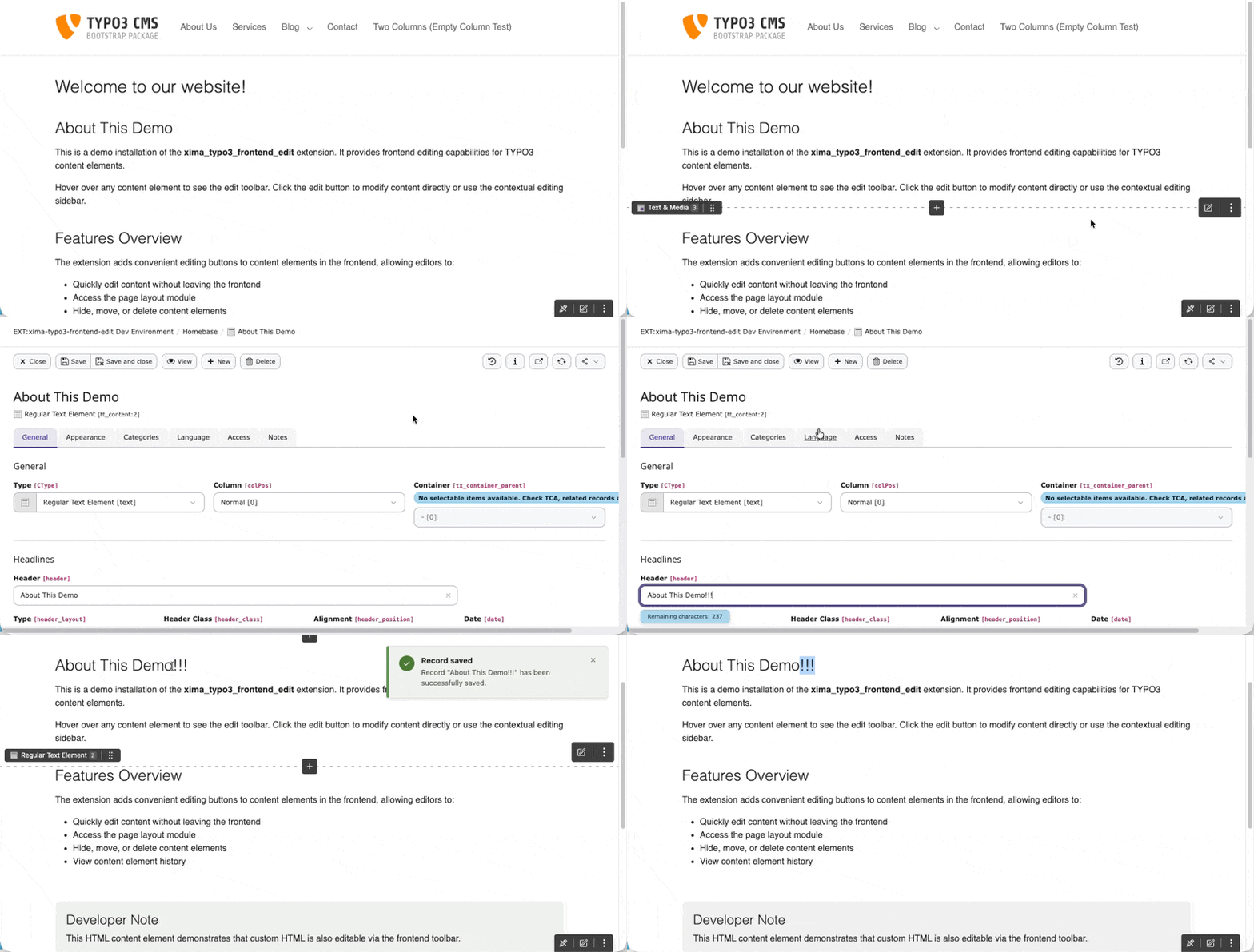
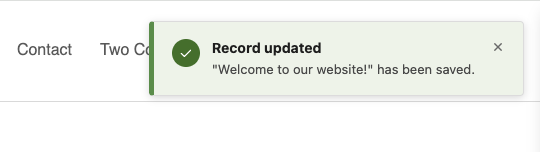
Show TYPO3 flash messages (e.g., save confirmations) as toast notifications in the frontend
after returning from the backend. When you use "Save & Close" in the backend, success or
error messages will be displayed as notifications in the frontend.
Flash message notification after saving a content element
frontendEdit:enableFlashMessages:true
Copied!
Filter Settings
frontendEdit.filter.ignorePids
type
string
Default
''
Comma-separated list of page IDs (and their subpages) where frontend editing should be disabled.
frontendEdit:filter:ignorePids:'1,2,3'
Copied!
frontendEdit.filter.ignoreDoktypes
type
string
Default
''
Comma-separated list of page types (doktype) where frontend editing should be disabled.
Common doktypes: 1 (Standard), 3 (External URL), 4 (Shortcut), 6 (Backend User Section), 7 (Mount Point), 199 (Menu Separator), 254 (Folder), 255 (Recycler).
frontendEdit:filter:ignoreDoktypes:'4,199,254'
Copied!
frontendEdit.filter.ignoreCTypes
type
string
Default
''
Comma-separated list of content types (CType) to exclude from frontend editing.
frontendEdit:filter:ignoreCTypes:'html,div'
Copied!
frontendEdit.filter.ignoreListTypes
type
string
Default
''
Comma-separated list of plugin types (list_type) to exclude from frontend editing.
frontendEdit:filter:ignoreListTypes:'news_pi1'
Copied!
frontendEdit.filter.ignoreUids
type
string
Default
''
Comma-separated list of specific content element UIDs to exclude from frontend editing.
You can disable the frontend editing feature for specific backend users or
backend user groups via UserTSconfig.
When disabled via UserTSconfig, the entire frontend editing feature is hidden —
including the sticky toolbar. The user cannot re-enable it via the toggle button.
This is useful for restricting frontend editing to certain editor groups while
keeping other backend users unaffected.
Note
This setting is different from the per-user toggle in the sticky toolbar.
The toggle allows users to temporarily hide the editing UI themselves.
The UserTSconfig setting is an administrative control that completely
prevents access to the feature.
Disable frontend editing
tx_ximatypo3frontendedit.disabled
type
bool
Default
false
Set to 1 to disable frontend editing for the affected backend users.
tx_ximatypo3frontendedit.disabled = 1
Copied!
By default, frontend editing is enabled for all backend users.
Examples
Disable for a specific backend user group
In the TSconfig field of a backend user group record:
tx_ximatypo3frontendedit.disabled = 1
Copied!
All users in this group will no longer see the frontend editing UI.
Disable for a specific backend user
In the TSconfig field of a backend user record:
tx_ximatypo3frontendedit.disabled = 1
Copied!
Disable globally via Page TSconfig
You can also set this in Page TSconfig (e.g. via
Configuration/page.tsconfig), which will then apply to all backend
users on the affected pages. However, UserTSconfig is recommended as it
targets users directly regardless of which page they visit.
Extension configuration
Go to Admin Tools > Settings > Extension Configuration
Choose xima_typo3_frontend_edit
The extension currently provides the following configuration options:
Features
Save and Close
Save and Close
Type
boolean
Default
1
Enable this option to render a save and close button in the header of edit forms.
Return URL generation
Type
boolean
Default
0
Enable this option to ignore the referer header for the return url and force the url generation
Target blank
Target blank
Type
boolean
Default
0
Enable the target blank option for all Edit Menu links to open in a new tab
Redirect
Redirect
Type
boolean
Default
0
Use the redirect option to redirect the edit links, so the full TYPO3 backend is loaded instead of only the edit form
Warning
This option is useful if you want to use the full TYPO3 backend, e.g. language switch or modal popups for for inline group type.
But keep in mind, that with this option the return to the frontend using the "close" button will not work anymore.
Debug
Frontend Debug Mode
Frontend Debug Mode
Type
boolean
Default
0
Enable debug logging in browser console for detailed information about content element parsing and assignment.
Warning
This option is only for development purposes and should not be enabled in production environments.
Usage
Once installed and configured, the extension provides two main editing interfaces
in the frontend for logged-in backend users.
Edit Menu
The Edit Menu appears on content elements and provides quick access
to editing actions like edit, hide, delete, and move.
Toolbar
The Toolbar provides page-level actions and a toggle to enable or
disable frontend editing.
Inline Editing (experimental)
Edit content elements directly in the frontend. Uses a contextual
sidebar on TYPO3 v14.2+ or a slide-in iframe modal on TYPO3 v13.
Edit Menu
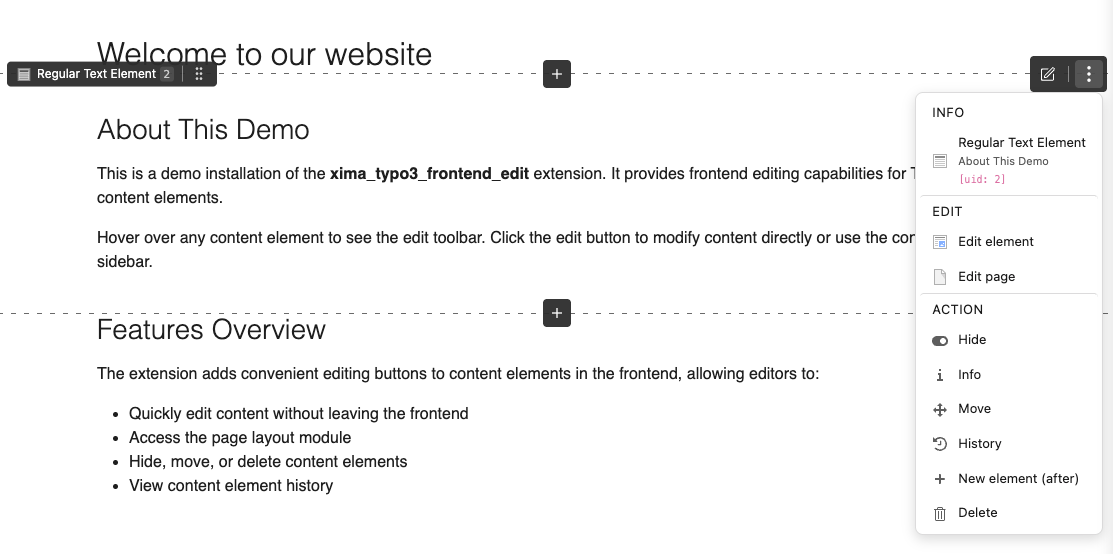
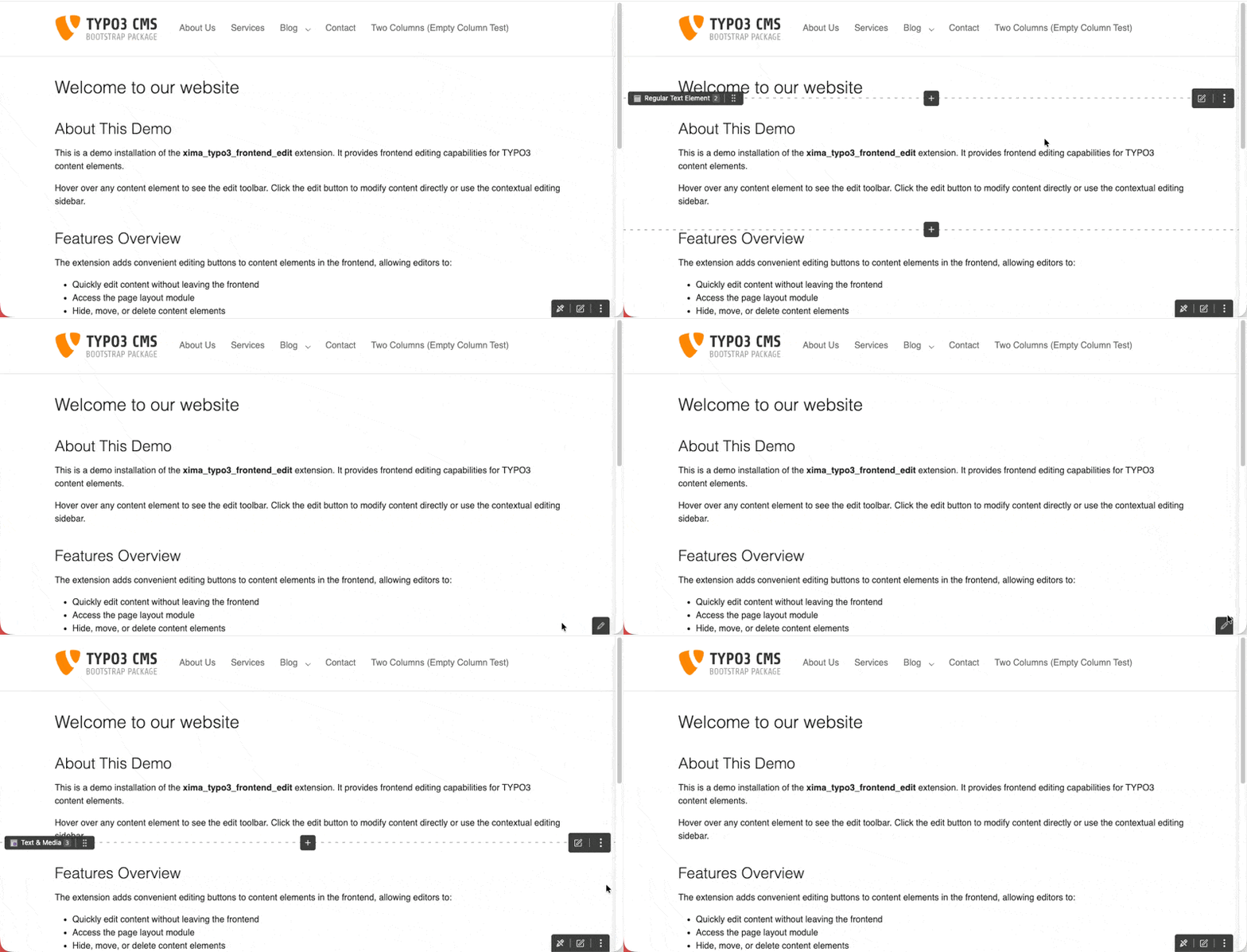
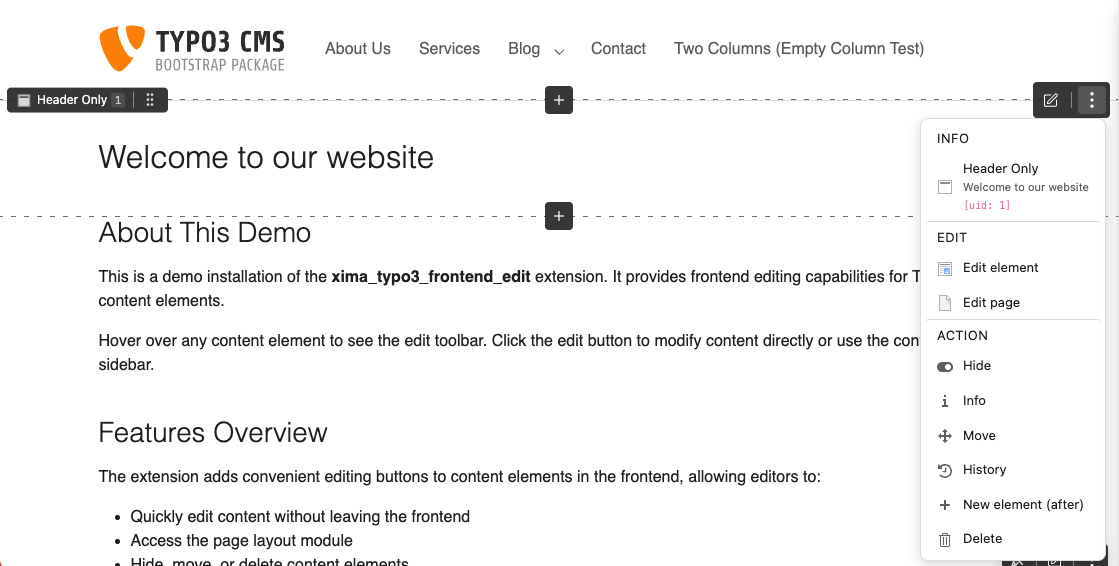
Each content element on the page displays an edit button when you hover over it.
Clicking this button opens the Edit Menu with various actions:
Edit Content Element - Open the content element in the backend editor
Edit page - Open the current page properties
Hide/Unhide - Toggle visibility of the content element
Info - Display content element information
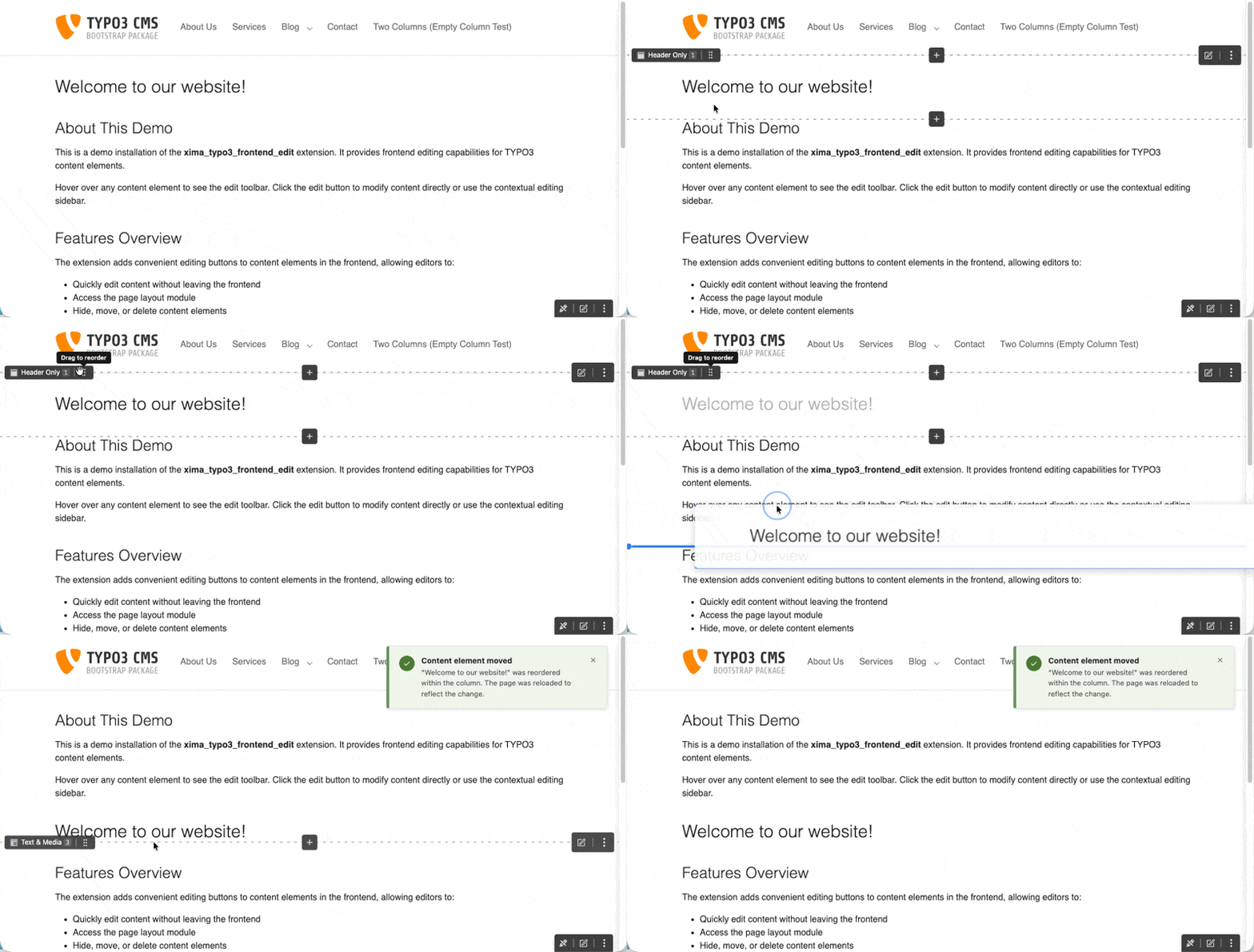
Move - Reorder the content element
History - View the content element's history
New content after - Add a new content element after this one
Delete - Delete the content element (with confirmation dialog)
Note
The Edit Menu is only displayed if the backend user has the necessary
permissions to edit the content element.
Delete Confirmation
New in version 2.3.0
Clicking Delete opens a confirmation dialog before the record is removed.
The dialog shows the record title and identifier (e.g. My Element [tt_content:42])
so editors can verify they are deleting the correct element.
Escape, the close button, or clicking the backdrop cancels the action
Focus returns to the previously focused element after closing
On success, a notification is shown and the page reloads automatically
Requirements
The Edit Menu requires content elements to have a "c-id" (Content Element ID)
in their HTML output, e.g. id="c908".
This is automatically provided by the fluid_styled_content extension.
For custom templates, ensure the wrapping element includes the content element UID:
<divid="c{data.uid}">
...
</div>
Copied!
See also the FAQ for common issues with the Edit Menu.
Toolbar
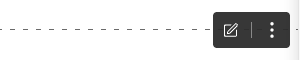
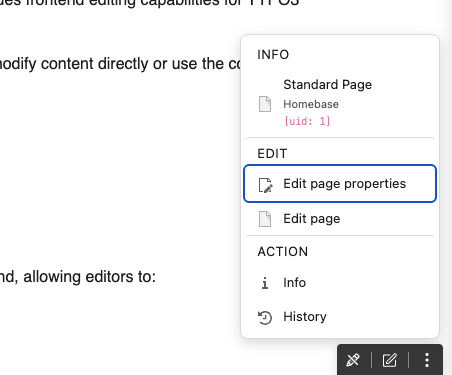
The Toolbar provides quick access to page-level actions. It appears
at a configurable position on the screen (default: bottom-right).
Actions
The Toolbar includes:
Toggle - (eye icon) Enable or disable frontend editing for the current session
Edit page properties - Open the current page properties
Edit page - Open the page module in the backend
Info - Display page information
Move - Reorder page
Position
You can configure the Toolbar position via Site Settings:
frontendEdit:toolbarPosition:'bottom-right'
Copied!
Available positions:
top-left, top-center, top-right
bottom-left, bottom-center, bottom-right
left-top, left-center, left-bottom
right-top, right-center, right-bottom
Disabling Frontend Edit
You can temporarily disable frontend editing by clicking the toggle button
in the Toolbar. This setting is stored per user and persists across sessions.
To disable the Toolbar entirely, set showStickyToolbar: false in the
Site Settings.
Contextual Editing
New in version 2.2.0
Note
Contextual editing is experimental.
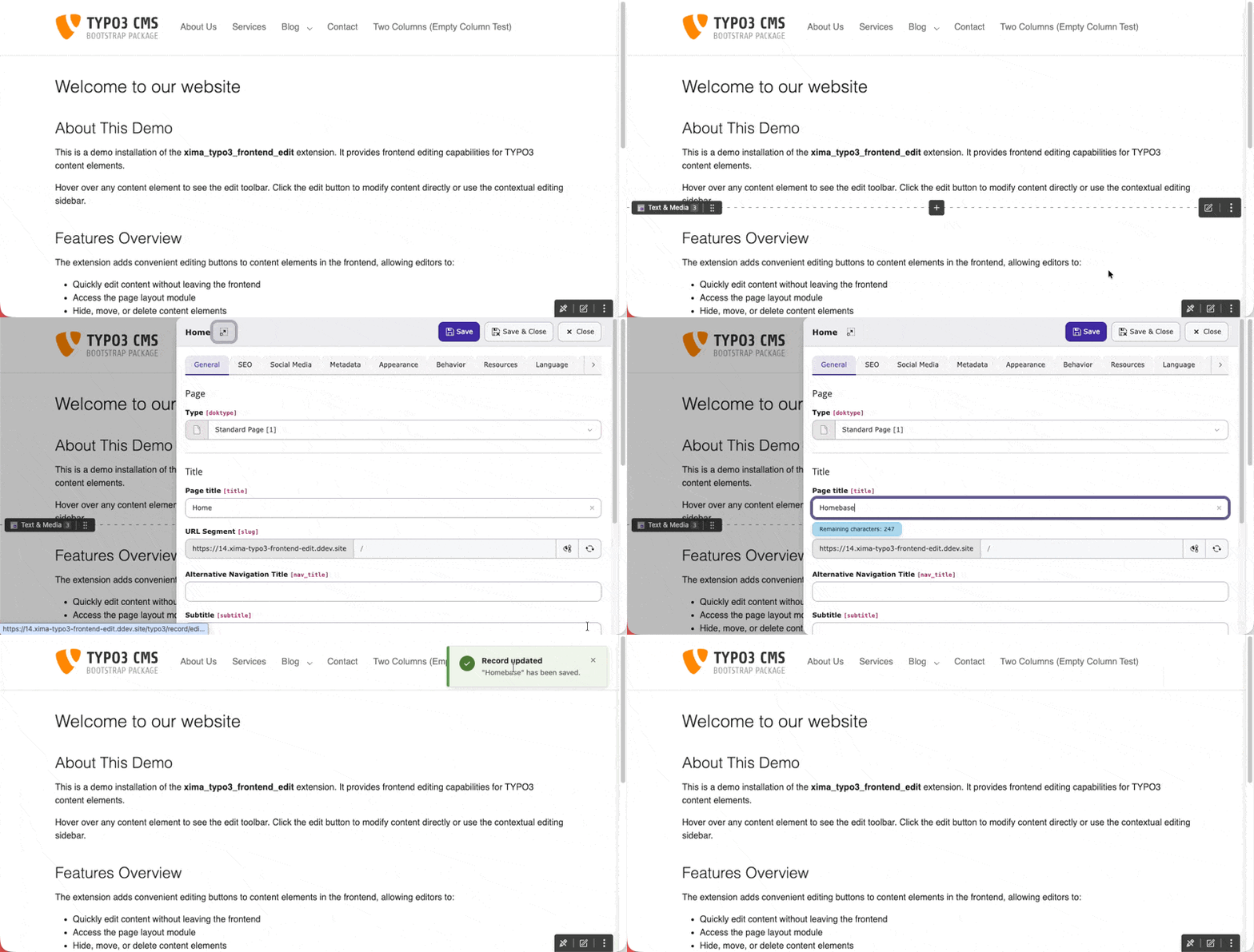
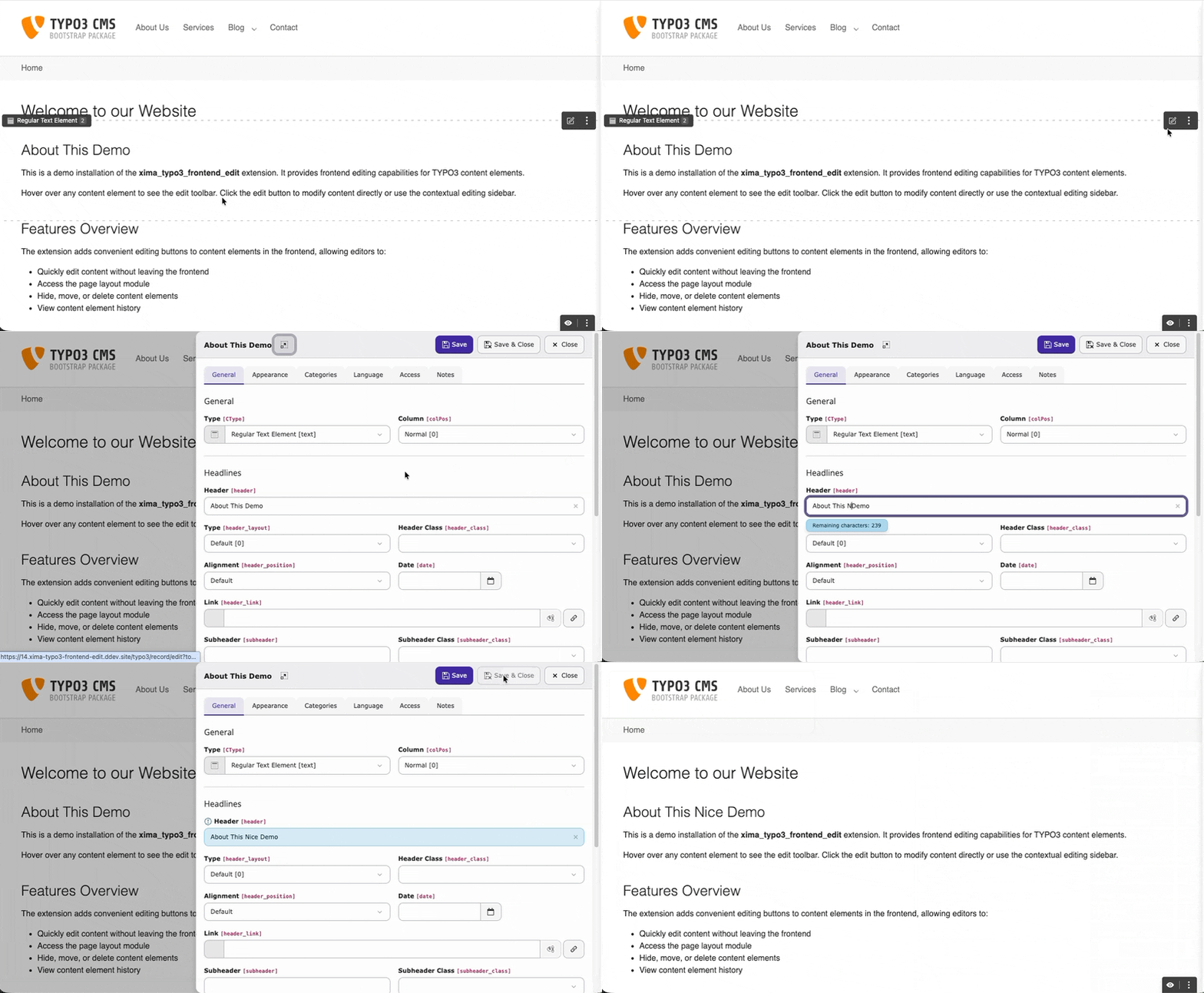
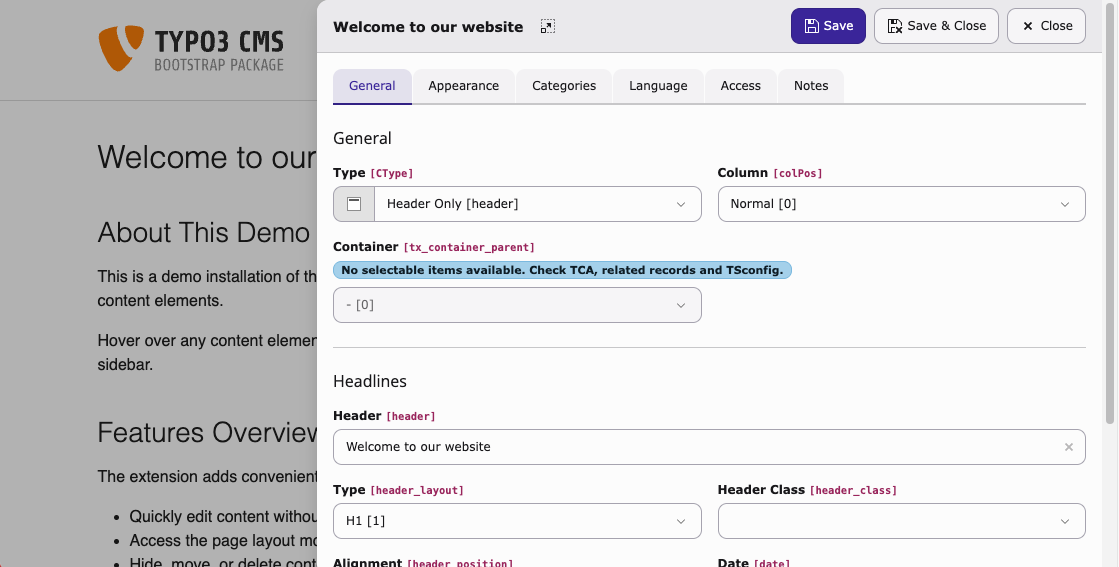
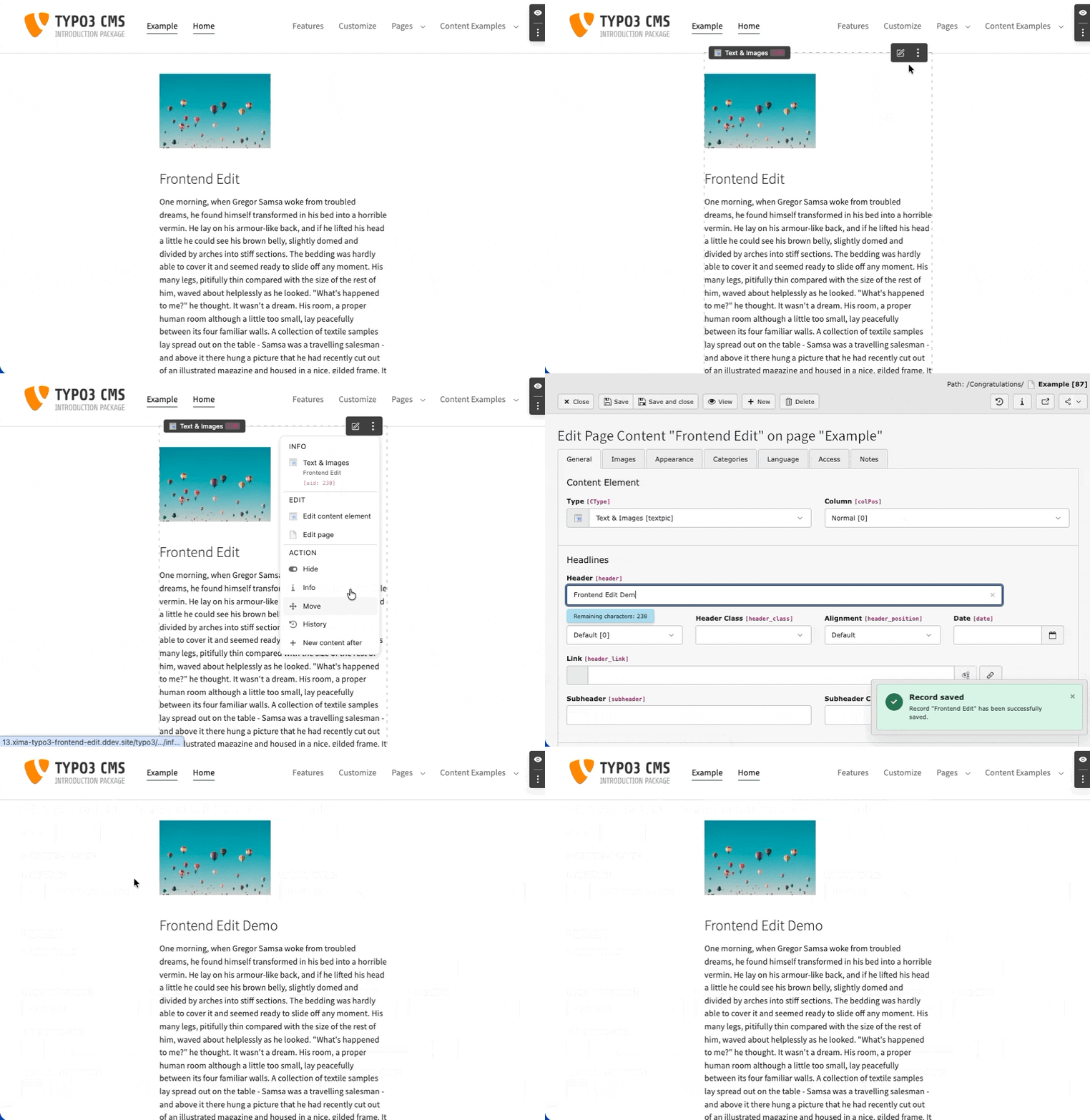
Contextual editing lets editors modify content elements and page properties
directly in the frontend. Clicking an edit button opens a sidebar panel that
slides in from the right, displaying the TYPO3 FormEngine edit form — no
detour through the backend required.
Editing a content element via the contextual sidebar
Setup
Enable the feature in your site settings:
config/sites/my-site/settings.yaml
frontendEdit:enableContextualEditing:true
Copied!
Or via the TYPO3 backend:
Site Management > Sites > Edit site > Settings > Frontend Edit > Appearance.
Usage
With contextual editing enabled:
Clicking an edit button opens the sidebar instead of navigating to the
backend.
The page properties link in the sticky toolbar also opens in the sidebar.
Ctrl+Click (or Cmd+Click on macOS) bypasses the sidebar and opens
the full backend editor directly.
Controls
Save
Saves the record and keeps the sidebar open.
Save & Close
Saves and closes the sidebar. The page reloads to reflect changes.
Close
Closes the sidebar. Unsaved changes trigger a confirmation prompt.
Expand
Opens the full backend editor. Respects the linkTargetBlank setting
(same window or new tab).
Escape and clicking the backdrop also close the sidebar.
Limitations
The FormEngine runs inside an iframe outside its intended context. Some
advanced features may not work fully:
IRRE / relation browsers may have limited functionality.
Context menus (three-dot menu) are not available inside the iframe.
Primary actions (edit, hide, delete) are accessible as direct buttons.
Console errors from backend JavaScript modules are expected and harmless.
For full editing capabilities, use the expand button.
Fallback Behavior
Setting disabled: All edit links navigate to the backend as before.
JavaScript disabled: Edit links fall back to their href attribute,
pointing to the standard backend URL.
Tip
On TYPO3 v14.2+ the sidebar uses the native record_edit_contextual
route. On TYPO3 v13 the same sidebar loads the standard backend edit form
in an iframe. The behavior is identical from an editor's perspective.
Developer corner
Three opportunities exist to extend the Edit Menu with custom entries:
The extension provides two PSR-14 events to customize the Edit Menu and Toolbar.
FrontendEditDropdownModifyEvent
Use the FrontendEditDropdownModifyEvent to modify the Edit Menu for content elements.
You can add, remove or modify buttons for specific content elements.
Available methods:
getContentElement() - Returns the content element data array
getMenuButton() - Returns the current menu button
setMenuButton() - Sets the modified menu button
getReturnUrl() - Returns the return URL for edit links
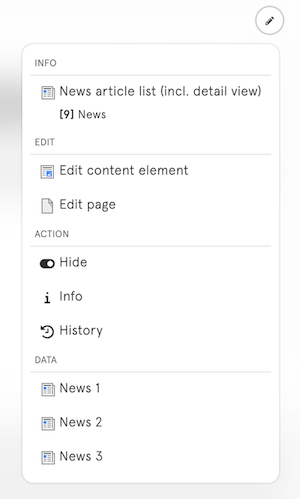
Additionally, there is an option to extend your fluid template to provide data for extra Edit Menu entries, e.g. edit links to all news entries within a list plugin.
This generates a hidden input element with the provided data (only if the frontend edit is enabled). Within the parent content element (e.g. the whole list plugin), a new "data" section will show up in the Edit Menu to list all edit links.
Keep in mind, that this only works if the parent content element has a c-id and offer one of the following data combinations:
Edit record link (provide uid and table of the desired record, the link to the TYPO3 backend will be generated automatically)
Custom edit url (provide a custom url)
Note
Keep in mind, that this option will add additional html elements to your dom, which can causes style issues.
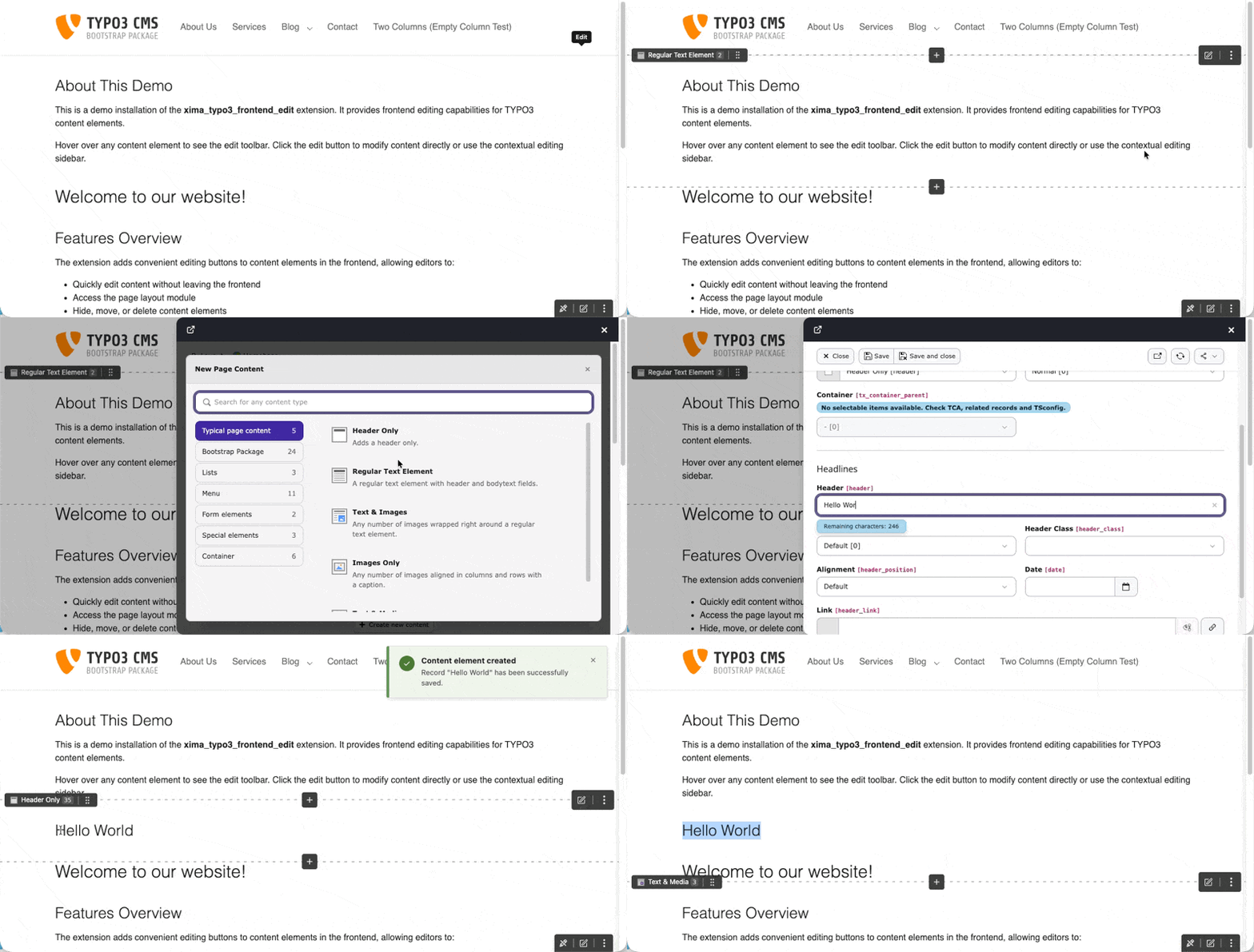
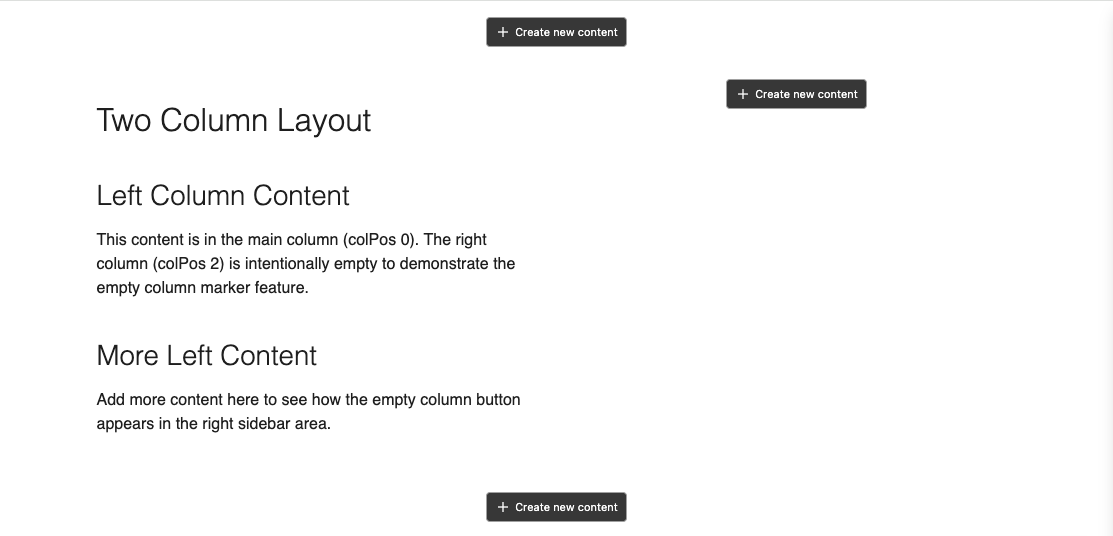
The extension can display "Create new content" buttons for empty columns directly in the frontend. This allows editors to add content without switching to the TYPO3 backend.
A "Create new content" button appears in empty columns when frontend editing is enabled
It works in two steps:
The integrator places a lightweight marker in their Fluid templates
The extension detects empty columns via AJAX and injects the buttons client-side
ColumnTargetViewHelper
The
ColumnTargetViewHelper renders a hidden
<div> element as a DOM marker. No content, no styling, no logic — just a marker that the JavaScript picks up after the page loads.
When colPos 0 or 1 is empty, a "+" button appears at the marker position. Clicking it opens the TYPO3 record editor to create a new content element in that column.
When the column has content, the marker stays hidden and has no effect on the page.
Container columns
For container elements (e.g. two-column layouts, tabs, accordions using b13/container), add the containerUid argument:
The marker must always be rendered, even when the column is empty. Do not wrap it in a condition like <f:if condition="{children_201}"> — otherwise the marker is missing from the DOM when the column is empty and the button cannot appear.
How it works
The ViewHelper renders
<div data-xfe-colpos="0" hidden></div> (invisible, no layout impact)
The extension's JavaScript scans the page for these markers after loading
An AJAX request to the backend checks which columns are empty
For each empty column that has a matching marker, a "+" button is injected
The button opens the TYPO3 record editor with the correct colPos pre-filled
Container support requires the b13/container extension. The service automatically detects whether it is installed. Without it, only page columns are supported and container markers are silently ignored.
Note
The marker is only rendered when a backend user is logged in and frontend editing is enabled. For regular frontend visitors, nothing is output.
The Edit Menu was styled to not disturb the frontend layout. You can easily adjust the styling by providing an additional css or js file within your ext_localconf.php which will be loaded together with the frontend edit resources:
There are several TYPO3 extensions that aim to improve the editing experience
between frontend and backend. This page provides an overview of related
extensions and how they differ from xima_typo3_frontend_edit.
visual_editor (FriendsOfTYPO3)
visual_editor provides
inline WYSIWYG editing using Web Components and CKEditor 5. Editors can modify
text fields in place, reorder content elements via drag-and-drop, and save
changes without leaving the page. It runs exclusively within a dedicated
backend module that embeds the frontend page in an iframe — it does not inject
editing capabilities into the regular frontend. It also requires ViewHelper
integration in Fluid templates. In contrast, this extension works directly in
the frontend, requires no template changes, and links to standard backend forms
for editing.
feedit
feedit was the original
TYPO3 core extension for frontend editing. It injected edit icons directly into
the rendered HTML on the server side. The core integration it relied on has
since been removed. This extension uses a different approach with PSR-15
middleware and client-side AJAX menus.
frontend_editing
frontend_editing
is an older extension that provided frontend editing capabilities for TYPO3.
This extension is not a further development of frontend_editing. While the
general goal is similar, the technical approach is entirely different — this
extension uses lightweight JavaScript injection and links to backend forms.
content_preview
content_preview provides a
split-view with a live frontend preview within the TYPO3 backend Page module.
It enhances the backend interface, while this extension enhances the
frontend. Both approaches can be used together.
Why is the Edit Menu not displayed on my page / for my content element?
There may be a number of reasons for this:
Backend user session
Are you currently logged into the TYPO3 backend? Otherwise, frontend editing will not work.
Backend user permission
Does your user have all permissions to edit the page as well as the content elements?
Site Set
Is the Frontend Edit site set included in your site configuration? Check the Site Settings to verify the extension is enabled.
Content Element IDs
Make sure that the content element "c-ids" (Content Element IDs) are available within your frontend template, e.g. "c908".
Content Element on current Page
Currently, only content elements that belong to the current page are editable. Inherited content (e.g. shared footer elements) cannot be edited from the inheriting page.
Debug
Check the network tab for the initial AJAX call to /typo3/ajax/xima-frontend-edit/edit-information with the information about the editable content elements and the according Edit Menus.
After closing the edit form, I am redirected to the wrong frontend location (e.g. the root page)
This could be caused by a strict referer header in your request. If the return url could not be determined correctly, you can force the url generation by pid and language in the extension setting: forceReturnUrlGeneration.
I can't change the language within a content element.
This is a TYPO3 backend limitation. The reduced edit form frame does not support the language switch. Use the redirect configuration in the extension settings to open the edit form within the full TYPO3 backend context, which supports the language switch.
The edit button is not displayed for a different (sub)domain.
The frontend edit needs an active backend user session to work. If you are using a different (sub)domain, the session cookie is only valid for the TYPO3 backend domain and is not available for the frontend edit.
You can have a look at the cookieDomain setting to set a more flexible domain configuration. This allows the session cookie to be shared between different (sub)domains, enabling the frontend edit functionality to work across different domains.
Alternatively, you can use the multisite_belogin extension, which provides backend login support across multiple domains without requiring shared cookie domains.
The edit button is not displayed with DCE extension content elements.
Dynamic content elements do not provide the required "c-id" (Content Element ID) in their default templates. You need to customize the DCE templates to include the "c-id" in the HTML output.
DCE Template
<divclass="dce"id="c{contentObject.uid}">
Your template goes here...
</div>
Copied!
Note
Styling problems may occur with nested content elements.
The edit button is not displayed with container extension content elements.
Container content elements do not provide the required "c-id" (Content Element ID) in their default templates. You need to customize the container templates to include the "c-id" in the HTML output.