
Working with Grid Elements in the Page Module
A Grid Element shows up in the Page Module as a block with its own rows and columns, drawn the same way TYPO3 draws a page's own Backend Layout, only scoped to that one element instead of the whole page. Each cell of that block is a real, visible area: it shows the content it already holds, and it carries an add content control of its own, so a new element can be created directly inside it.
Structural areas
The rows and columns a layout defines (see Grid Definitions) become the cells an editor actually sees and works in. Placing content in a cell is no different from placing it in any page column: the element's edit, hide and delete controls behave the same way, and the cell shows exactly the content assigned to it.
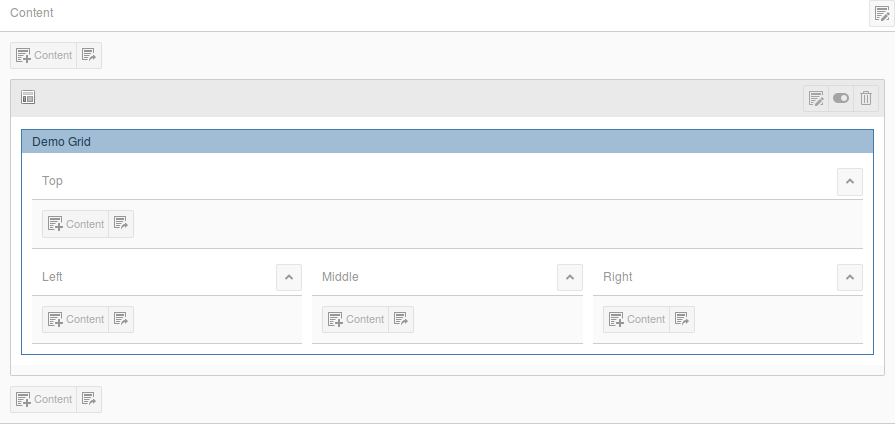
A Grid Element's own rows and columns, each with its own content and its own add content control.
Nested Grid Elements
A cell's content is not limited to plain content elements. Placing a Grid Element inside another Grid Element's cell nests one structure inside another, and the nested element draws its own rows and columns the same way, right there inside the parent's cell. There is no depth limit and no separate setting to enable this: it works because a child can be any content element type, including another Grid Element, see Nesting for the underlying model. An editor builds a nested structure simply by placing a Grid Element where any other content element could go.
Restrictions guide what belongs where
A cell can be configured to accept only certain kinds of content, or to accept no more than a certain number of elements. Where that is the case, the choices offered to an editor, in the New Content Element Wizard, the Drag-In Wizard, and as valid drop targets while dragging, are already narrowed to what is actually allowed, and TYPO3 also refuses anything that would violate those rules even if it were somehow submitted anyway. An editor does not need to know a cell's exact rules to work within them: an area that only accepts text elements simply will not offer anything else. See Restrictions, Validation & Permissions for the full picture, including how these rules are configured and enforced.
Behind the placement: colPos and unused elements
Day to day, an editor never needs to think about how a child's position is stored. It is worth knowing that if a layout changes so that a cell an element used to occupy no longer exists, the element is not lost. It reappears in an unused elements area instead, wherever a page's own backend layout provides one, and is restored to its original cell automatically if a later layout change brings that cell back. See Data Model for how this is actually stored.
Grid Elements in the List Module
Where an installation has opted into it, the List Module lists a Grid
Element's children nested underneath their container, with per-user
expand and collapse state, instead of mixed into a flat list of the
page's content. This is a per-installation setting, not something an
editor turns on or off. If a project has not enabled it, a Grid
Element's children still show up in the List Module, just as ordinary
tt_content rows without that nested grouping. The mechanism itself
belongs to the Developer Reference.