
Page detail
The page detail view lists every finding of one page, grouped by source, with its severity, rule, the affected record and field, and a code snippet of the matched markup.
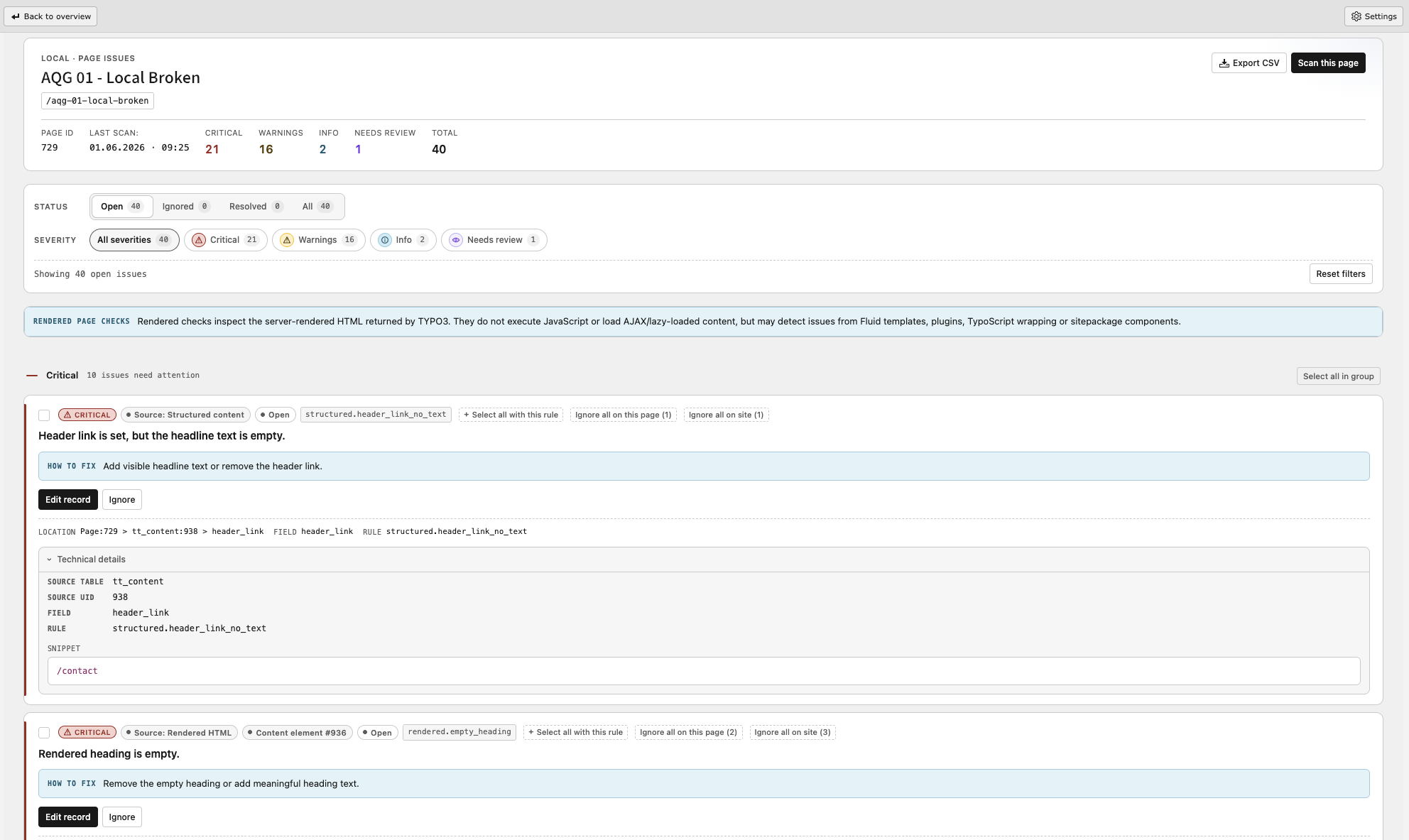
Findings of a single page with the available actions.
Guidance panel
Each finding can be expanded to show the AQG rule metadata:
- who normally owns the fix (editor, integrator or developer),
- the fix type,
- the referenced WCAG success criteria,
- which users are affected,
- why it matters,
- how to fix it.
When no richer metadata exists for a rule, the short rule hint is shown instead.
Ignoring findings
A finding that is a false positive or that is accepted for a documented reason can be ignored. AQG offers:
- Ignore
- Ignores a single finding, with an optional expiry date. When the date is reached the finding becomes open again.
- Batch ignore
- Ignores several selected findings at once. A reason must be confirmed.
- Ignore rule on this page
- Ignores all current and future findings of one rule on this page.
- Ignore rule on this site
- Ignores all current and future findings of one rule across the site.
- Unignore
- Returns a finding to the open state.
Ignored findings do not count towards the quality gate thresholds. Because findings are matched by a stable fingerprint, the ignore state survives rescans as long as the underlying content does not change.
Important
Ignoring hides a finding from the workflow. It does not fix the accessibility problem and does not change how the page behaves for users of assistive technology. Always record why a finding was ignored.
Image remediation
For FAL image findings, AQG offers actions that write directly to the file reference:
- Mark as decorative
- Sets
tx_a11y_is_decorative = 1and clearsalternativein one DataHandler operation. Use this only for images that carry no information. - Mark as informative
- Sets
tx_a11y_is_decorative = 0and leavesalternativeuntouched. - Apply alternative text
- Writes the reviewed alternative text to
alternative.
These actions are available to administrators, and to other backend users only when options.a11y_quality_gate.allowImageRemediation is enabled and the user may edit the affected records. See User TSconfig.
AI suggestions
With AI suggestions configured and enabled, supported findings additionally offer a Suggest action, see AI-assisted text suggestions. AQG shows the suggested text and the reason, and lets the editor copy or apply it after review. Nothing is written automatically.