
Text tracks and time-based data
Switch to the module File > Filelist.
Select the video you want to add the VTT file to, then edit its metadata
Switch to the Video tab, then add or upload one or more VTT files.
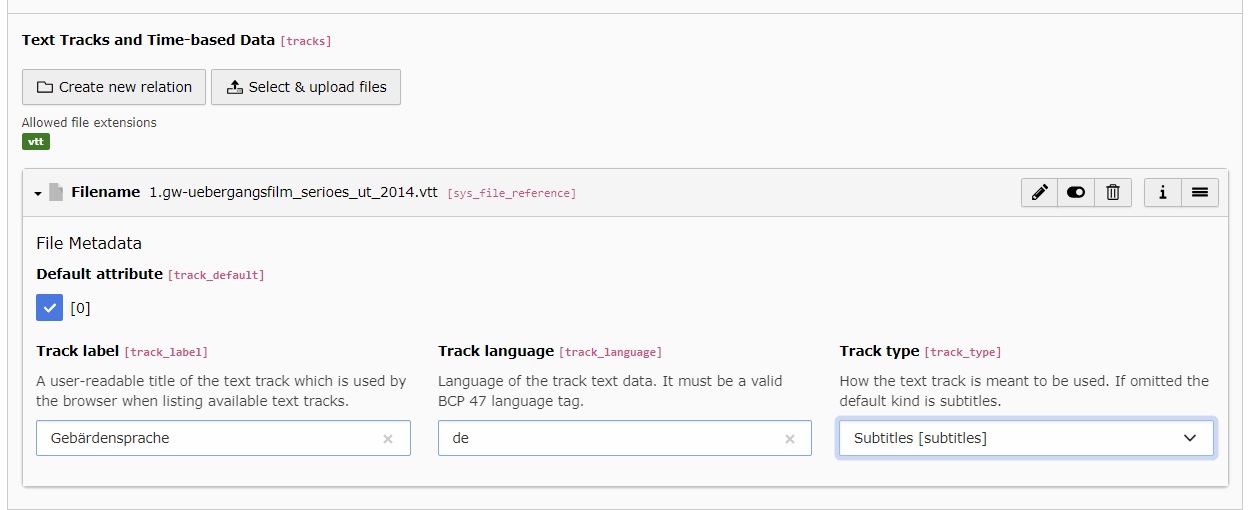
Add VTT file(s) to a self-hosted video in the backend
Note
After adding a VTT file, save the metadata once to see the additional fields.
Available text track fields
- Track label
-
A user-readable title of the text track which is used by the browser when listing available text tracks.
- Track language
-
Language of the track text data. It must be a valid BCP 47 language tag. (e.g. de, en, etc.)
- Track type
-
How the text track is meant to be used. (subtitles, captions, chapters, etc.)
- Default attribute
-
When active, adds the 'default' attribute to the rendered track.
Tip
Adding a default track is useful if you want subtitles to be enabled automatically.
Important
When adding multiple tracks, set the default attribute for only one track.
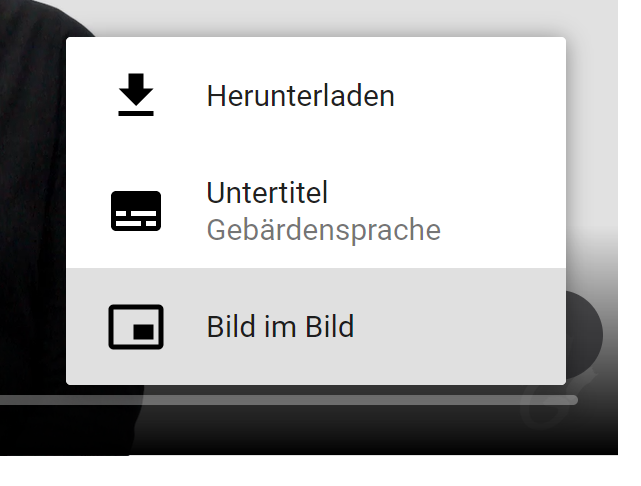
Example frontend rendering in the default video player