
Edit Menu
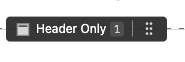
Each content element on the page displays an edit button when you hover over it. A small label also shows the content element's type and its position on the page.
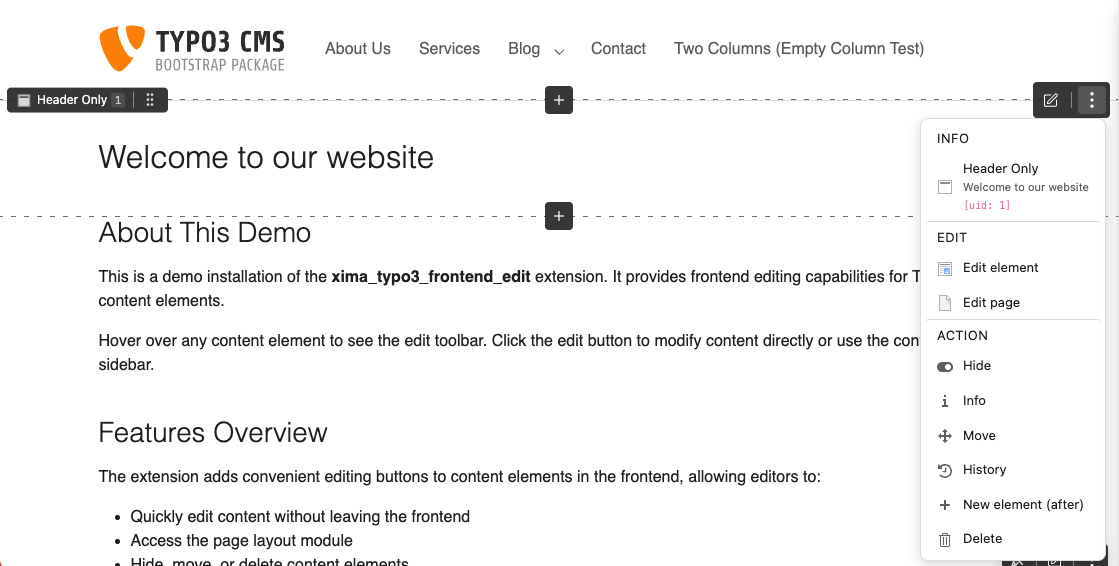
Clicking this button opens the Edit Menu with various actions:
- Edit Content Element - Open the content element in the backend editor
- Edit page - Open the current page properties
- Hide/Unhide - Toggle visibility of the content element
- Info - Display content element information
- Move - Reorder the content element
- History - View the content element's history
- New content after - Add a new content element after this one
- Delete - Delete the content element (with confirmation dialog)
Note
The New content after entry can be hidden via the frontendEdit.showInsertButtons site setting, which also controls the hover insert buttons.
Note
The Edit Menu is only displayed if the backend user has the necessary permissions to edit the content element.
Delete Confirmation
New in version 2.3.0
Clicking Delete opens a confirmation dialog before the record is removed.
The dialog shows the record title and identifier (e.g. My Element [tt_content:42])
so editors can verify they are deleting the correct element.
- Escape, the close button, or clicking the backdrop cancels the action
- Focus returns to the previously focused element after closing
- On success, a notification is shown and the page reloads automatically
Requirements
The Edit Menu needs each content element to be identifiable in the rendered
HTML. With fluid_styled_content this works out of the box; custom templates
need one small addition.
See also
- Template requirements — the details, including EXT:container and EXT:dce
- FAQ — what to check when no menu appears