
Managing models
Models represent specific LLM models available
through a provider (e.g., gpt-5,
claude-sonnet-4-6, llama-3).
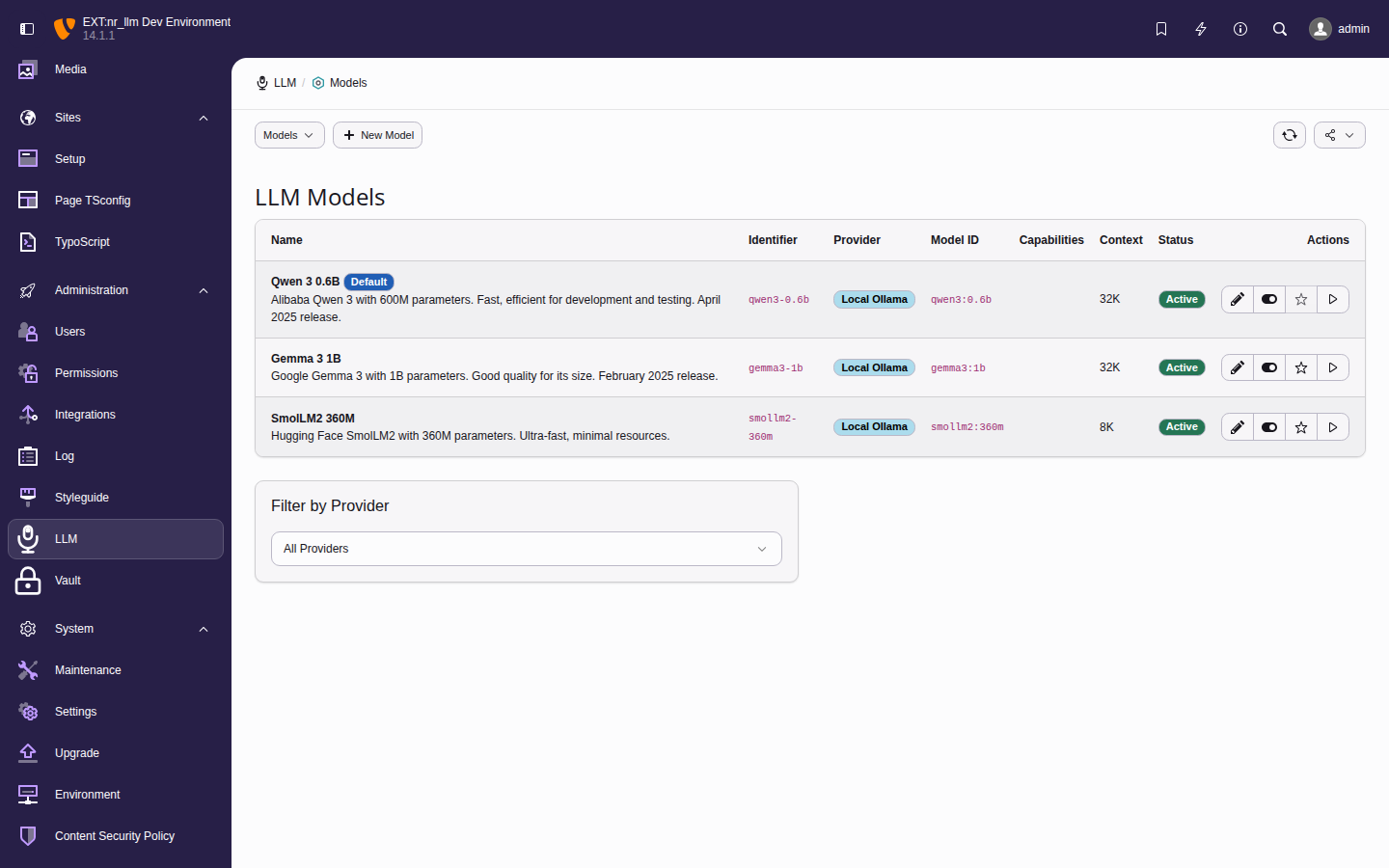
The model list with capability badges, context length, and cost-per-token columns.
Adding a model manually
- Navigate to AI > Setup > Models.
- Click Add Model.
-
Fill in the required fields:
- Identifier
- Unique slug (e.g.,
gpt-5,claude-sonnet). - Name
- Display name (e.g.,
GPT-5 (128K)). - Provider
- Select the parent provider.
- Model ID
- The API model identifier as the provider
expects it (e.g.,
gpt-5.3-instant,claude-sonnet-4-6).
- Optionally set capabilities (
chat,completion,embeddings,vision,streaming,tools), context length, max output tokens, and pricing. - Click Save.
Fetching models from a provider
Instead of adding models manually, use the Fetch Models action to query the provider API and auto-populate the model list:
- Ensure the provider is saved and the connection test passes.
- On the model list or model edit form, click Fetch Models.
- The extension queries the provider API and creates model records with capabilities and metadata pre-filled.
This is the recommended approach — it ensures model IDs match the provider exactly and keeps your catalogue current as providers release new models.
Which capabilities the provider actually confirmed
A capability badge in the model list says that the model has the capability, not who said so. Those are different claims, and the list separates them.
A grey badge means a live answer from the provider's own model endpoint declared that capability, and the row says when. A yellow badge with a question mark means nobody confirmed it: either an administrator ticked it by hand, or it came from the static model catalogue bundled with the extension. Hover the badge for the reason.
Expect the yellow badge for OpenAI, Anthropic, Groq and the Gemini models the extension knows by name, even against a reachable API. Those model endpoints list model ids and no capabilities, so the tokens come from the bundled catalogue on a live run exactly as on an unreachable one, and the badge says so rather than borrowing the provider's authority. Mistral, OpenRouter, Ollama and Gemini releases newer than this extension do report capabilities per model, and those confirm to grey.
Use the Confirm capabilities row action to ask the provider. It runs the same discovery the wizard uses, records what came back, and refreshes the confirmation date. A model the provider does not list is reported as such — that is not a confirmation, so nothing is stored.
Confirming never edits what you declared. A capability you ticked that the provider does not advertise stays on the model and simply stops borrowing the provider's authority for it. That matters most for a model created from the bundled catalogue: nothing about it was ever checked against the live API until you confirm it.
The three underlying fields — what was confirmed, when, and whether the answer was live or from the catalogue — are also visible read-only on the Capabilities tab of the model record.
Routing does not use this. Eligibility below still reads the declared capabilities, confirmed or not: making it depend on confirmation would silently drop every model an administrator declared by hand.
Which model a criteria-mode configuration picks
A configuration set to Dynamic (Criteria) names no model. One is chosen per call from the models that are active, in two steps that never mix.
Eligibility is a hard yes or no. A model is considered only if it declares every capability the criteria require, uses a permitted adapter type, meets the minimum context length, stays within the cost ceiling, and — for the operation being run — does not declare capabilities that exclude it. A model refused here cannot come back: nothing about its speed, price or quality is even looked at.
Ranking orders what is left. The provider Priority you set decides first, always. Below it, the extension configuration option Routing policy (category routing) chooses what else counts:
- Provider priority
- The default. Nothing beyond your priority, the default-model flag and the sorting order, plus cost where the criteria set prefer lowest cost. This is what the extension has always done.
- Balanced, Quality, Economy
- Add measured signals — evaluation quality scores and recent provider health — weighted differently. Economy also weighs cost when the criteria did not ask for it.
The measured modes are opt-in on purpose: they change which model serves a call, so an upgrade never switches them on for you. Two rules make them safe to try. Your provider priority is never overruled by a measurement — a priority is an instruction, a score is evidence. And a model nobody has measured is not punished for it: an absent signal is skipped, not counted as zero.
If a criteria-mode configuration selects nothing, the cause is usually that every matching model declares it cannot serve that operation. The extension says so explicitly rather than letting the provider fail with an opaque error.