
Installation
Quick start
The recommended way to install this extension is via Composer:
composer require netresearch/nr-llmAfter installation:
- Activate the extension in Admin Tools > Extension Manager.
- Configure providers and API keys in AI > Setup > Providers.
- Define available models in AI > Setup > Models.
- Create configurations in AI > Setup > Configurations.
- Clear caches.
Composer installation
Requirements
Ensure your system meets these requirements:
- PHP 8.2 or higher.
- TYPO3 v13.4 LTS or v14.3 LTS.
- Composer 2.x.
- netresearch/nr-vault ^0.14.0 (required for API key encryption; installed automatically via Composer).
Installation steps
-
Add the package
Install via Composercomposer require netresearch/nr-llmCopied! -
Activate the extension
Navigate to Admin Tools > Extension Manager and activate EXT:nr_llm.
-
Configure API keys
Use the setup wizard at AI > Setup > Setup Wizard to auto-detect your provider and discover models.
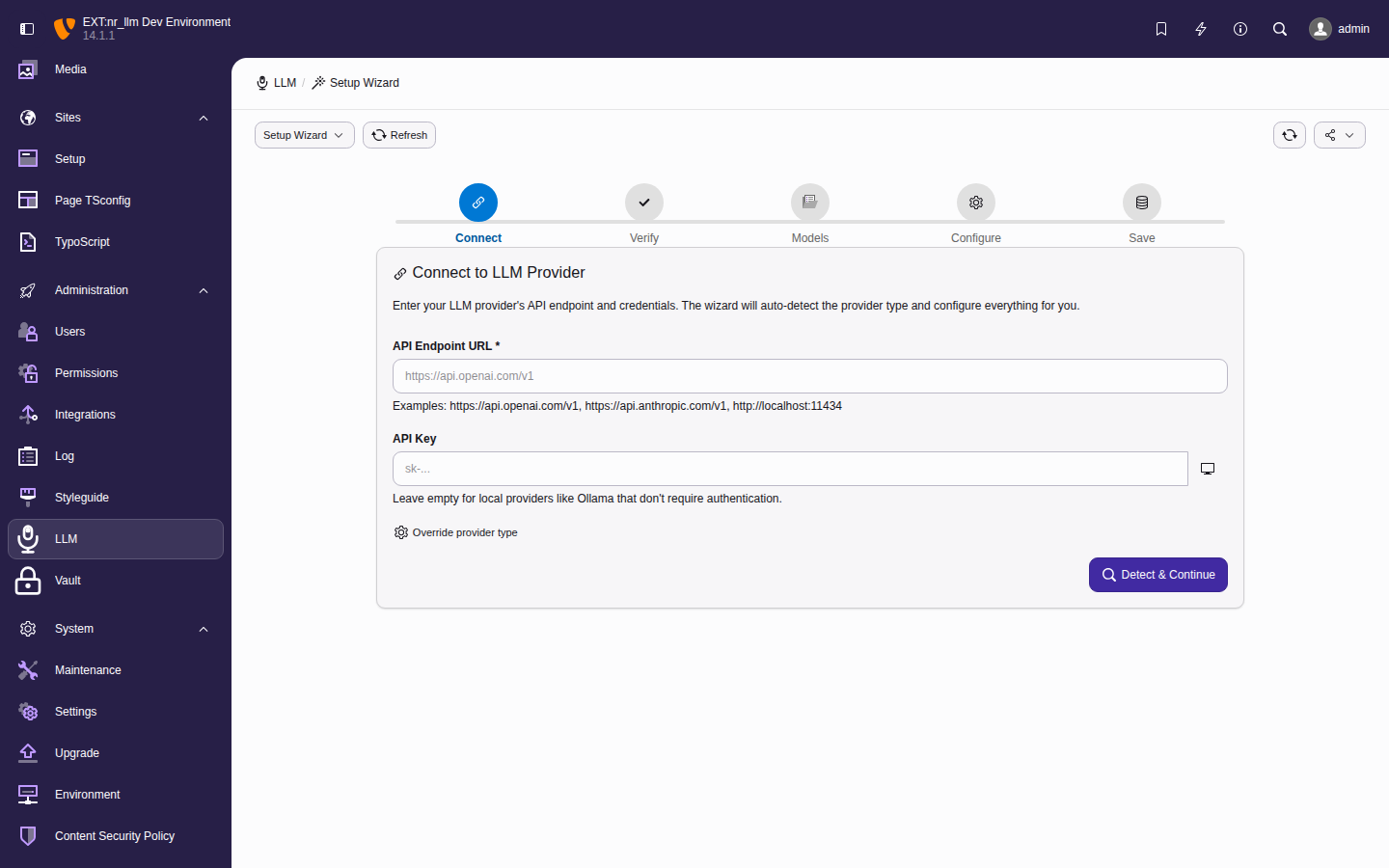
The setup wizard guides you through provider connection, model discovery, and configuration.
Tip
Not sure which provider you need? AI > Setup > Get Started asks what you want to do first — editorial assistance, translation, metadata, media accessibility, agent workflows, developer integration — and can install a use-case pack for it: a configuration, tasks and prompt snippets, created only after you confirm the list. The Editorial Starter pack is the one currently shipped. The setup wizard stays the technical route and is linked from every screen there.
The plan you confirm also states the three things an install changes that are not new records: the snippet tags it adds to the pack's own configuration, any existing configuration that already selects one of those tags and would therefore compose the pack's snippets into its prompts too, and any existing snippet carrying one of those tags, which the added tags compose into the pack's configuration. See Get Started: use-case packs.
See Configuration reference for detailed setup instructions.
-
Clear caches
Flush all cachesvendor/bin/typo3 cache:flushCopied!
Manual installation
If you cannot use Composer:
- Download the extension from the TYPO3 Extension Repository (TER).
- Extract to
typo3conf/.ext/ nr_ llm - Activate in Admin Tools > Extension Manager.
- Configure API keys and settings.
Warning
Manual installation requires manual dependency management. Composer installation is strongly recommended.
Database setup
The extension creates the following database tables automatically:
| Table | Purpose |
|---|---|
tx_ | Stores API provider connections with encrypted credentials. |
tx_ | Stores available LLM models with capabilities and pricing. |
tx_ | Stores use-case-specific configurations with prompts and parameters. |
tx_ | Stores one-shot prompt tasks for common operations. |
tx_ | Stores reusable prompt templates with versioning and performance tracking. |
tx_ | Tracks specialized service usage (translation, speech, image). |
Run the database compare tool after installation:
vendor/bin/typo3 extension:setup nr_llmCache configuration
The extension uses TYPO3's caching framework. Cache configuration is set up automatically — no backend is hardcoded. TYPO3 uses your instance's default cache backend, so Redis, Valkey, or Memcached work transparently if configured.
To override the cache backend specifically for nr-llm:
use TYPO3\CMS\Core\Cache\Backend\RedisBackend;

$GLOBALS['TYPO3_CONF_VARS']['SYS']['caching']
    ['cacheConfigurations']['nrllm_responses']
['backend'] = RedisBackend::class;Upgrading
From previous versions
- Backup your database before upgrading.
-
Run Composer update:
Update the extensioncomposer update netresearch/nr-llmCopied! -
Run database migrations:
Update database schemavendor/bin/typo3 database:updateschemaCopied! -
Clear all caches:
Flush all cachesvendor/bin/typo3 cache:flushCopied!
Breaking changes
Check the Changelog for breaking changes between versions.
Uninstallation
To remove the extension:
- Deactivate in Admin Tools > Extension Manager.
-
Remove via Composer:
Remove the extensioncomposer remove netresearch/nr-llmCopied! -
Clean up database tables if desired:
Drop extension database tablesDROP TABLE IF EXISTS tx_nrllm_provider; DROP TABLE IF EXISTS tx_nrllm_model; DROP TABLE IF EXISTS tx_nrllm_configuration; DROP TABLE IF EXISTS tx_nrllm_configuration_begroups_mm; DROP TABLE IF EXISTS tx_nrllm_task; DROP TABLE IF EXISTS tx_nrllm_prompttemplate; DROP TABLE IF EXISTS tx_nrllm_service_usage;Copied! - Remove any TypoScript includes referencing the extension.