
Configuration
This section describes the available configuration options for the Accessibility Checker.
Extension Configuration
There are no global settings in the Extension Configuration (Admin Tools > Settings > Extension Configuration). The extension works out of the box once it is activated and the module has been made accessible to the relevant backend users (see Next steps).
Developer Corner access
By default, the Accessibility module only shows editor-relevant findings. The more technical, template-facing findings, grouped under the For developers tab, are hidden unless the current backend user has been explicitly granted access to the Developer Corner. Administrators and system maintainers always have this access, regardless of the setting described below.
The permission is stored on both Backend users and Backend user groups, as a checkbox on a dedicated Accessibility Checker tab. It is enough to enable it on either the user or one of its groups.
- Go to Administration > Users, then use the Backend users dropdown to switch between the Backend users and Backend user groups lists.
- Edit the desired user or group.
- Open the Accessibility Checker tab.
- Toggle Grant access to developer corner.
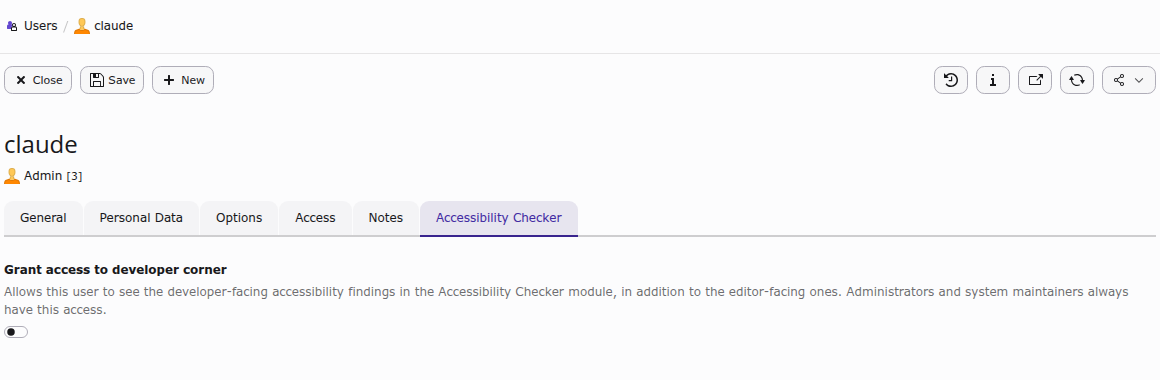
The Accessibility Checker tab on a Backend user record.
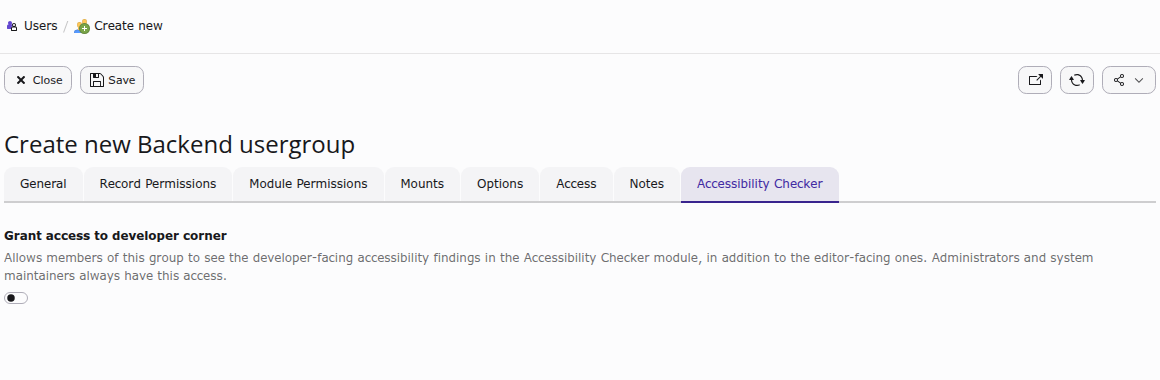
The same tab on a Backend user group record. Granting access here applies to every member of the group.
Once saved, users with this permission see an additional For developers tab in the Accessibility module the next time they open it (see Developer Corner).
Engine selection
The scanning engine is chosen from the Scanning engine dropdown at the top of the Accessibility module, next to the Run Accessibility Scan button:
- axe-core (recommended and selected by default): the actively maintained, industry-standard engine. It produces very few false positives.
- HTML CodeSniffer: an older engine with a different rule set. It can surface issues axe-core misses, but also produces more results that need a closer manual look. It is best used for a second opinion, not as the primary scan.
The choice only applies to the current scan; the dropdown resets to axe-core the next time the module is opened. See Choosing a scanning engine for more detail on how the two engines differ.