
Introduction
What does it do?
A11y by default adds an accessibility checker to the TYPO3 backend. It scans the page currently selected in the page tree and shows the accessibility problems it finds directly where editors and developers already work, without leaving the backend or installing anything outside of TYPO3.
The scan itself happens in your browser: the extension renders the page through TYPO3's own "View page" mechanism (the same technique used for page previews) and then runs an accessibility testing engine against that rendered output. Because the page is rendered through your own backend session, the scan always reflects what a real visitor with your access rights would see, and no report data is ever written to the database: every scan is generated fresh.
Key features
- Two scanning engines: axe-core (recommended) and HTML CodeSniffer are both bundled and can be switched per scan. See Choosing a scanning engine for the difference between them.
- Editor/developer classification: every finding is labelled as something an editor can fix in the content, or something that requires a template or CSS change. The classification is based on whether the offending markup actually correlates with database content (Issue classification).
- Developer Corner: the technical, template-facing findings are hidden from editors by default and only shown to backend users or groups that have been explicitly granted access (Developer Corner access).
- Page Layout integration: a summary of open issues is shown as a hint above the Page module, with a direct link into the accessibility module (Page Layout hint).
- No data persistence: nothing the module finds is stored; every scan is generated on demand and discarded once you navigate away.
- Multilingual backend: the module and its findings are translated into every language officially supported by the TYPO3 core.
What it is not
A11y by default is an automated aid, not a certification. Automated tools can only detect a subset of WCAG success criteria; issues that depend on judgement (for example, whether alternative text is meaningful, not just present) still need a human review. The module shows a disclaimer to this effect on every page of the accessibility module. If a page needs to be certified as accessible, that certification still has to come from a qualified accessibility audit.
Quick start
- Install the extension via Composer or the Extension Manager (Installation).
- Open the Accessibility module in the Web section of the backend.
- Select a page from the page tree; the module renders it and starts the accessibility scan.
- Review the results, grouped by severity, and follow the fix hints shown for each finding.
Screenshots
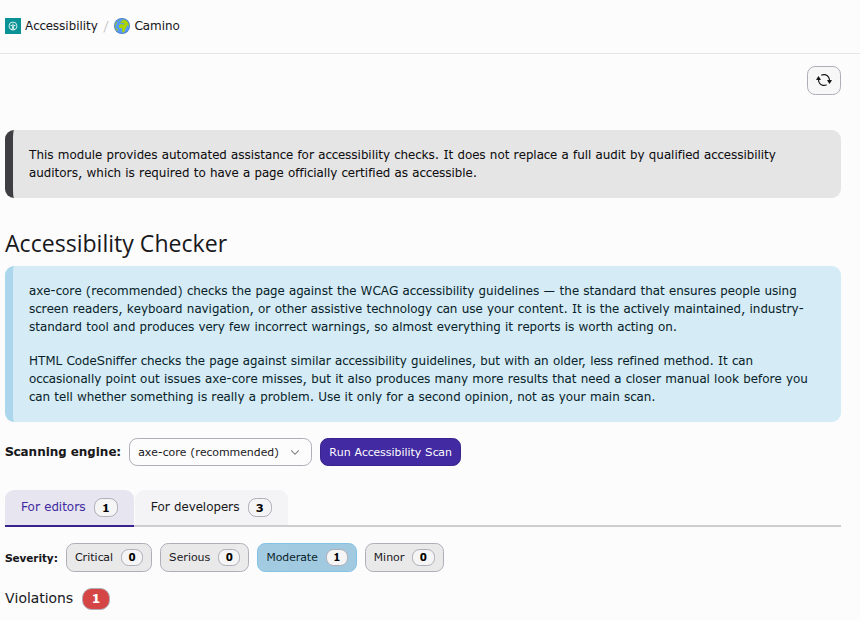
The Accessibility module for a selected page, with the scanning engine explanation and the first violations found.
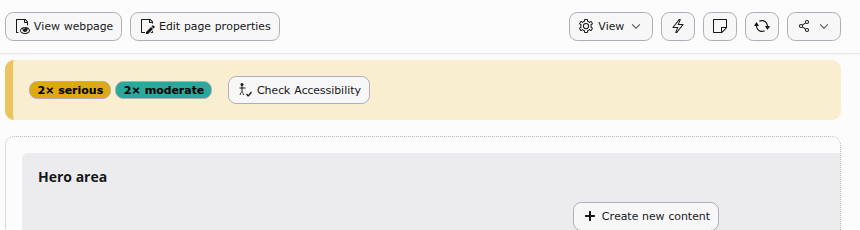
The Page module shows a hint whenever accessibility issues were found on the current page, with a direct link into the module.