
User's Manual
This section describes how to use the Accessibility Checker in the TYPO3 backend.
Accessing the module
Once installed and activated, you will find a new module Accessibility in the Web section of the backend.
- Click on the Accessibility module.
- Select a page from the page tree on the left.
If you cannot see the module at all, ask your administrator to grant your backend user or group access to it (Next steps).
Running a scan
The scan starts automatically as soon as you select a page. The module renders the page through TYPO3's "View page" mechanism, the same technique used for page previews, so the result reflects exactly what you would see as a visitor with your own access rights, inside your current backend session. You can re-run the scan at any time with the Run Accessibility Scan button, for example after switching the scanning engine.
Choosing a scanning engine
Use the Scanning engine dropdown to pick which engine performs the scan:
- axe-core (recommended, selected by default) checks the page against the WCAG guidelines with an actively maintained, industry-standard engine. It produces very few incorrect warnings, so almost everything it reports is worth acting on.
- HTML CodeSniffer checks similar guidelines with an older, less refined method. It can occasionally catch issues axe-core misses, but also produces many more results that need a closer manual look. Use it only for a second opinion, not as your main scan.
Viewing results
By default, every editor sees the same view: results grouped into four severity levels (Critical, Serious, Moderate and Minor), with a filter row that lets you show or hide each severity. Each severity group can be expanded to a list of findings.
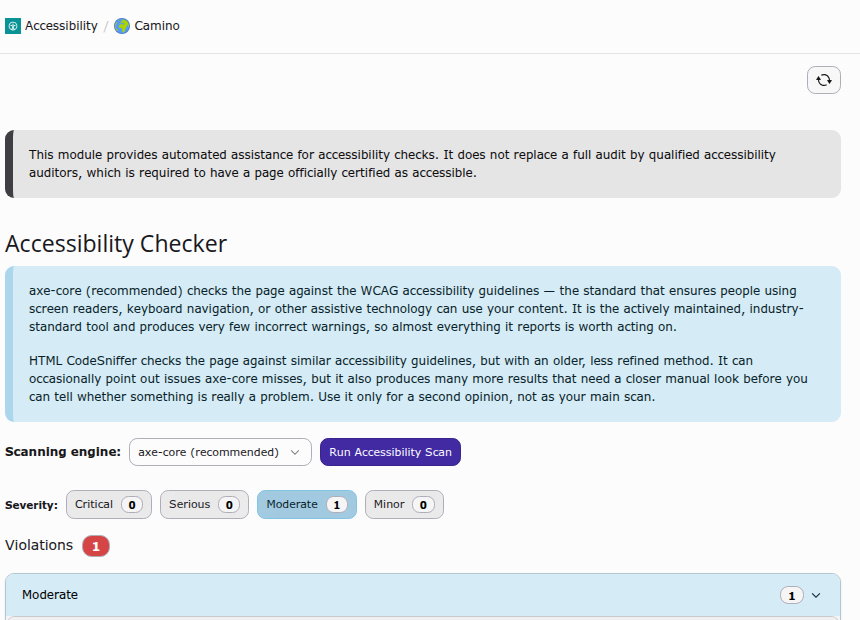
The default view: severity filters and the findings that apply to the currently logged in editor.
Below the violations, a separate Needs review section lists findings the scanning engine could not automatically classify as passing or failing; these always need a manual look.
Expanding a finding
Each finding can be expanded further to show:
- a plain-language description of the problem and how to fix it,
- who is responsible for fixing it (see Who is responsible for a finding),
- a button to jump directly to editing the affected content element, where the finding is linked to editable content,
- the exact HTML markup that triggered the finding, shown in a read-only code viewer.
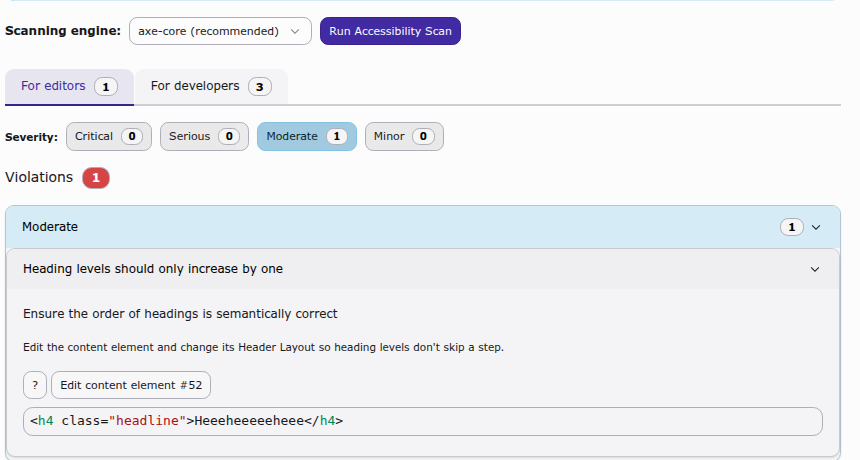
An expanded finding, with its fix hint, an edit shortcut, and the offending markup.
Who is responsible for a finding
Every finding is classified as something an editor can fix by editing
page or content element fields, or something a developer has to fix in
the Fluid template or CSS. The classification looks at whether the offending
markup actually correlates with content stored in the pages or
tt_content tables. See Issue classification for the
technical details.
- Typically editor-fixable: missing image alternative text
(
image-alt,input-image-alt,area-alt), non-descriptive link text (link-name), or a heading level that skips a step (heading-order), as long as the heading or link comes from a content element rather than the page template. - Always developer-fixable: missing page landmarks
(
landmark-one-main,region), a missing skip-navigation link (bypass), missing or invalidlangattributes (html-has-lang,html-lang-valid), insufficient color contrast (color-contrast), and similar template-level or CSS-level issues.
This classification is shown for every finding regardless of your permissions; the optional Developer Corner, described next, only changes how many of the developer-fixable findings you get to see.
Optional: developer findings
The screenshot above is what every editor sees by default. Backend users or groups can additionally be granted access to the Developer Corner (Developer Corner access), an optional permission that reveals the technical, template-facing findings that most editors do not need.
Once granted, the module splits its results into a For editors and a For developers tab, each with its own severity counts.
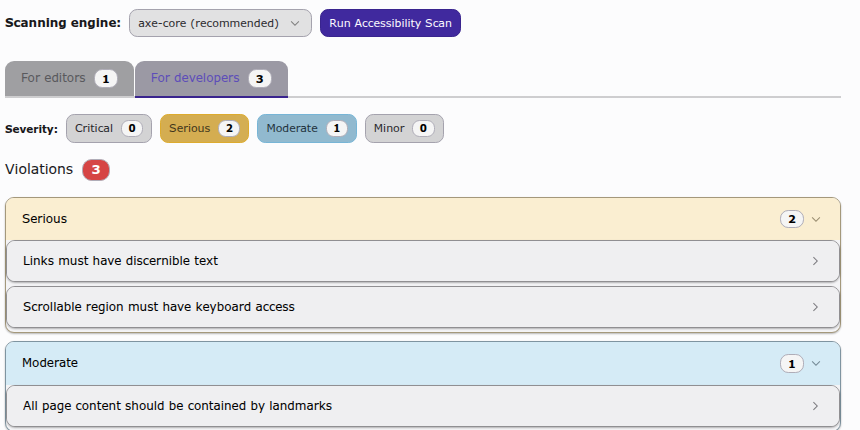
With Developer Corner access, an additional For developers tab appears next to the default editor findings.
See Developer Corner for the technical background on this optional access gate.
Page Layout hint
When working in the Page module, a hint banner appears above the page content whenever accessibility issues were found on the current page. It summarizes the number of issues per severity and links directly into the Accessibility module for that page.
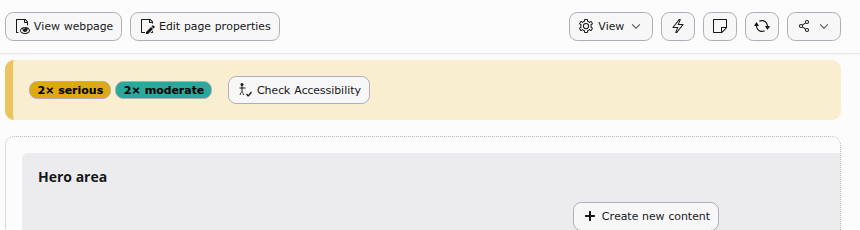
The Page module hint for a page with open accessibility findings.
Limitations
The Accessibility module provides automated assistance only; it does not replace a full audit by qualified accessibility auditors, which is required before a page can officially be certified as accessible. See What it is not.