
Drag & Drop Reordering
New in version 2.5.0
Note
Drag & drop reordering is experimental.
Drag & drop reordering lets editors change the order of content elements directly in the frontend. Dragging an element within its column changes its position; dragging it into another column of the same page moves it there. The move is persisted through TYPO3's core DataHandler — the same mechanism the backend page module uses — so hooks, the reference index and the history behave exactly as they do in the backend.
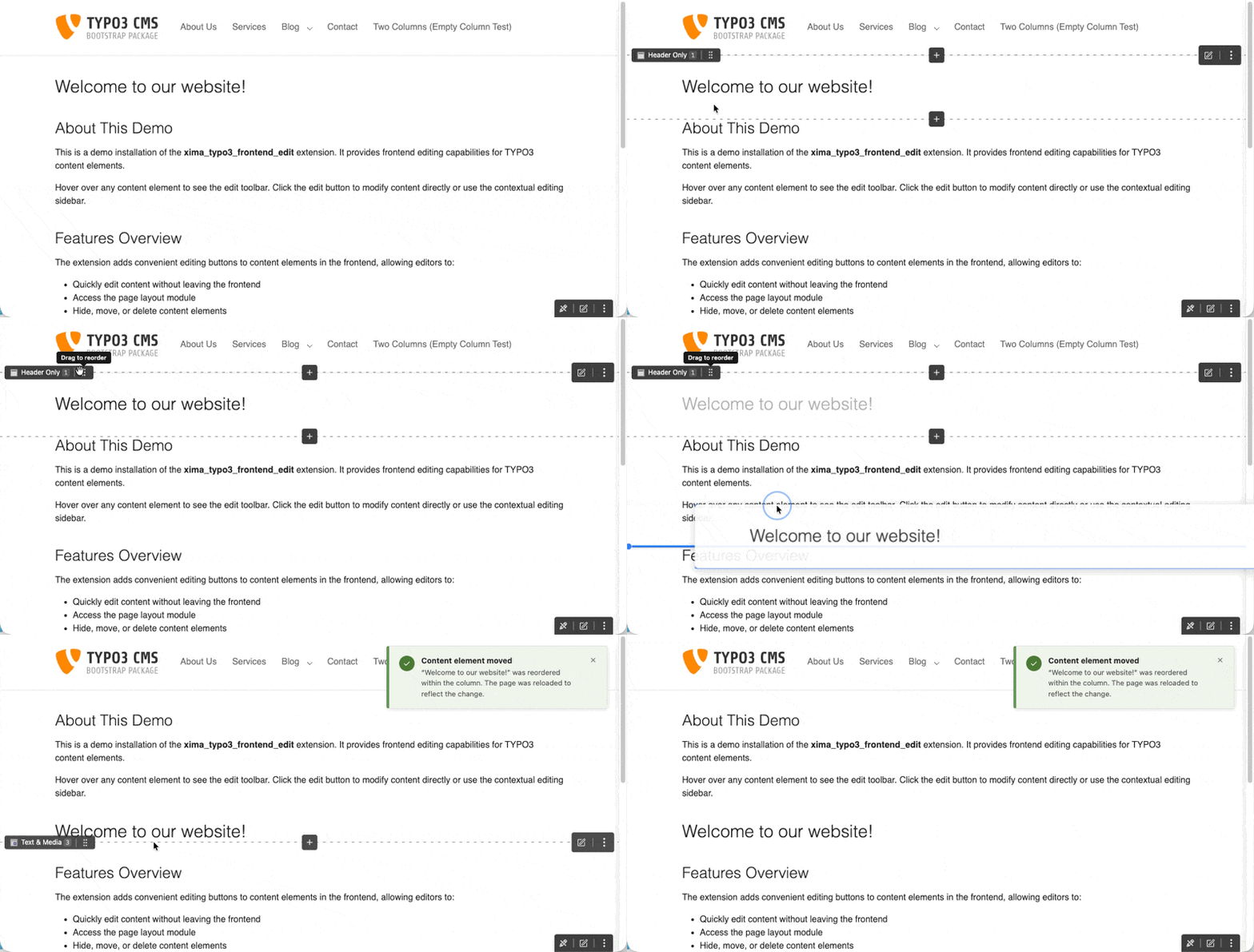
Reordering a content element via drag & drop
Setup
Enable the feature in your site settings:
frontendEdit:
enableDragAndDrop: trueOr via the TYPO3 backend: Site Management > Sites > Edit site > Settings > Frontend Edit > Appearance.
Mark your columns
Drag & drop needs to know which column a drop position belongs to. It reuses
the same DOM markers as the column target buttons, so
your Fluid template must mark every column with the
Column:
{namespace xfe=Xima\XimaTypo3FrontendEdit\ViewHelpers}

<div class="main-column">
    <xfe:columnTarget colPos="0" />
    <f:cObject typoscriptObjectPath="lib.dynamicContent" data="{colPos: 0}" />
</div>Without these markers the drag handle does not appear, because no drop target can be resolved.
Usage
With drag & drop enabled, each content element toolbar gains a drag handle next to the edit and context menu buttons. Pick the element up by its handle and drop it at the desired position — an indicator shows where it will land.
After a successful move the page reloads and a notification confirms whether the element was reordered within its column or moved to another column.
Permissions
A move is only carried out when the backend user is allowed to edit the record. The same permission check the backend applies is enforced server-side, so restricted editors cannot reorder content they may not edit.
The target page is always derived from the moved record itself. A manipulated request therefore cannot move an element to a different page — cross-page moves remain a backend operation.
Container columns
Columns of an EXT:container element are drop targets as well, as long as the template marks them with the container's uid:
{namespace xfe=Xima\XimaTypo3FrontendEdit\ViewHelpers}

<xfe:columnTarget colPos="201" containerUid="{data.uid}" />Content can be reordered inside a container column, moved between the columns of a container, moved out into a page column and moved from a page column into a container.
A container element itself can be reordered within page columns, but cannot be dropped into another container — nesting stays a backend operation.
Limitations
The following cases are out of scope and keep the classic move button in the edit menu as a fallback:
- Translated elements
- Only default-language elements can be reordered. Translations follow the ordering of their parent record, so reordering a translation would have no meaningful effect.
- Nesting containers
- A container element cannot be dropped into another container. Use the move button in the edit menu for that.
- Keyboard operation
- Dragging relies on the browser's native drag & drop, which is pointer-only. The drag handle is therefore deliberately kept out of the tab order and hidden from assistive technology, so it does not present a focusable control that cannot be used. Use the move button in the edit menu instead, which opens the backend move dialog and is fully keyboard-accessible.
Fallback Behavior
- Setting disabled: No drag handles are rendered and nothing changes for editors.
- Columns not marked: No drag handles are rendered, because drop targets cannot be resolved.
- JavaScript disabled: The frontend edit tooling does not load at all; reordering happens in the backend as usual.