
Quick response (QR) codes
In this chapter you will learn how to create Quick Response codes and have them link to pages in TYPO3's Page Tree, ready to be shared.
Scenario - sharing your QR code
You have a Christmas marketing campaign coming up and you're getting ready to print several hundred flyers to promote your campaign.
You want to add a QR Code to your flyer so that when a potential customer scans it, they are sent to a specific page in your TYPO3 installation.
Using the QR Code feature, you can:
- Generate a QR Code
- Point it to a page in the Page Tree.
- Download the QR Code either as a PNG or SVG and then send it to your design department so that they can add it to the flyer
Creating a QR code
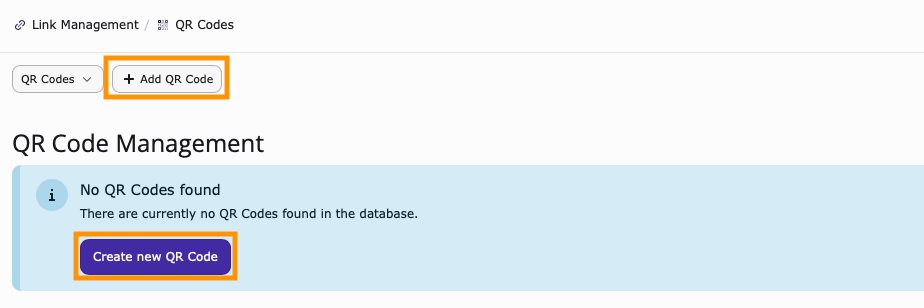
From the Link Management module, select QR Codes followed by Add QR Code or Create new QR Code.
General tab
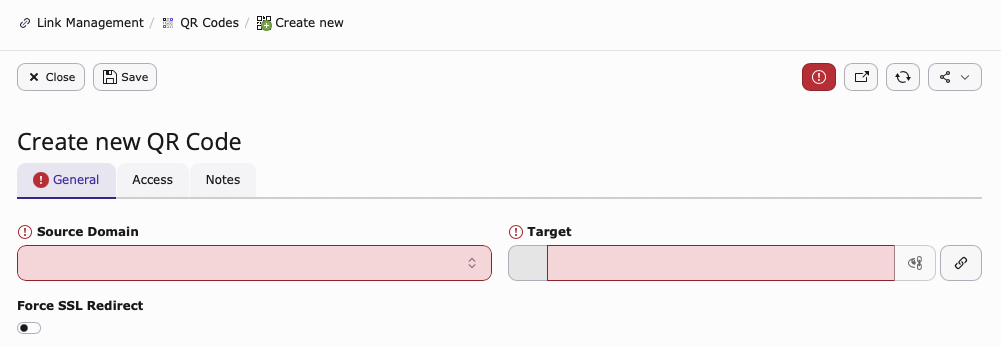
Source Domain: Select the domain you wish to associate with the QR Code. If you only have one site in your installation, there will be only one option to choose from.
Target: Specify which page in the Page Tree your QRC will point to. It is also possible to link to Files stored in TYPO3 and also point to external URLs.
Force SSL Redirect: Force all requests to be served via https.
Access tab
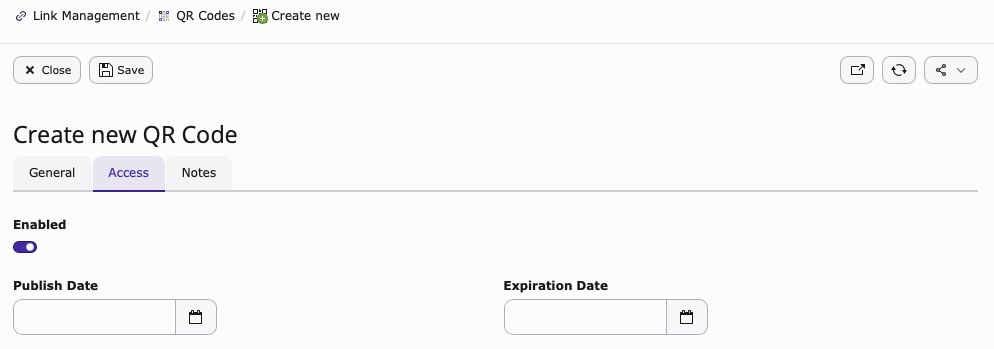
Enabled: Toggle the QRC on and off.
Publish Date: Set a publish date for when you want the QR Code to become active.
Expiration Date: Set an expiration date or when you want the QR Code to be no longer active.
Notes tab
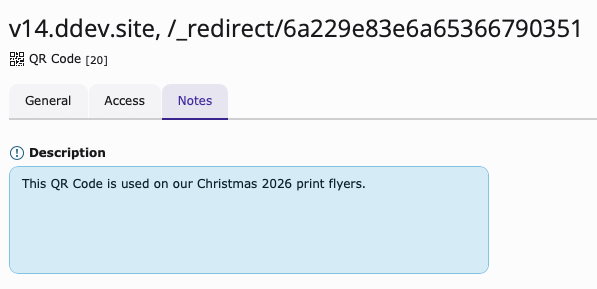
Add an internal note that other backend users can view.
Downloading your new QR code
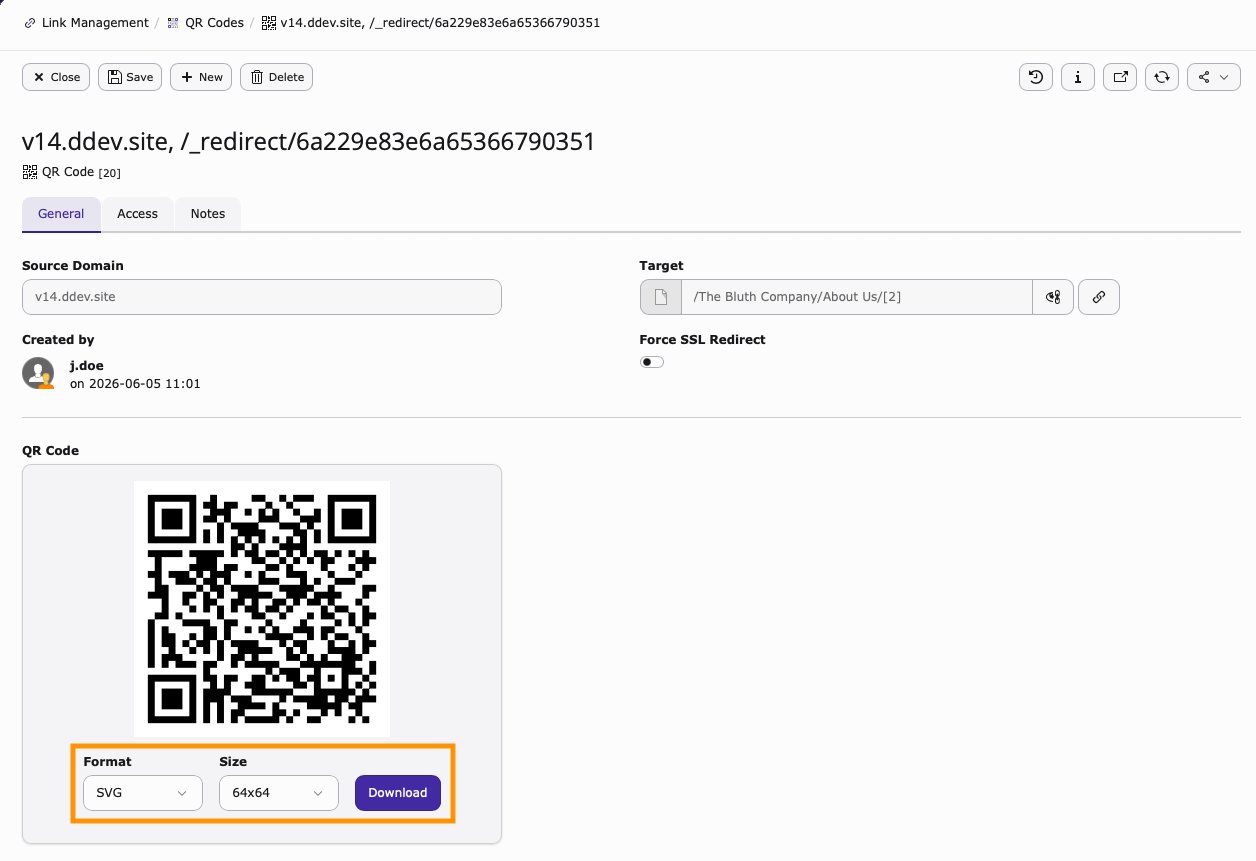
Once you have created your QRC, it can then be downloaded via two different formats with several pre-set sizes available.
PNG: 64x64, 128x128, 256x256 and 512x512
SVG: 64x64, 128x128, 256x256 and 512x512
Edit an existing QR code
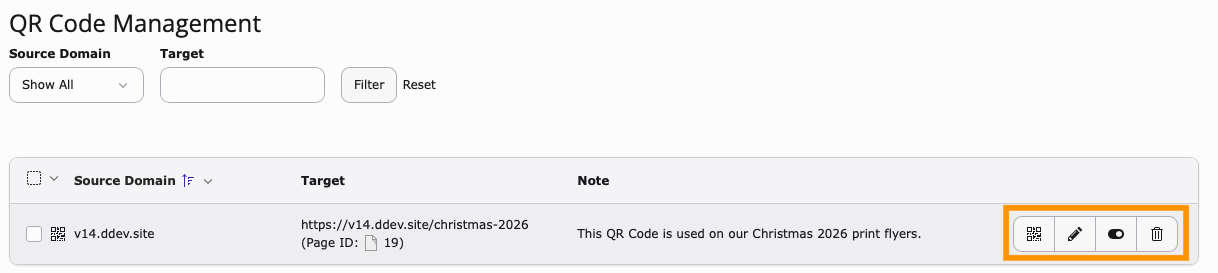
Show QR Code: Download the QRC.
Edit Icon: Once a QRC has been created, it is possible to change where it points to.
Hide: Enable or disable the QRC without deleting it. If the QR Code is disabled, a 404 page will be returned.
Delete: Delete the QRC.