
Creating pages
Pages form the core structure of your website. Here you will learn how to create new pages on your site using the page tree. New pages are invisible in the frontend by default, so you will also learn how to make your pages visible.
There are two ways to create a new page. You can either drag and drop from icons above the page tree or right click on the tree to bring up a context menu. In both methods you select an existing page in the tree and your new page is created underneath.
If you look at the icons above the page tree, you will see that you can create different types of pages. Here we will just create a standard web page.
First open the Content > Layout module in the left sidebar. The page tree is in the middle. Click around the page tree to see the selected page displayed in the right pane.
Method 1: Using drag and drop
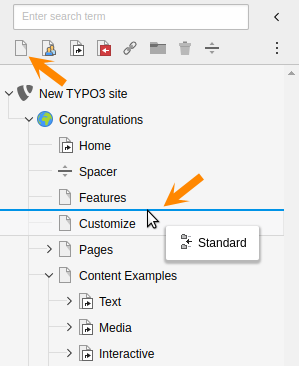
The standard page icon above the page tree
- Open the page creator: Click the + Page button at the top left of the page tree, or find the row of icons representing different types of pages.
-
Position your page:
- If using + Page: Click on a location for your new page in the popup window. Select the page with the globe icon ("root" page) if you want to create another main page or select an existing page to create a "child" page. Then click on Insert subpage. Choose the standard page type.
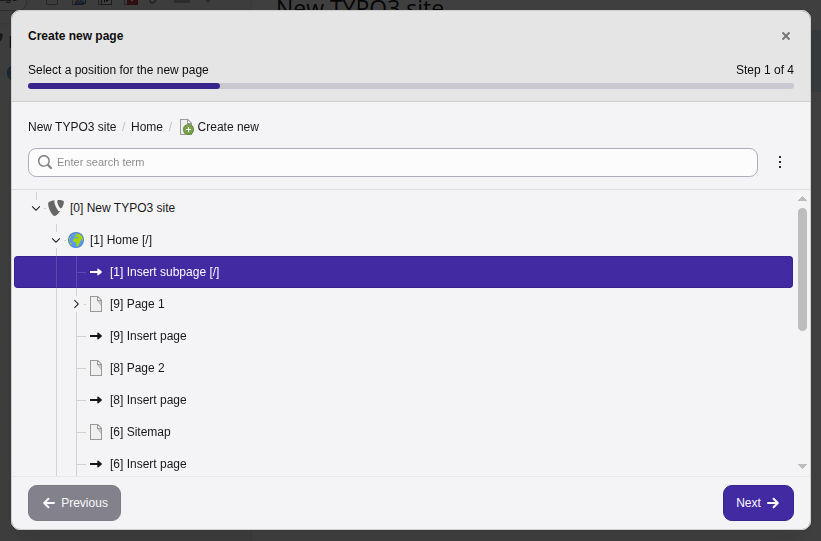
The insert subpage button on the page creator form
- If dragging an icon: Grab the Standard Page icon and drag it into the page tree. You will see the same popup window.
- Name your page: Enter a title in the popup window.
Method 2: Using the context menu
- Choose your location: right click on the "root" page (with the globe icon) to create another main page. Right click on an existing page if you want to create a "child" page.
-
Select New subpage from the context menu.
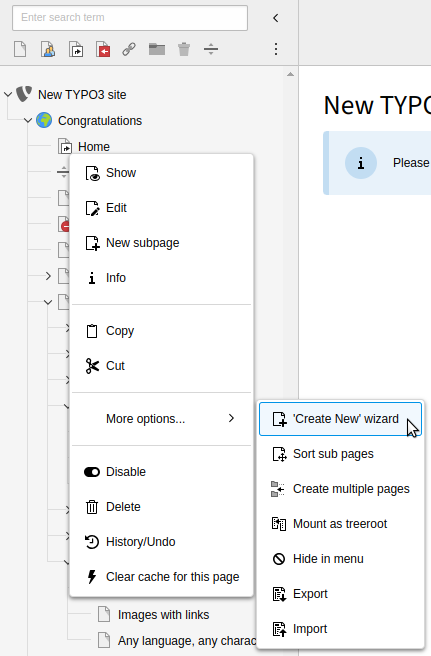
The context menu with the "New subpage" menu item
- Enter the page title in the popup window.
Making your new page visible in the frontend
New pages are hidden from the public by default. There are 3 ways that you can make your pages visible:
- In the page tree: Right-click on the page and toggle the Enable switch from the context menu.
- In the page properties of a page: Click on the page, click on Edit page properties at the top of the main pane, click on the Access tab, and toggle the Page visible switch (see below).
- You can also publish while you are creating a page: Scroll to the bottom of the popup window and toggle the Enable switch.
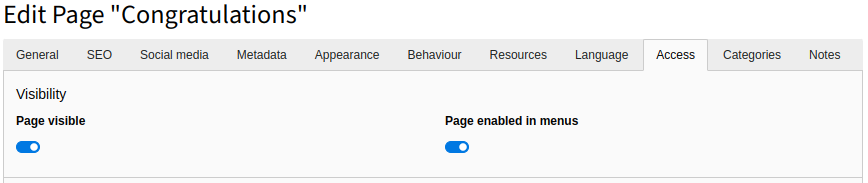
Making the new page publicly visible in page properties