
Installation
Quick start
The recommended way to install this extension is via Composer.
Install the license extension first (if it is not already present), then
AI Foundation (EXT:ns_t3af):
composer require nitsan/ns-license
composer require nitsan/ns-t3af
./vendor/bin/typo3 extension:setup
./vendor/bin/typo3 cache:flushClassic TYPO3 sites can also install from the TYPO3 Extension Repository (TER).
After installation:
- Activate the extensions in Admin Tools > Extensions.
- Open AI Foundation > Dashboard and confirm the module group is available.
- Connect providers and API keys in AI Foundation > AI Providers.
- Complete guided options with Quick Setup in the AI Foundation module header.
- Clear caches in Admin Tools > Maintenance.
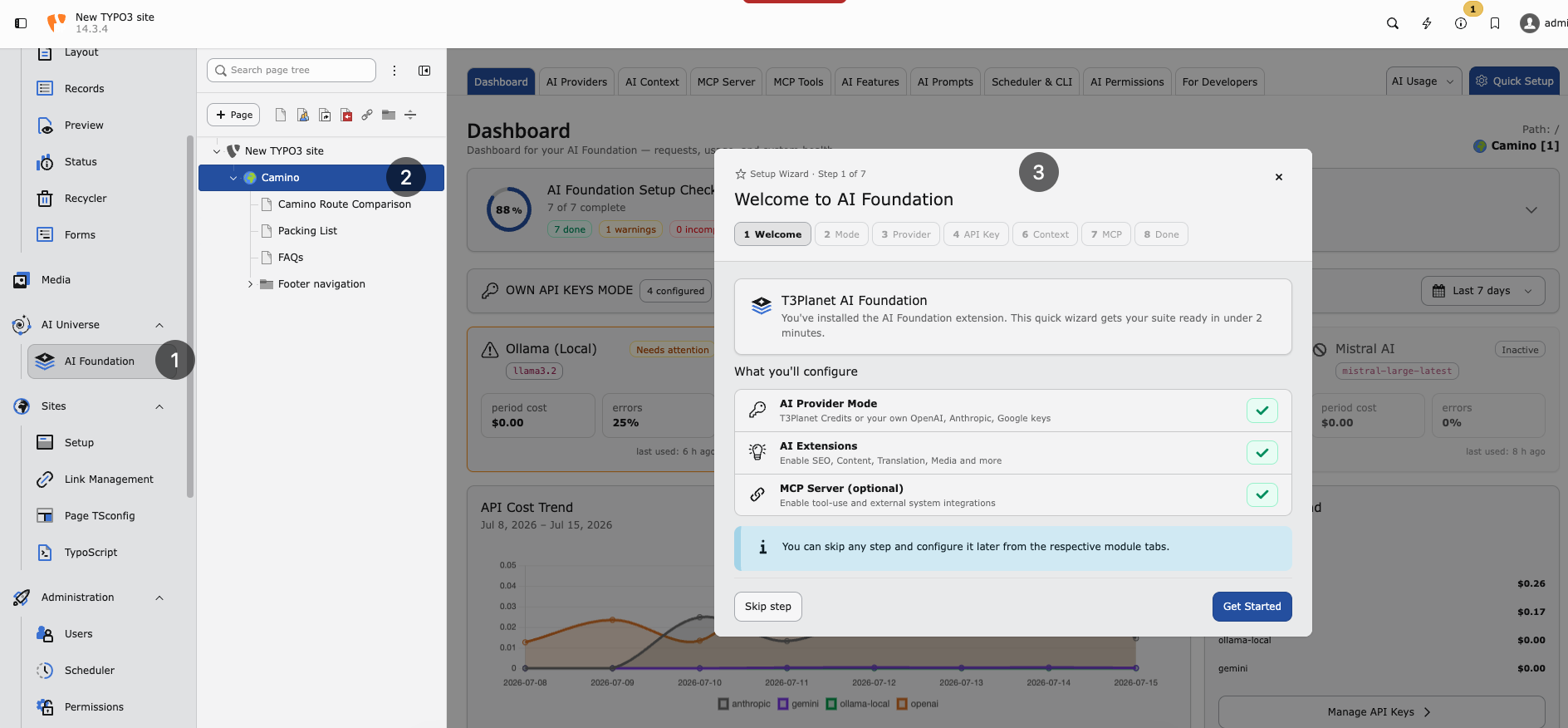
Quick Setup wizard — guided first-time configuration in the AI Foundation module.
Continue with Configuration for providers, MCP, and day-to-day module setup.
Composer installation
Requirements
Ensure your system meets these requirements:
- TYPO3 — 12.4 LTS, 13.4 LTS, or 14.x
- PHP — 8.2 or higher (8.3 recommended), including
ext-sodium - Composer — 2.x
- Database — MySQL 8.0+ or MariaDB 10.3+
- Network — Outbound HTTPS for AI provider API calls
Required Extensions
Install and activate these extensions before AI Foundation:
- ns_license — License activation and premium feature validation
- scheduler — Background AI jobs and scheduled tasks
- workspaces — Draft workspaces, MCP workflows, and safe content editing
scheduler and workspaces ship with TYPO3. Activate them if they are
not already enabled.
Install the license extension
EXT:ns_license must be installed first. AI Foundation depends on it for
license checks. The extension is free on the
TYPO3 Extension Repository.
composer require nitsan/ns-licenseOr use Admin Tools > Extensions > Get Extensions, search for
ns_license, install and activate it, then flush caches.
Install AI Foundation
EXT:ns_t3af must be installed after EXT:ns_license. Find it on the
TYPO3 Extension Repository.
composer require nitsan/ns-t3afOr use Admin Tools > Extensions > Get Extensions, search for
ns_t3af (or T3AF), install and activate it, then flush caches.
Get your free license key
A free license key is required to activate AI Foundation. After you install
EXT:ns_t3af, get your free license key and enter it before you continue
with configuration:
https://t3planet.de/en/ai-foundation-for-typo3#c19775
Activate the extension
Confirm ns_t3af is active in Admin Tools > Extensions.
Set up the database and clear caches
./vendor/bin/typo3 extension:setup
./vendor/bin/typo3 cache:flushManual installation
If you cannot use Composer, install both extensions from the TER in this order:
- Open Admin Tools > Extensions > Get Extensions.
- Search for
ns_license, install and activate it, then flush caches. - Search for
ns_t3af(or T3AF), install and activate it. - Run Analyze Database Structure.
- Flush caches again.
Warning
Manual installation requires manual dependency management. Composer installation is strongly recommended.
Verify the installation
Confirm that:
ns_licenseandns_t3afare listed as active in Admin Tools > Extensions- The AI Foundation module group appears in the backend sidebar
- Analyze Database Structure reports no pending changes for
ns_t3af
If the module is missing, flush caches and run
./vendor/bin/typo3 extension:setup again.
Next steps
Open AI Foundation > AI Providers to connect at least one provider, then review Configuration.