
Validators
Introduction
Validators can be added to all form elements to check user input for "validity" - i.e. existence, meaningfulness and correctness. For example, you can determine whether a field has been filled out or if the user has entered a valid email address. You can also define your own error messages. These messages can be edited in the form editor.
This chapter describes the individual validators and their function.
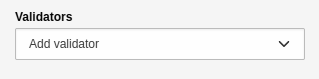
In the Inspector - adding validators.
Overview of validators
Alphanumeric
This validator checks whether the field contains an alphanumeric string. "Alphanumeric" means a combination of alphabetic and numeric characters. No special characters can be entered, only characters from [A-Z] and [0-9]. The settings of the validator are as follows:
- Custom error message: Custom error message that will be shown if the validator fails.
The validator is available for the following form elements:
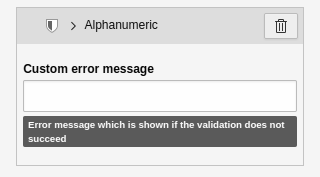
In the Inspector - Settings of the "Alphanumeric" validator.
String length
This validator uses minimum and maximum values to check how many characters can be entered. The settings of the validator are as follows:
- Minimum: Minimum amount of characters the field can contain.
- Maximum: Maximum amount of characters the field can contain.
- Custom error message: Custom error message that will be shown if the validator fails.
The validator is available for the following form elements:
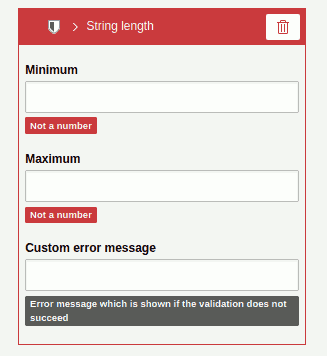
In the Inspector - settings of the validator "String length".
This validator checks whether an entered value is a valid email address. International characters and multiple occurrences of the @ sign are allowed by default. The settings of the validator are as follows:
- Custom error message: Custom error message that will be shown if the validation fails.
The validator is available for the following form elements:
- "Text"
- "Email address" (validator is automatically active)
- "Password"
- "Advanced password"
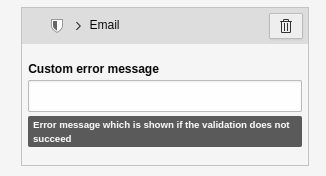
In the Inspector - Settings of the 'Email' validator.
Integer number
The validator checks whether an entered value is a valid integer. Numbers with commas are not allowed. The settings of the validator are as follows:
- Custom error message: Custom error message that will be shown if the validation fails.
The validator is available for the following form elements:
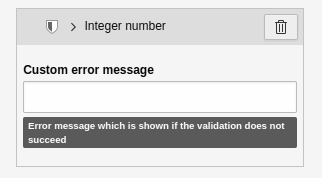
In the Inspector - settings of the validator 'Integer number'.
Floating-point number
The validator checks whether an entered value is a valid floating-point number. Only numbers with commas can be entered. The settings of the validator are as follows:
- Custom error message: Custom error message that will be shown if the validation fails.
The validator is available for the following form elements:
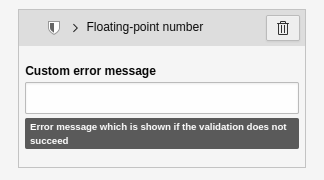
In the Inspector - Settings of the 'Floating-point number' validator.
Number
The validator checks whether the entered value is a valid number. Numbers with commas are not allowed. The settings of the validator are as follows:
- Custom error message: Custom error message that will be shown if the validation fails.
The validator is available for the following form elements:
- "Number" (validator is automatically active)
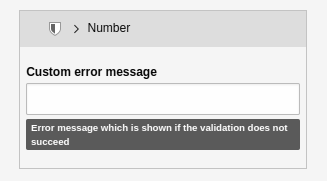
In the Inspector - Settings of the 'Number' validator.
Number range
The validator checks if an entered number is within a specified number range. The settings of the validator are as follows:
- Minimum: The minimum value that can be accepted.
- Maximum: The maximum value that can be accepted.
- Custom error message: Custom error message that will be shown if the validation fails.
The validator is available for the following form elements:
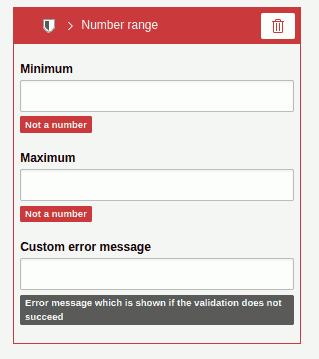
In the Inspector - Settings of the 'Number range' validator.
Regular expression
The validator checks whether an entered value matches a specific regular expression. The settings of the validator are as follows:
- Regular expression: The regular expression used for validation.
- Custom error message: Custom error message that will be shown if the validation fails.
Imagine that you want users to specify a domain name. The resulting value of the field should contain only the domain, for example, "docs.typo3.org" instead of "https://docs.typo3.org". The regular expression for this would be /^[a-z]+.[a-z]+.[a-z]$/.
The validator is available for the following form elements:
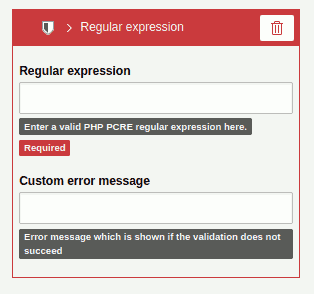
In the Inspector - Settings of the 'Regular Expression' validator.
Date range
This validator checks whether an entered value is within a specific date range. The range can be defined by specifying a start and/ or end date. The settings of the validator are as follows:
- Start date: The beginning of the date range (input: YYYY-MM-DD).
- End date: The end of the date range (input: YYYY-MM-DD).
- Custom error message: Custom error message that will be shown if the validation fails.
The validator is available for the following form elements:
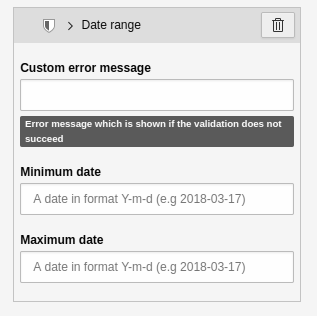
In the Inspector - Settings of the 'Date range' validator.
Number of submitted values
The validator checks whether an entered value contains a specific number of elements. The settings of the validator are as follows:
- Minimum: The minimum number of values submitted.
- Maximum: The maximum number of submitted values.
- Custom error message: Custom error message that will be shown if the validation fails.
The validator is available for the following form elements:
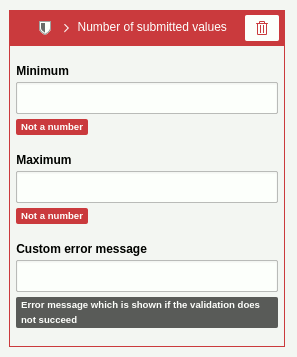
In the Inspector - Settings of the validator'Number of submitted values'.
File size
The validator checks the file size of a file resource. The settings of the validator are as follows:
- Minimum: The minimum acceptable file size (default: 0B).
- Maximum: The maximum acceptable file size (default: 10M).
Use the format B | K | M | G (byte | kilobyte | megabyte | gigabyte) when entering file sizes. For example: 10M means 10 megabytes. Please note that the maximum file size also depends on the settings of your server environment.
The validator is available for the following form elements:
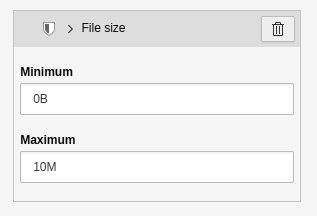
In the Inspector - Settings of the 'File size' validator.
Date/ Time
The validator checks if an entered value is a valid date and/ or time. The settings of the validator are as follows:
- Custom error message: Custom error message that will be shown if the validation fails.
The validator is available for the following form elements:
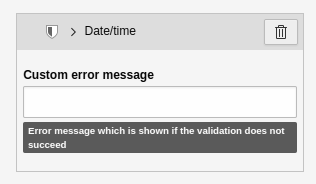
In the Inspector - Settings of the 'Date/ Time' validator.