
Add a Payment Method in the Reimbursement Tool
Categories: Beginner Author: @mabolek
The TYPO3 Reimbursement Tool is the budget and expense management tool for the TYPO3 ecosystem.
As a TYPO3 contributor, you can use it to request and track reimbursements for expenses, work time, or contribution rewards. Reimbursements are reviewed by the budget owner and transferred to you through PayPal or bank transfer.
Learning objective
In this step-by-step guide you will add bank or PayPal account information to the Reimbursement Tool.
Prerequisites
Tools and technology
- A web browser with internet access.
- A PayPal account or bank account with IBAN or BIC/SWIFT information.
- A My TYPO3 account (Sign Up for a My TYPO3 Account)
Knowledge and skills
- None beyond basic computer literacy.
Log in to the Reimbursement Tool
- In your web browser, go to reimbursement.typo3.com.
- If you are not already logged in, click on the gray Login button.
You will see the Reimbursement Tool dashboard. It is titled My Reimbursements.
Add a payment method
- Click on your name in the top right corner to open the user menu.

- From the user menu, select Payment Methods. You will be redirected to the payment methods summary page.
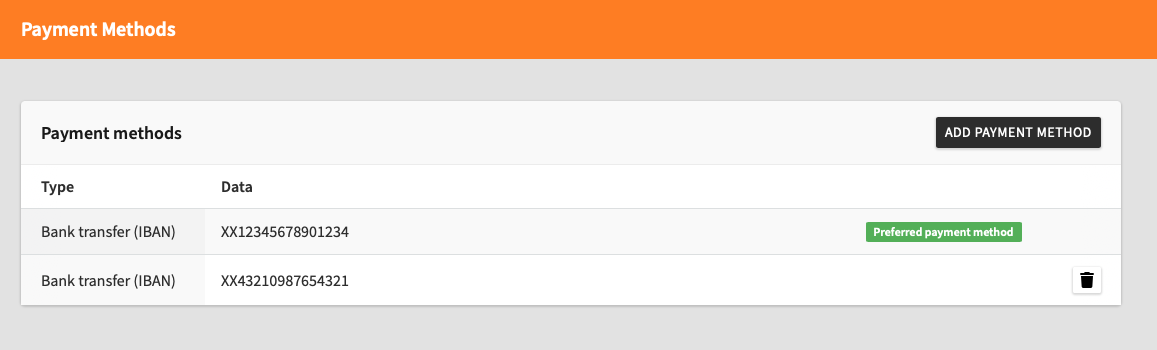
- Click on the black Add payment method button. You will be redirected to the payment method creation form. The form will default to the IBAN payment method.
- From the Type drop-down menu, select either Bank transfer (IBAN) or PayPal. The form will update accordingly.
The next steps are different, depending on which payment method you selected.
Fill in the form for Bank transfer (IBAN)
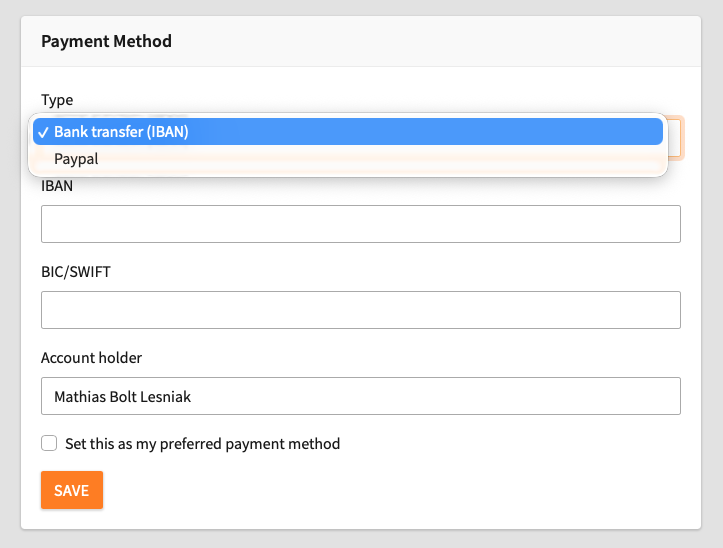
- In the Type drop-down menu, ensure that Bank transfer (IBAN) is selected.
-
Fill in the other fields as follows:
- IBAN: Enter your IBAN number, as supplied by your bank. The IBAN consists of up to 34 alphanumeric characters, starting with a two-character country code. For example:
XX12345678901234 - BIC/SWIFT: Enter your bank’s BIC/SWIFT code, as supplied by your bank. The BIC/SWIFT code consists of up to 11 alphanumeric characters. For example:
FOOBAR123 - Account holder: The name of the account holder, presumably your name.
- IBAN: Enter your IBAN number, as supplied by your bank. The IBAN consists of up to 34 alphanumeric characters, starting with a two-character country code. For example:
- Check the Set this as my preferred payment method checkbox if you would like to use this payment method as your default payment method.
- Click on the orange Save button. You will be redirected to the payment methods summary page.
Your payment method should now be visible in the list on the payment methods summary page.
Fill in the form for PayPal
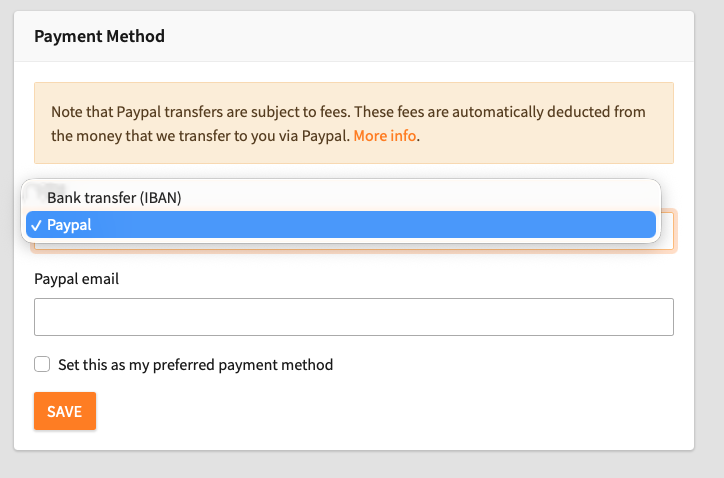
- In the Type drop-down menu, ensure that Bank transfer (IBAN) is selected.
- In the PayPal email field, enter the email address connected to your PayPal account.
- Check the Set this as my preferred payment method checkbox if you would like to use this payment method as your default payment method.
- Click on the orange Save button. You will be redirected to the payment methods summary page.
Your payment method should now be visible in the list on the payment methods summary page.
Caution
PayPal transfers are subject to fees. These fees are automatically deducted from the money that is transferred to you via PayPal. More information on PayPal fees
Summary
You have now created a payment method and can receive reimbursements from the TYPO3 Association to your bank or PayPal account.